This guide details the process for submitting Mass Payment files via your Xtrm company account. It covers downloading and completing the payment submission template, uploading payment files, managing funding, secondary approvals, and tracking beneficiary payouts.
The Mass Payment engine allows secure, automated bulk disbursements to individuals and companies globally. Processing is typically completed within 48 hours once wallet funding and required approvals are confirmed.
Prerequisites & Required File Fields
Before uploading your file, ensure your payment spreadsheet is formatted with the necessary data points. If a beneficiary does not exist in Xtrm, an account is created on the fly using their email address. Alternatively, you can instruct users to pre-register at your dedicated portal (https://yourcompany.xtrm.com).
For Individual Recipients
Full Name
Email Address
Payment Method
Amount
Currency
For Company Recipients
Company Name
Full Contact Name
Contact Email
Payment Method
Amount
Currency
Account Number [SPN] (Highly recommended)
Wallet ID (Highly recommended — see COMPANY005 - Locate Company Wallet IDs)
Note for Sporting Event Promoters: If you are submitting event results, you do not need to use the template. Submit results in an editable format (such as Excel or CSV—do not send PDFs).
Step-by-Step Instructions
1. Navigate to Mass Payments
Log in to your Xtrm Company Account at www.xtrm.com.
From the left-hand navigation menu, click Send.
Select Mass Payments.
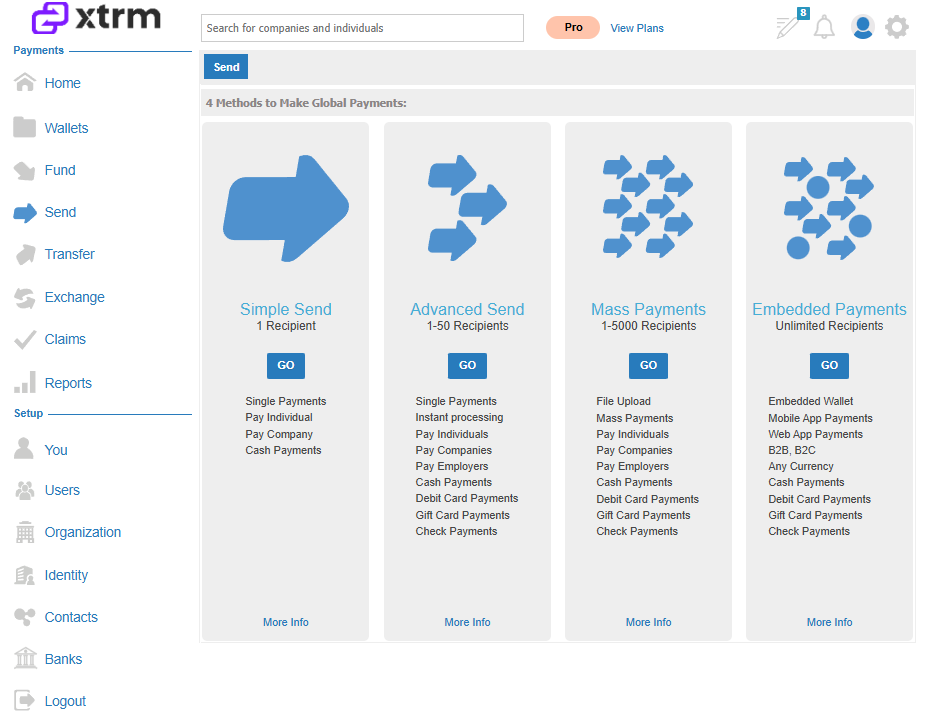
2. Download and Populate the Template
Click the Submission Template link on the page (or access the template directly via Google Sheets).
Download the document as an Excel spreadsheet (
.xlsx).Fill in the spreadsheet with recipient details and payout amounts according to the mandatory fields listed above.
Pre-registration Alternative: Rather than creating accounts on the fly, you can direct users to pre-register using your custom company URL: https://yourcompany.xtrm.com.
3. Upload the Mass Payment File
On the Mass Payments page, click Upload Mass Payment File.
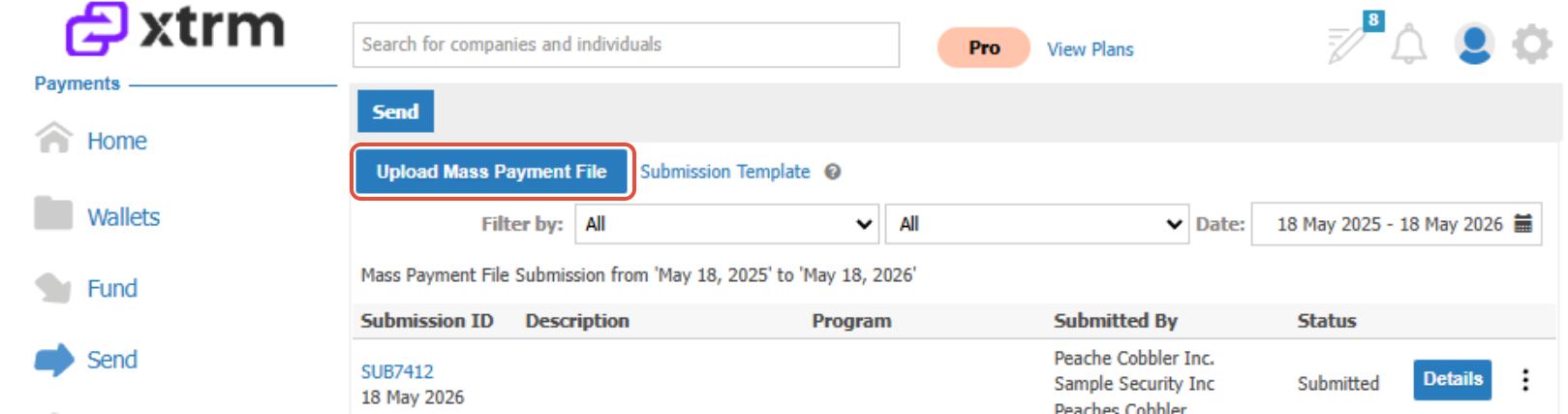
2. Click Choose File and select your saved spreadsheet (you may upload one or multiple files).
3. Select the applicable Program if the payment is associated with a specific campaign or reward program.
4. (Optional) Input notes or instructions in the Additional Information field.
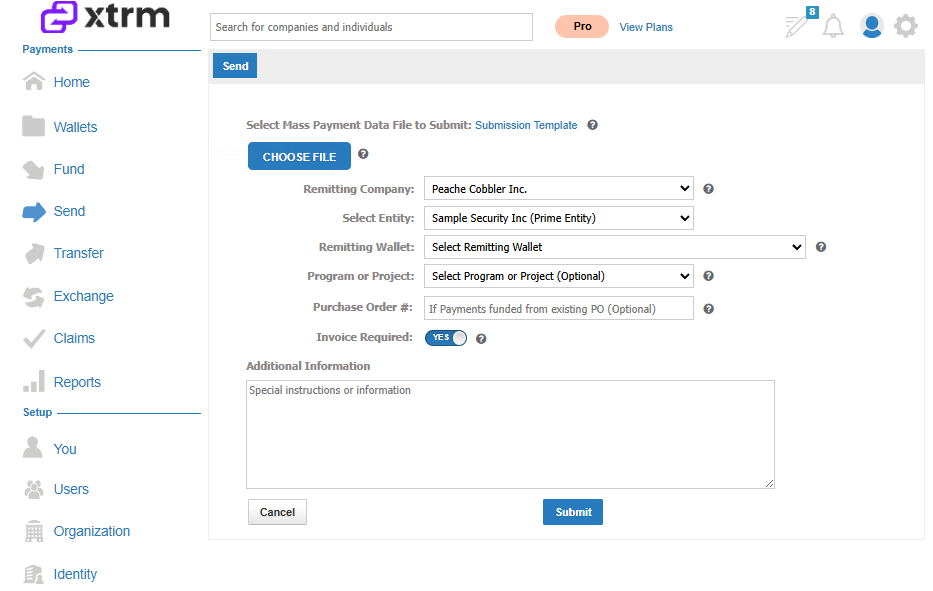
4. Configure Remitter & Secondary Approvals
Aggregators and Agencies: If submitting a file on behalf of a client, select the target organization from the Remitting Company drop-down list. If a client is missing, search for and add them to your Contact list first. (Note: Event promoters should select "Not Applicable" for the remitting wallet).
Secondary Approval Policy: If an approval policy is enabled for your company or wallet, designated users must review and authorize the file submission prior to processing. (For configuration details, see SECURITY010 — Approval Policies).
Funding & Execution Workflow
Responsibilities Overview
| Stage | Responsible Party | Description |
| 1. File Invoice | Xtrm | Upon file upload, a confirmation email and invoice detailing total payment amounts will be sent from billing@xtrm.com. |
| 2. Wallet Funding | Your Company | Remit payment for the invoice via Bank Transfer or ACH Debit. Alternatively, click Fund in the left navigation menu to pre-fund your wallet ahead of file submission to avoid processing delays. |
| 3. Disbursement | Xtrm | Once funds are credited to your wallet, Xtrm processes the file and deposits funds directly into the recipients' digital wallets. |
Recipient Payout Options
Once funds arrive in recipient Xtrm digital wallets, beneficiaries receive an email notification and can choose how to access their funds:
Direct transfer to a local or international bank account.
Virtual or plastic Prepaid Visa / Mastercard.
Global Digital Gift Cards (1000+ brands available).
Direct Check or Reward Links.
Processing Duration
The duration between file submission and recipient disbursement depends on invoice settlement speed:
Pre-funded Wallets: Processed within 48 hours of file submission and secondary approval clearance.
Invoiced Submissions: Processed within 48 hours after invoice payment is cleared and credited to the wallet.
Was this article helpful?
That’s Great!
Thank you for your feedback
Sorry! We couldn't be helpful
Thank you for your feedback
Feedback sent
We appreciate your effort and will try to fix the article