A Beneficiary Company account allows businesses to seamlessly receive payouts, commissions, incentives, or partner funds from one or more paying organizations (remitters). Through Xtrm's connected architecture, beneficiary companies can view incoming funds, manage multi-currency balances, and handle secondary distribution to their own employees or contractors.
Key Concepts & Connection Types
1. Remitter (Payer) Connections
When a company pays you via Xtrm, a connection is automatically established between your account and theirs.
Visibility: You can view connected remitters in your Xtrm account under Connected Accounts.
Multi-Payer Support: A single beneficiary company account can receive payments from multiple different remitters simultaneously without creating separate accounts.
2. Connected vs. Independent Accounts
Connected Beneficiary: A sub-account or partner account created directly by a remitter on your behalf.
Independent Account: An account registered directly by your business at www.xtrm.com which can then connect to multiple remitters.
Employer payments are payments sent to your company account instead of directly to your employees who may have been responsible or entitled to the payment. Beneficiary company Users can log into Xtrm to review the amount received and the transaction breakdown.
If you have received an Employer payment to your company account and you would like to transfer these funds to individuals, then please follow these instructions.
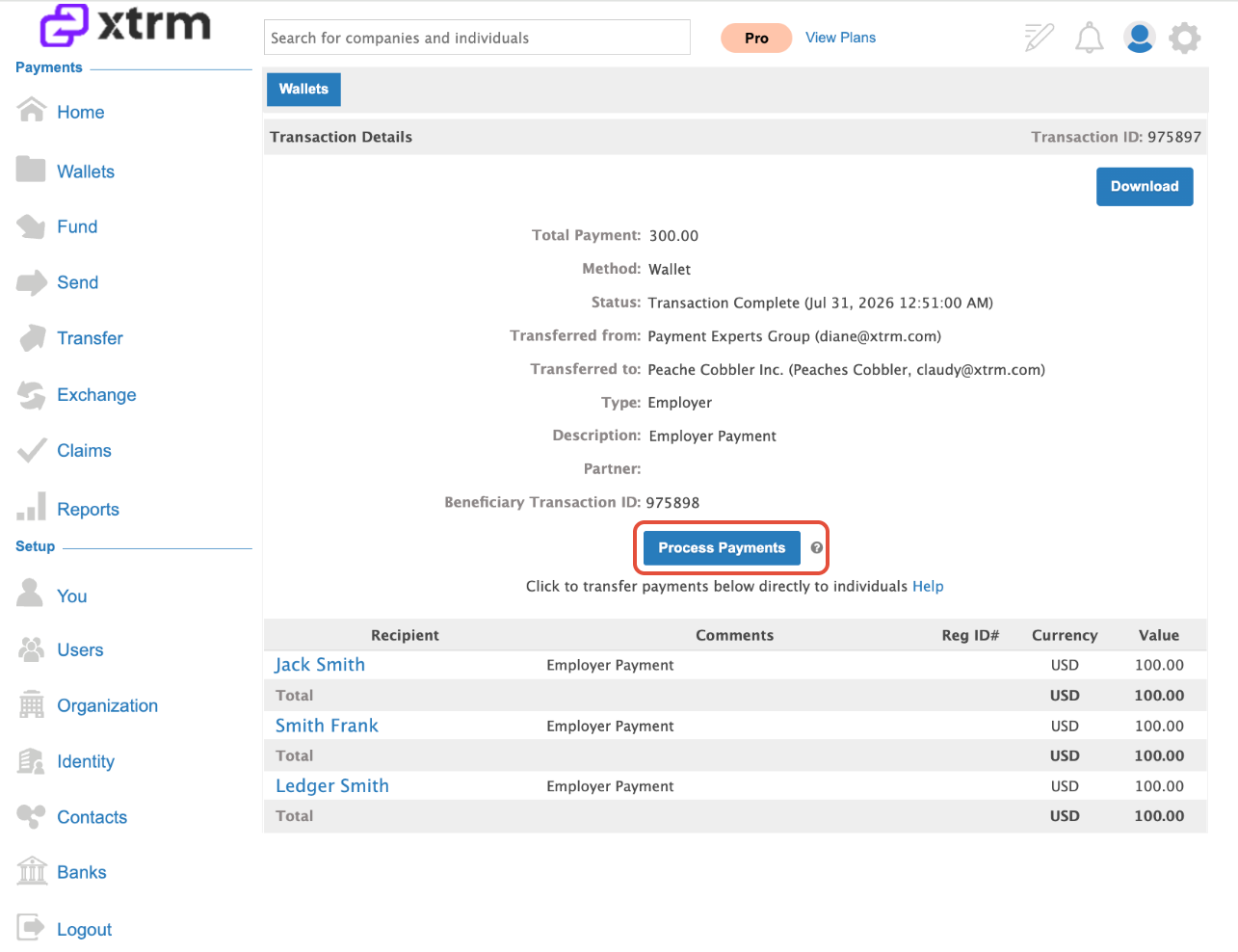
Your Employer payment will include a breakdown of the individuals that contributed towards that payment. You can view those details, and then if you want, you can process the transaction to those individuals. They will receive payments in their Xtrm Individual wallet, and your company account will be debited.
How Incoming Payments Work
How to Process Payments to Employees
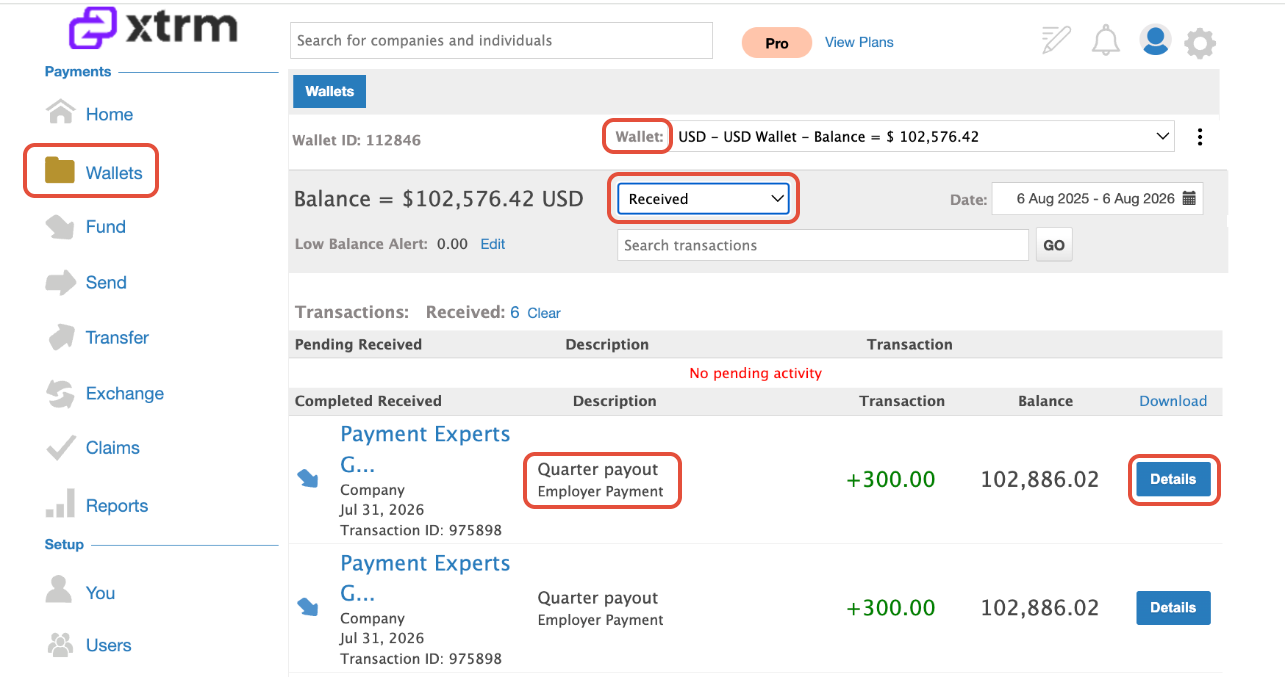
Review the list of individuals who contributed to the payment on the detail screen. Click the Process button and follow the prompts in the Payment to disburse the funds to those individuals.
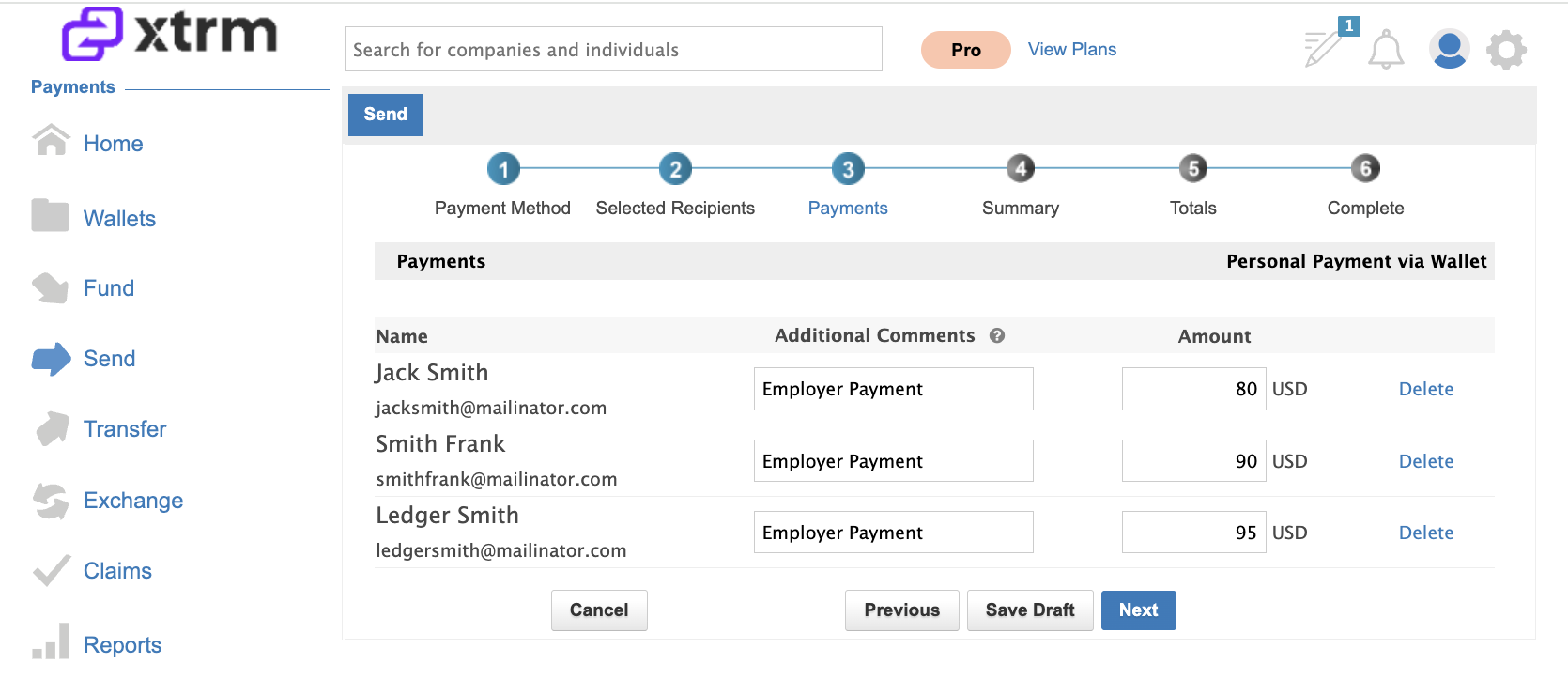
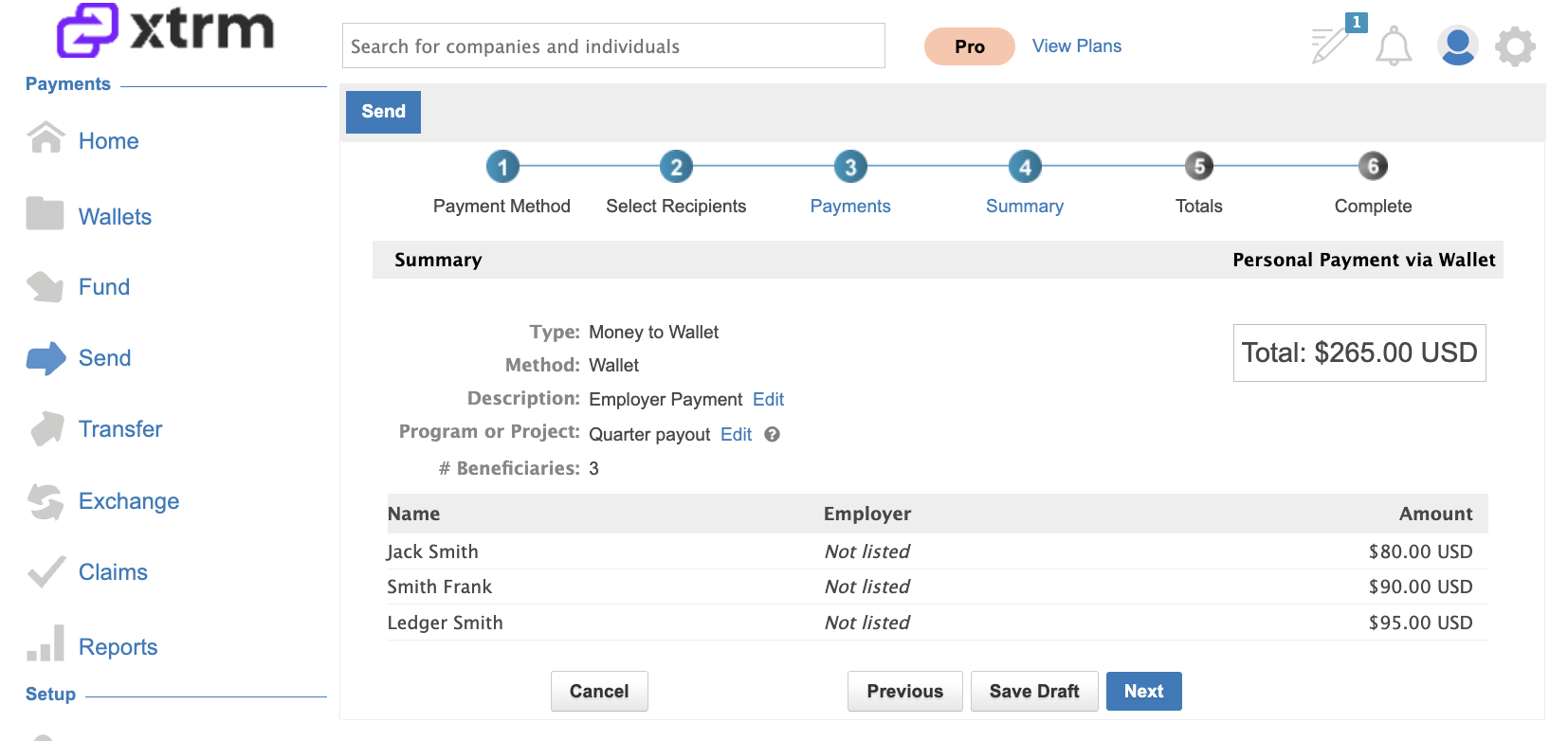
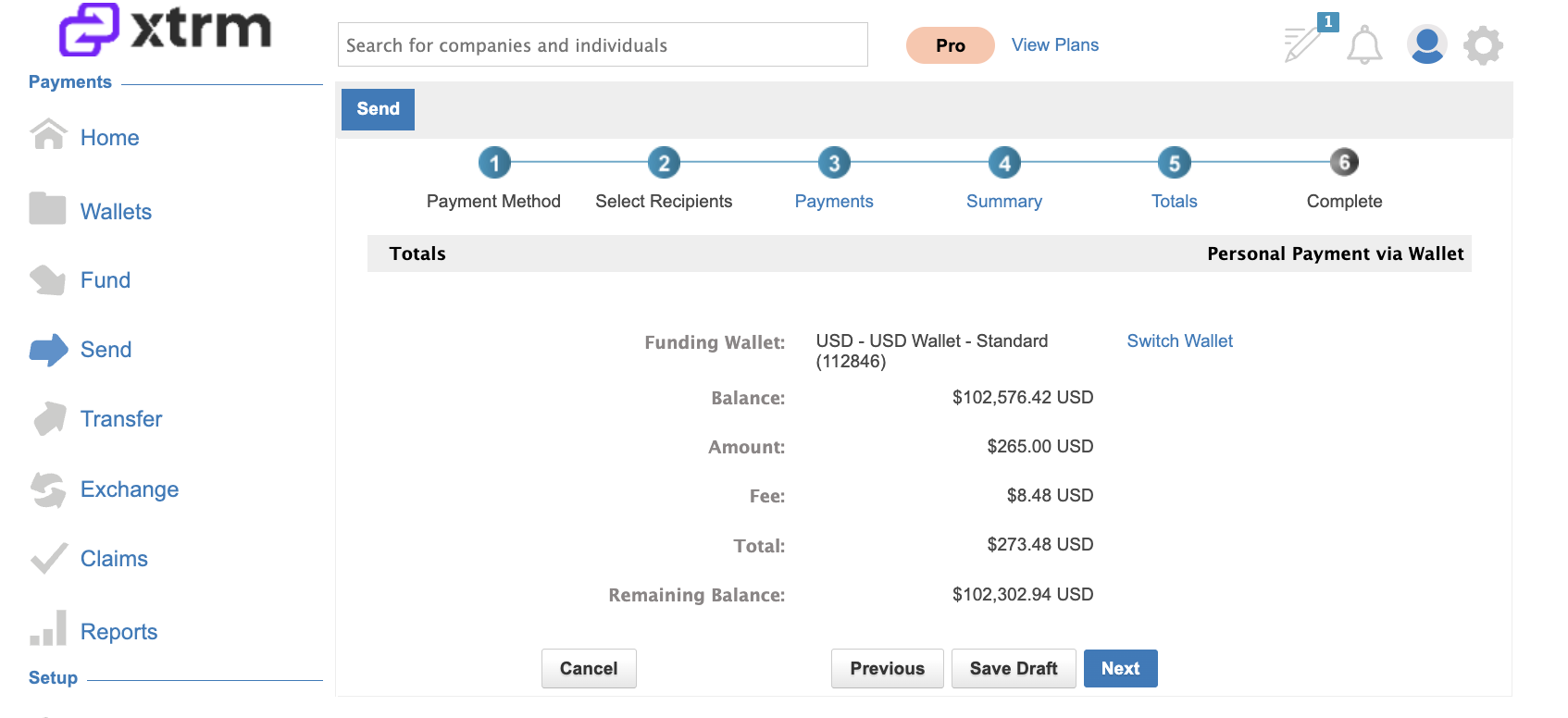
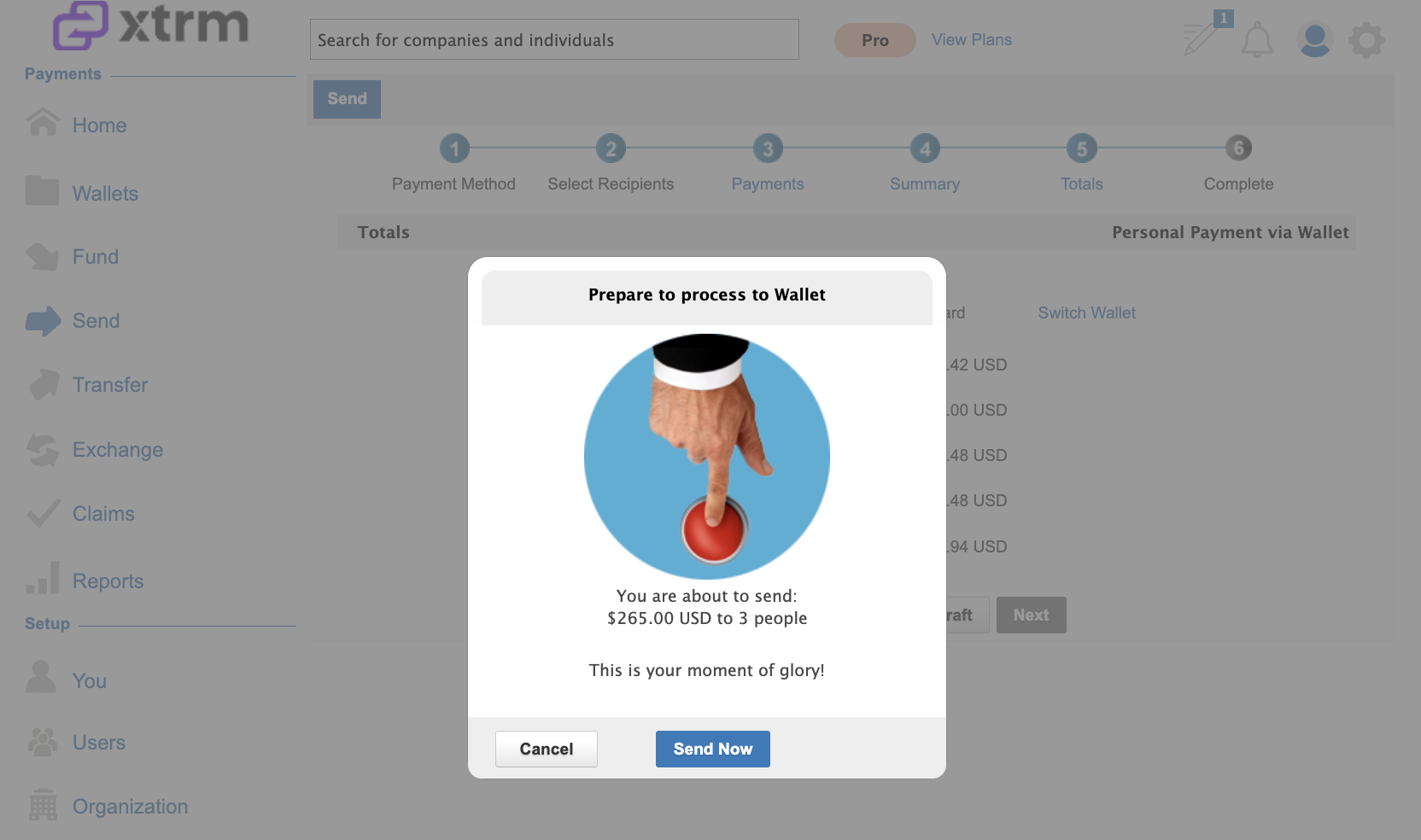
Follow the wizard prompts through to completion:
Adjust Recipients & Amounts: You can keep the default distribution or edit the individual recipients and amounts (e.g., reducing amounts to cover internal fees).
Delivery & Notification: Payments are delivered directly to each individual’s Xtrm AnyPay wallet, and an automated email notification is released to them upon completion.
Flexibility Option: You are not required to disburse funds to individuals—you can also choose to distribute funds to partners or transfer the entire amount directly to your business bank account.
Was this article helpful?
That’s Great!
Thank you for your feedback
Sorry! We couldn't be helpful
Thank you for your feedback
Feedback sent
We appreciate your effort and will try to fix the article