SEND003 — B2B Employer Payments
Last updated: August 26, 2026
Corporate policies and vendor agreements often require that incentive payouts — SPIFFs, sales commissions, contractor rewards — be sent to the employer company rather than to individual employees or contractors.
Xtrm's B2B Employer Payments model lets remitters send bulk funds to a partner company alongside an itemized employee distribution breakdown, giving the employer full oversight of the final disbursement.
Prerequisite: To send Employer Payments, your company must be approved for Advanced Services.
What is an Employer Payment?
An Employer Payment routes funds into a partner, vendor, or distributor company's Xtrm wallet instead of crediting individual worker balances directly.
How the money moves:
The remitter sends a single lump sum to the employer company's Xtrm wallet, attaching an itemized breakdown of which employee is owed what.
The employer company receives the full amount in its wallet, along with the line-item detail.
The employer decides what happens next — distribute the funds to individual employee wallets according to the breakdown, or transfer the lump sum out to a business bank account.
If distributed, each employee receives their own wallet notification and chooses how to withdraw their share.
The remitter never needs banking details for the individual employees, and the employer retains control of the final disbursement.
What the employer can do with the funds
Once the lump sum arrives in their Xtrm wallet, the employer chooses one of two actions.
Option A: Distribute to employees
Allocate the funds to individual employee Xtrm wallets.
Distribution follows the employee payment breakdown supplied by the remitter.
Each employee receives their own wallet notification and can choose their preferred payout method.
Logging in
Go to xtrm.com.
Log in using the email address that received the payment notification.
If you've forgotten your password, reset it at xtrm.com/web/Forgot.aspx or contact [email protected].
Distributing funds to employees
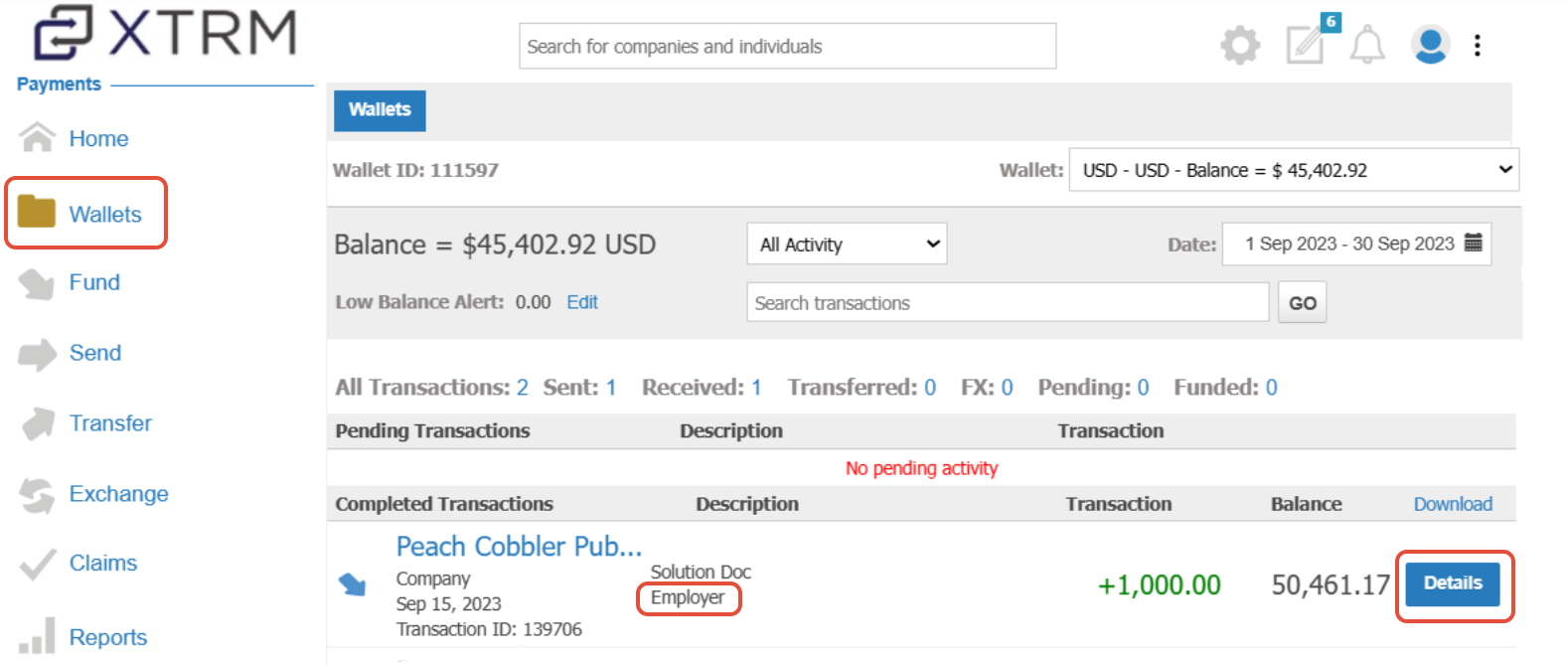
Open the wallet. Go to Wallets, find the wallet holding the Employer Payment, and click Details.
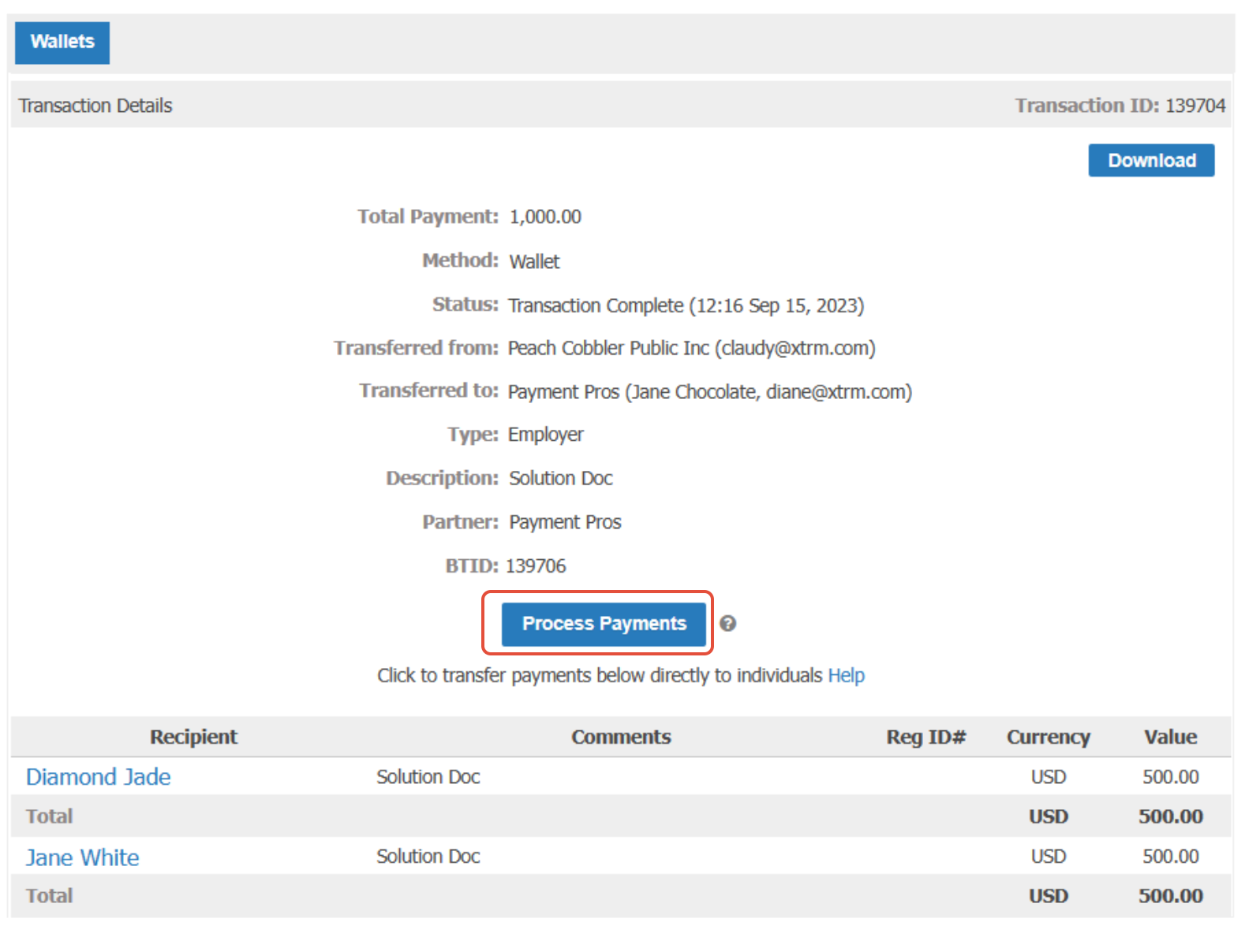
Start processing. Click Process Payments to see the itemized breakdown of individual employees or contractors and their reward amounts.
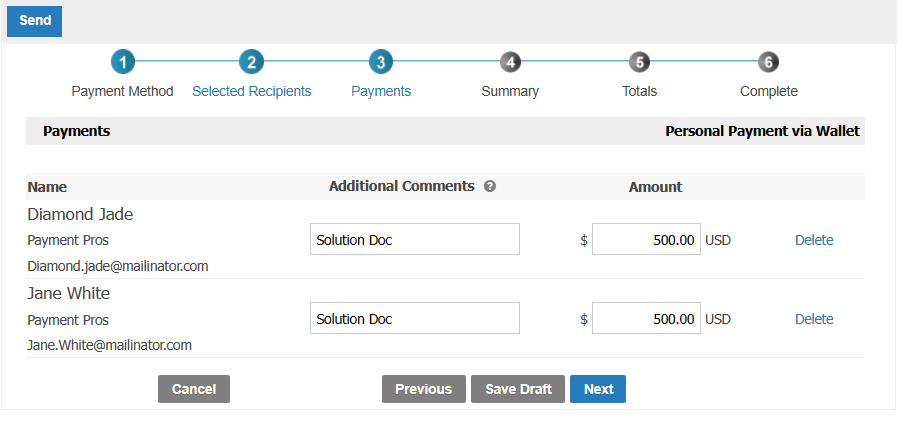
Review the line items. Check the recipients and amounts, then click Next.
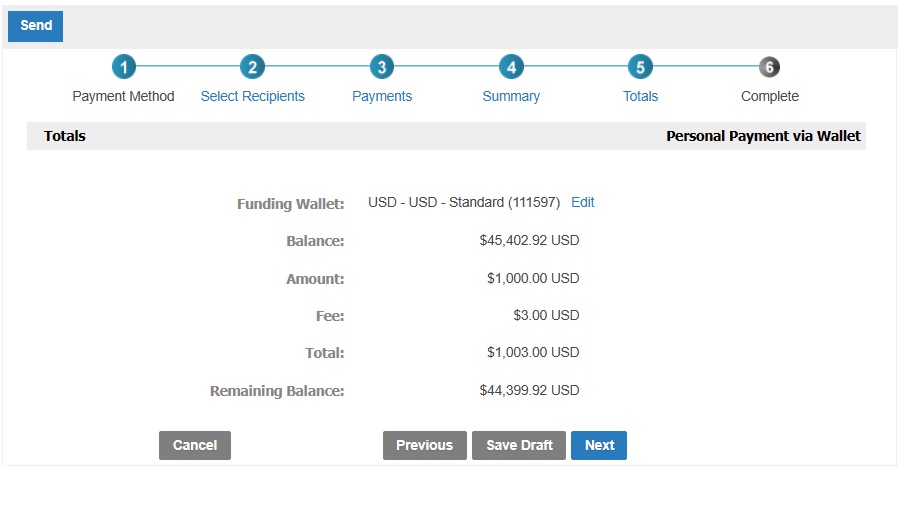
Confirm the summary. Review the total disbursement amount and click Next.
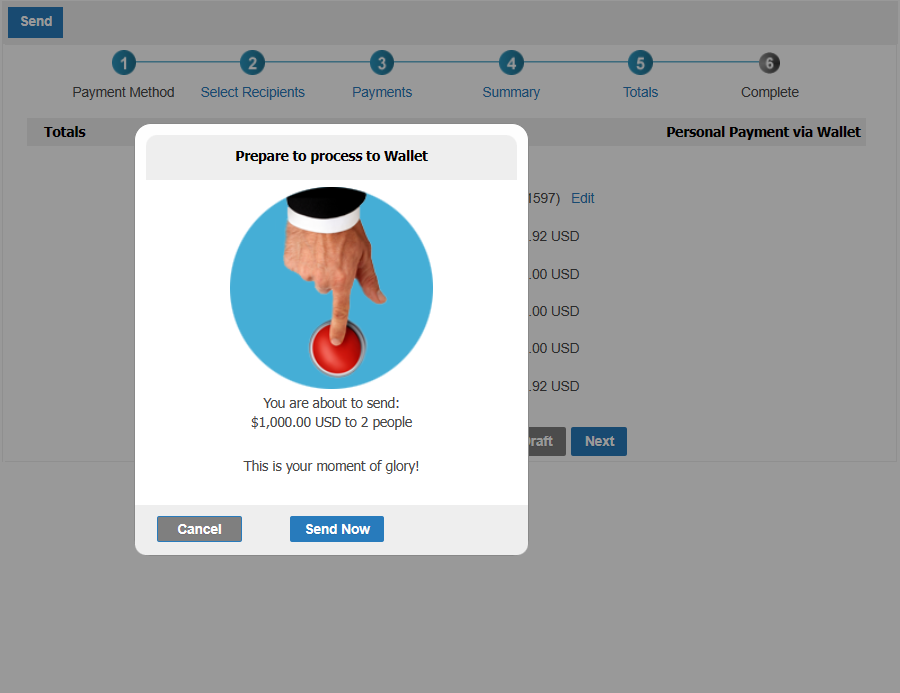
Dispatch. Click Send Now to execute the transfers into your employees' individual wallets.
Option B: Transfer to a business bank account
Move the full lump sum from the employer's Xtrm wallet to a linked business bank account by ACH or wire.
Additional payout methods may be available depending on program configuration and region.
Benefits for Beneficiary Companies
Corporate Compliance: Maintains corporate policy control over employee incentive programs, commissions, and SPIFFs.
Flexible Execution: Employer administrators can either pass through funds directly to individual employees' digital wallets or absorb the funds into company accounts.
Transparent Reconciliation: Provides full visibility and line-item breakdowns of every reward recipient and amount owed.
How employers manage received payments
When an Employer Payment arrives, an automated email alert is sent to every user with notifications enabled, along with the recipients of the employer payment.