SFDC003 — Xtrm Payments for Salesforce: Overview and Installation
Last updated: October 14, 2026
TL;DR
Xtrm Payments for Salesforce lets your team create payments in Salesforce. Xtrm pays them from your organization's Xtrm wallet, and each payment's status comes back to Salesforce.
Funding happens in the Xtrm platform, not in Salesforce. You add money to your organization's Xtrm wallet in the Xtrm platform, and every payment made in Salesforce is paid from that wallet.
Before you install, you need an Xtrm company account with a funded wallet, your Xtrm API credentials and API access for Salesforce approved by Xtrm (all in the Xtrm platform), plus a user with the System Administrator profile in Salesforce.
Install the package in Salesforce as a System Administrator with the install link, choosing Install for Admins Only and approving third-party access to Xtrm when Salesforce asks. It's the same package for every org; for a sandbox, see Install the package.
Then set it up with SFDC004 - Setup Guide (about 15 minutes) and share SFDC005 - User Guide with the people who make payments.
Overview
Xtrm Payments for Salesforce is a managed package that lets your team pay people and businesses from inside Salesforce. It works across two systems:
Salesforce, where your team creates and tracks payments in the Xtrm app this package installs.
The Xtrm platform, your organization's Xtrm account on the web, where your wallets and API credentials live and where the money moves. Xtrm is a global payment platform.
You create a payment in Salesforce. Salesforce sends it to Xtrm, Xtrm pays it from your organization's Xtrm wallet, and the payment's status comes back to the payment record in Salesforce.
Funding happens in the Xtrm platform, not in Salesforce. To add money to your organization's Xtrm wallet, log in to the Xtrm platform and fund it there. FUND001 - How to Fund Company Wallets covers the ways to fund a wallet.
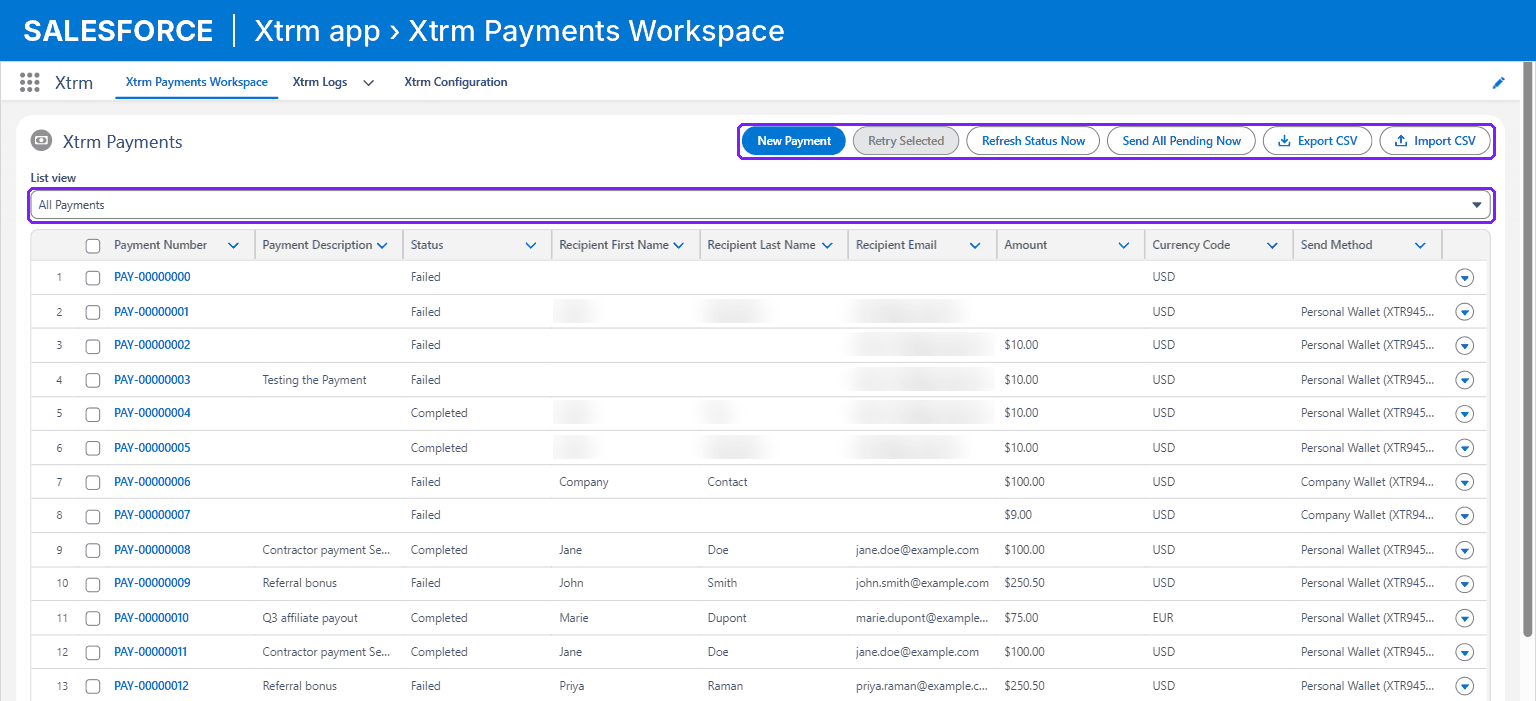
This article covers what the package does, what's in it, what you need before you install it, and how to install it. These articles cover version 1.13 of the package. Each screenshot has a label strip across the top naming where it was taken: blue for Salesforce, purple for the Xtrm platform.
What you can do with it
Pay a person or a business. Create a payment in Salesforce from the Xtrm Payments Workspace, or from a Contact or Account record with the Create Xtrm Payment button, once your Salesforce admin adds it to those pages.
Pay recipients who don't have an Xtrm account yet. If the recipient has no Xtrm account, Xtrm creates one for them. Later payments to the same person go to the same account.
Pay from one wallet. Every payment is paid from your organization's default source wallet in Xtrm, in that wallet's currency. Your Salesforce admin picks the wallet in the Xtrm app, and you add money to it in the Xtrm platform.
Track every payment in Salesforce. Each payment shows its status (Pending, Accepted, Processing, Completed, Failed, Rejected or Cancelled). A failed payment shows an Error Code and an Error Message.
Retry failed payments one at a time, or several at once from the workspace.
Pay many people at once by importing a CSV file with Salesforce's Data Import Wizard.
Choose when payments go out. Your Salesforce admin sets payments to go to Xtrm as soon as they are created, or on a schedule.
See every call Salesforce makes to Xtrm in the Xtrm Logs tab.
What's in the package
Everything in the package is installed in your Salesforce org. Nothing is installed in the Xtrm platform. Anything named "Xtrm" inside Salesforce, such as the Xtrm app and the Xtrm permission sets, comes from this package.
Component | What it's for |
|---|---|
Xtrm app | The Lightning app you open from the App Launcher in Salesforce. |
Xtrm Payments Workspace tab | Create, track, retry, export and import payments. |
Xtrm Logs tab | A record of every call Salesforce makes to Xtrm. |
Xtrm Configuration tab | Admin settings: the connection to your Xtrm account, the source wallet, the send mode and the scheduled jobs. |
Xtrm Payment object | One record per payment, shown on the Payment Record Page. |
Create Xtrm Payment action | Starts a payment from a Contact or Account record. Optional: your Salesforce admin adds it to those pages, because a package can't change your page layouts. |
Xtrm Admin permission set | For Salesforce admins who connect the app to Xtrm and manage its settings. |
Xtrm Payment User permission set | For Salesforce users who create payments, including integration and data load users. |
Before you install
In the Xtrm platform
An Xtrm company account with a funded wallet to pay from. If you need an account, or need the Salesforce integration added to your plan, talk to a specialist.
Your Xtrm API credentials: the Client ID, the Secret Key and your API Account # (it starts with SPN), under the gear icon, Integrations, API tab. SFDC004 shows where to find them.
API access for Salesforce approved by Xtrm. Xtrm only accepts API calls from servers it has approved, and the Xtrm app calls Xtrm from Salesforce's servers. SFDC004 shows how to request it.
In Salesforce
A user with the System Administrator profile to install the package and set it up. Setup takes about 15 minutes.
Lightning Experience. The Xtrm app runs in Lightning Experience.
Install the package
Where: Salesforce, in the org you install into.
Install link for Xtrm Payments for Salesforce (version 1.13): https://login.salesforce.com/packaging/installPackage.apexp?p0=04ta6000001WtDhAAK
It's the same package for every org. The link opens the Salesforce login page, and the package installs into the org you log in to. Production and Developer Edition orgs log in at login.salesforce.com. Sandboxes log in at test.salesforce.com, so to install in a sandbox, change login.salesforce.com in the link to test.salesforce.com.
You can read about the app on the Xtrm Payments for Salesforce listing on AppExchange. To install the package, use the install link above.
Open the install link.
Log in to the org where you want the package, as a System Administrator.
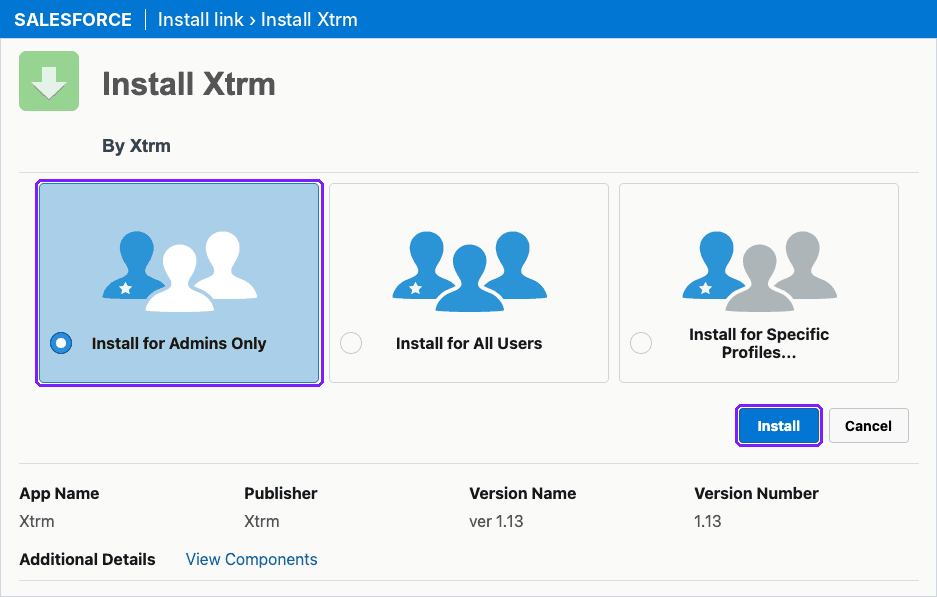
On the Install Xtrm page, choose Install for Admins Only and click Install. You give everyone else access with the Xtrm permission sets in Step 1 of SFDC004.
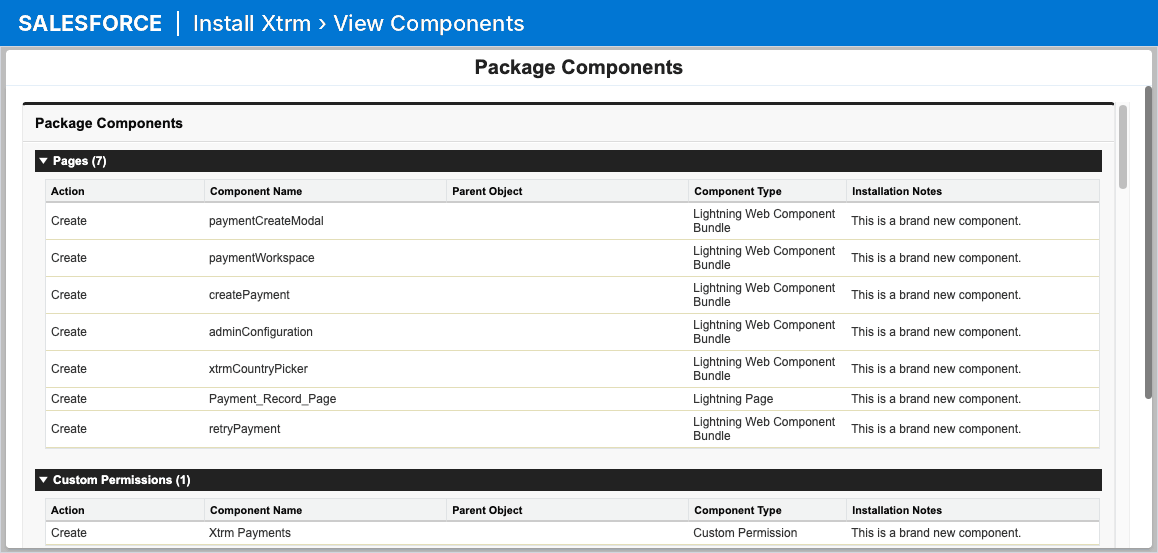
Optional: before you click Install, click View Components on the same page to see everything the package adds to your org.
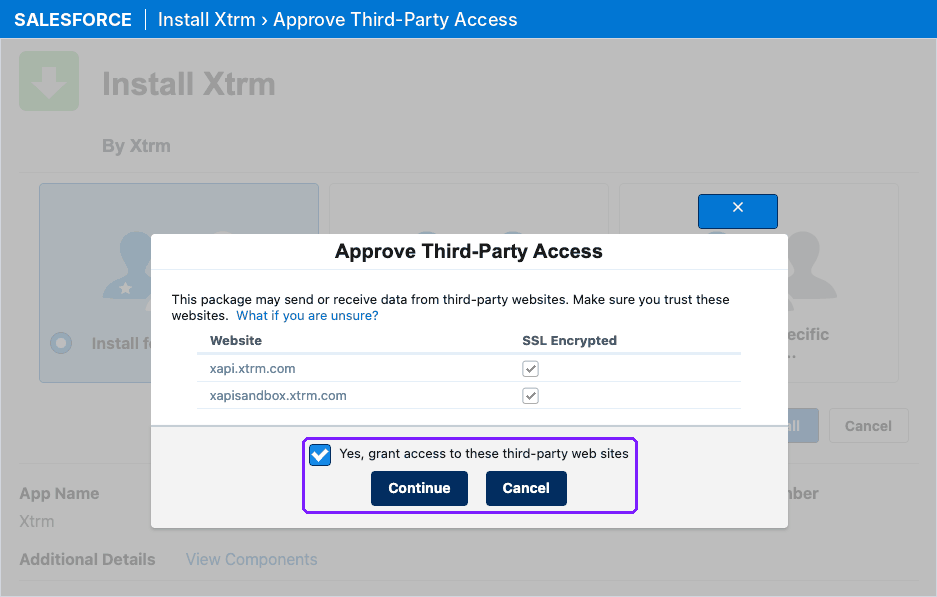
Salesforce asks you to approve third-party access. The Xtrm app calls Xtrm at these two addresses:
xapi.xtrm.comfor a live Xtrm account andxapisandbox.xtrm.comfor an Xtrm sandbox account. Tick Yes, grant access to these third-party web sites and click Continue.
Wait for the installation to finish.
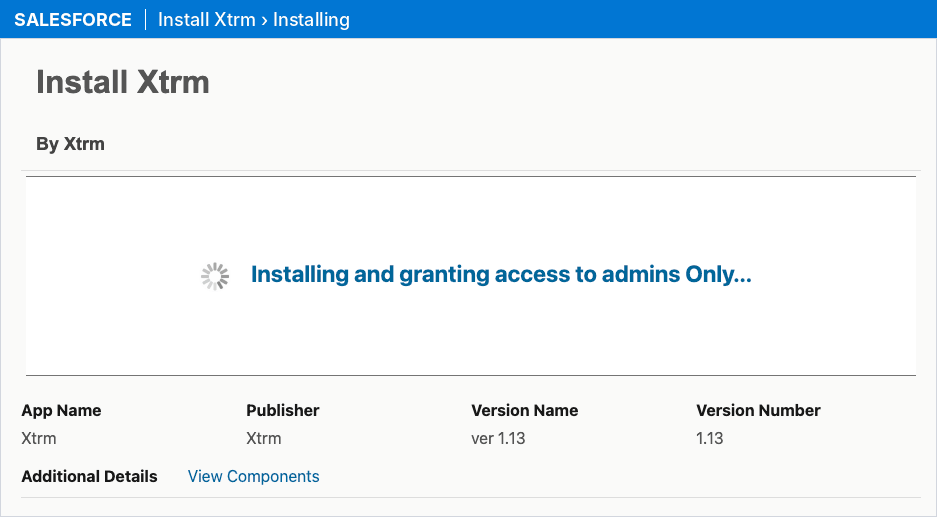
To check the installation, go to Setup and open Installed Packages. Xtrm is listed with the namespace prefix
xtrm.

Next steps
Follow SFDC004 - Setup Guide. It starts in the Xtrm platform, where you copy your API credentials, get API access approved for Salesforce and fund the wallet you'll pay from, and finishes in Salesforce, where you give users access, connect Salesforce to your Xtrm account, choose the Xtrm wallet that pays, and make a test payment.
Share SFDC005 - User Guide with the people who will make payments in Salesforce.
Need help?
Email [email protected] or contact your Xtrm Account Manager.