SFDC006 — Xtrm Payments for Salesforce: Pay Partners Automatically
Last updated: November 9, 2026
TL;DR
A payout source turns Salesforce records that are ready to be paid into Xtrm payments, so no one has to create the payments by hand. A record is only ever paid once.
A Salesforce Records source pays records on any object. Partner Fund Claims in Partner Cloud are the usual example: an approved claim is paid, and the claim moves to Paid once its payment is Completed.
A Spiff Report source pays each partner's Spiff statement: one payment per partner per pay period.
You set up payout sources in Salesforce, in the Xtrm app, under Xtrm Configuration, Settings → Payout Sources. A source runs when you click Run Now, on a schedule, or from a Flow when a record is approved.
Payouts are paid from your organization's Xtrm wallet, like any other payment. Funding happens in the Xtrm platform, not in Salesforce.
Before you start
Install Xtrm Payments for Salesforce (SFDC003) and set it up with SFDC004 - Setup Guide first: Salesforce connected to your Xtrm account, a default source wallet and a send mode. This article covers version 1.14 of the package.
You need the Xtrm Admin permission set in Salesforce. A payout source runs as the admin who clicks Run Now or schedules it, so that admin needs to be able to read the records and edit the field that marks them paid.
Payouts are paid from your default source wallet, in its currency, and a payout in any other currency is stopped before it is sent, like any other payment. Keep the wallet funded in the Xtrm platform. FUND001 - How to Fund Company Wallets covers the ways to fund a wallet.
To pay from Spiff, you also need a Spiff admin login with the Company Admin role, to create an API application and a report.
How a payout source works
It finds the records that are ready to be paid: the Ready Field has the Ready Value, for example a claim's Status is Approved.
It creates an Xtrm Payment for each ready record. The payment goes to Xtrm like any other payment, following the send mode, and you track it in Xtrm Payments Workspace.
Each run also marks records paid once their payment is Completed: it sets the Paid Field to the Paid Value, for example Status to Paid.
A record is only ever paid once, even when a later run, a schedule or a Flow reaches it again.
Pay Salesforce records, such as Partner Fund Claims
Where: Salesforce, Xtrm app, Xtrm Configuration tab, Settings → Payout Sources.
Partner Fund Claims are the market development fund (MDF) claims in Salesforce Partner Cloud. Once a claim is Approved it is paid, and once the payment is Completed the claim moves to Paid.

Open the Xtrm Configuration tab, then Settings → Payout Sources → Sources, and click New Source.
Fill in the source. For Partner Fund Claims, use these values:
Field | Value |
|---|---|
Source Name |
|
Source Type | Salesforce Records |
Object API Name |
|
Ready Field / Ready Value |
|
Amount Field |
|
Account Field |
|
Country Field |
|
Description Field |
|
Default Currency | Your source wallet's currency, for example |
Paid Field / Paid Value |
|
Email Field, First Name Field, Last Name Field |
|
Active | Ticked |
Click Save. Back on Sources, click Check next to the source. It lists anything that would stop the source from running, such as a misspelled field name. Fix those and check again.
Click Run Now to pay everything that is ready now. Last run shows the result, for example
1 created, 0 already paid, 0 skipped, 0 failed.
Who gets paid. The claim's partner account is paid as a company. A partner account that already has an Xtrm Account Number is paid straight into that Xtrm account. For a partner that doesn't have an Xtrm account yet, Xtrm sets up the partner's company account with the partner user who filed the claim as its admin. That's what the Email, First Name and Last Name fields are for.
Pay records on other objects
Any other object works the same way. Point the source at the field that says a record is ready, the amount, and who to pay. A field can follow a lookup, as in ChannelPartner.BillingCountry.
Pay Spiff statements
A Spiff Report source pays each partner's statement from Salesforce Spiff: one payment per partner per pay period. Each partner is paid as a person.
In Spiff: create an API application and a report
Where: Spiff, logged in as a Spiff admin with the Company Admin role.
Create an API application. Open Admin → Settings → API Access Management, create an application with the Custom Reports Export scope, and copy its Client ID and Client Secret. Spiff shows the Client Secret only once, so copy it when you create the application.
Create the report. Open Reporting → Create Report. Choose the API use case and the API Statement Report type. Add the Rep Email, Currency Code and Frozen State columns, set the Period filter to the period to pay, and click Run & Save.
In Salesforce: connect Spiff and create the source
Where: Salesforce, Xtrm app, Xtrm Configuration tab, Settings → Payout Sources.
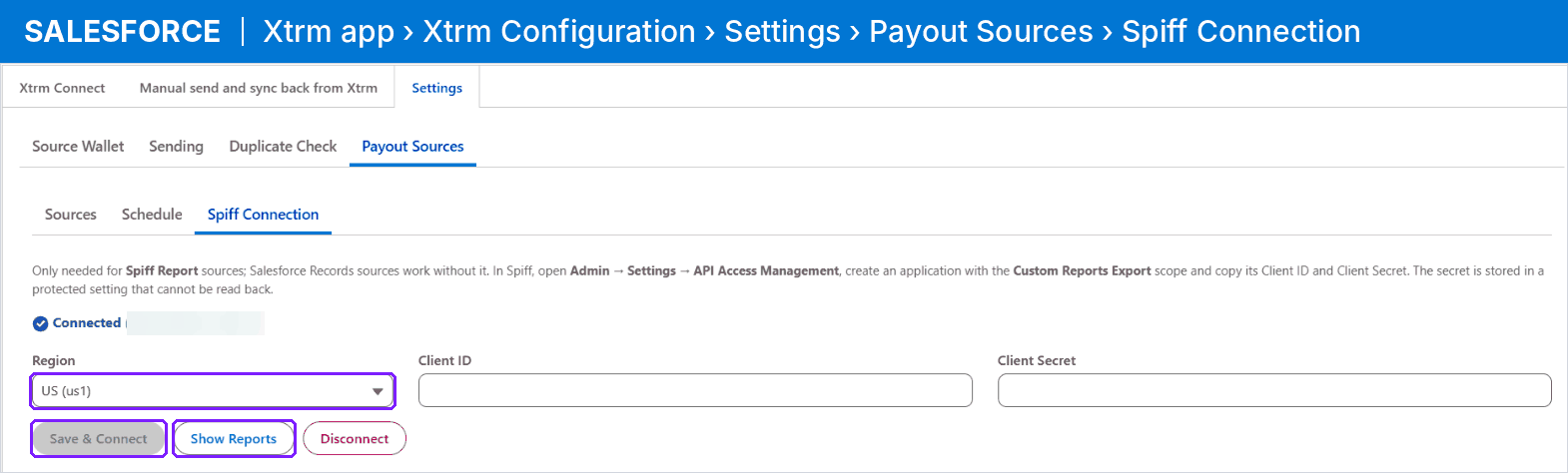
Connect Salesforce to Spiff. Open Payout Sources → Spiff Connection. Pick your Spiff region, US (us1) or EU (eu1), paste the Client ID and Client Secret, and click Save & Connect. When it works, Connected appears with a green check. Show Reports lists your reports and their Ids.
Create the source. On Sources, click New Source and fill it in:
Field | Value |
|---|---|
Source Name |
|
Source Type | Spiff Report |
Spiff Report Id | The Id from Show Reports |
Payout Id Column |
|
Amount Field |
|
Currency Field |
|
Email Field |
|
Full Name Field |
|
Description Field |
|
Recipient Type | Personal |
Ready Field / Ready Value |
|
Active | Ticked |

Click Save, then Check next to the source, then Run Now. A statement that is already paid is never paid again, even if the report still lists it.
Country. The report has no country, so each partner is matched to a Contact in Salesforce by email, and the Contact's mailing country is used. Make sure every partner has a Contact with the same email as in Spiff, or add a country column to the report and set Country Field.
Pay only frozen statements. It's the safer choice. A statement is paid once, so anything Spiff adds to it after it is paid is not paid. Freezing a period in Spiff once it is final avoids that.
Recalculate statements in Spiff before you run the source. Spiff exports the report only once its calculations finish, and a run waits for that.
Run sources on a schedule
Where: Salesforce, Xtrm app, Xtrm Configuration tab, Settings → Payout Sources → Schedule.
To keep paying as records or statements become ready, open Payout Sources → Schedule, pick a frequency and click Schedule. Only sources with Active ticked run on the schedule. Each run also marks records paid once their payment is Completed.
Pay a record the moment it is approved
Where: Salesforce Setup, Flows.
Add the Create Xtrm Payment from Record action to a record-triggered Flow, for example one that runs when a claim's Status changes to Approved. The record is still only ever paid once, even if the Flow and the schedule both reach it.
In Immediate mode, also schedule the Send Payment safety net (SFDC004, Step 5). It picks up any payment that could not be sent straight away, for example one created by a Flow running as the Automated Process user.
Track payouts and fix problems
Last run on Sources shows how many payments a run created, and how many records were already paid, skipped or failed.
A source won't run: click Check next to it. It lists what's wrong, such as a misspelled field name.
A payout failed: each payout is an Xtrm Payment. Open it from Xtrm Payments Workspace, read the Error Code and Error Message, fix the cause and click Retry Payment. SFDC005 - User Guide lists the common error codes.
The wallet doesn't have enough money: fund it in the Xtrm platform (funding isn't done in Salesforce), then retry the failed payments.
More detail: the Xtrm Logs tab in Salesforce records every call Salesforce makes to Xtrm.
Still stuck: contact your Xtrm Account Manager or [email protected] with the source name, its Last run result, and the Error Code and Error Message of any failed payment.