Transferring funds from your company's Xtrm digital wallet directly into a linked business bank account is secure and simple. All bank transfers require Two-Factor Authentication (2FA) via a One-Time Security Code to ensure maximum security.
Want to see how this works in real-time? Use the interactive demo below to click through the steps before reading the full guide.
Step-by-Step Transfer Instructions
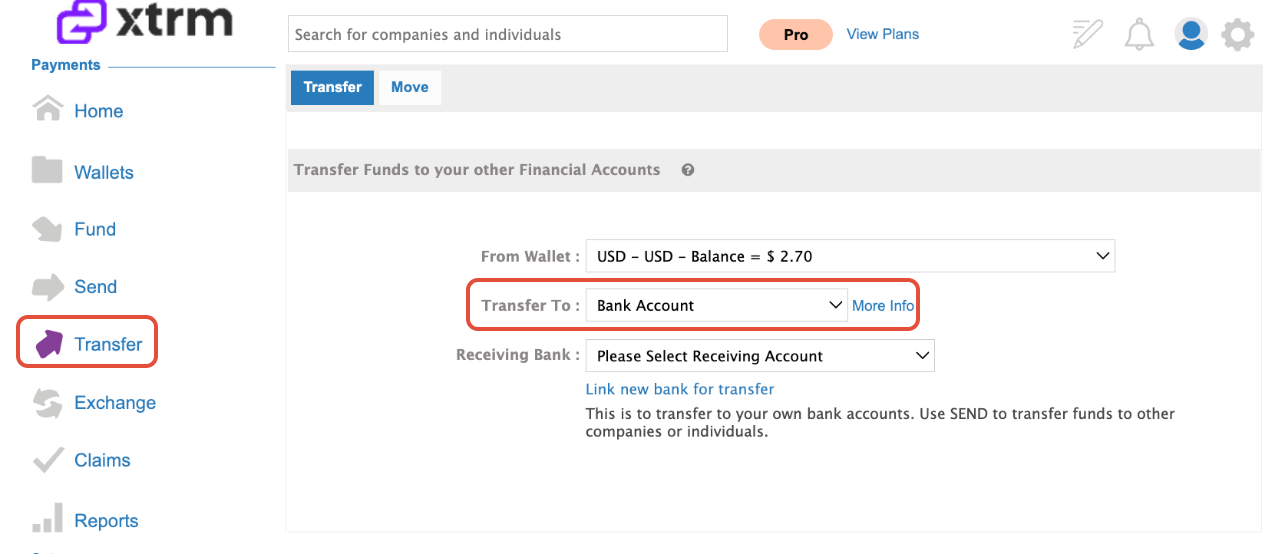
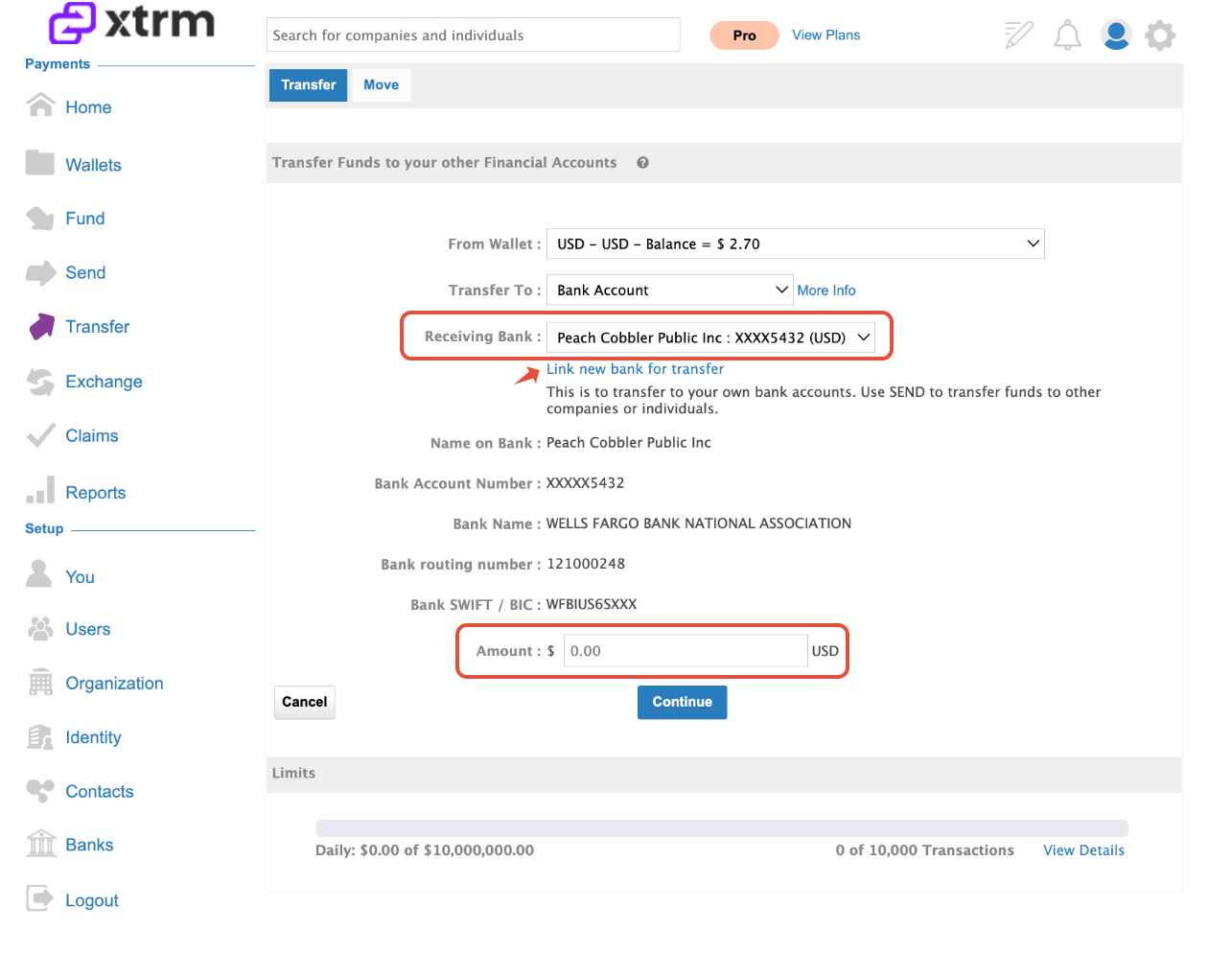
Choose your target receiving bank from the dropdown list (identified by bank name, last 4 digits, and currency). Enter the desired transfer amount and click Continue.
(If your target bank is not listed, use the Link Bank Account option to connect a new financial institution).
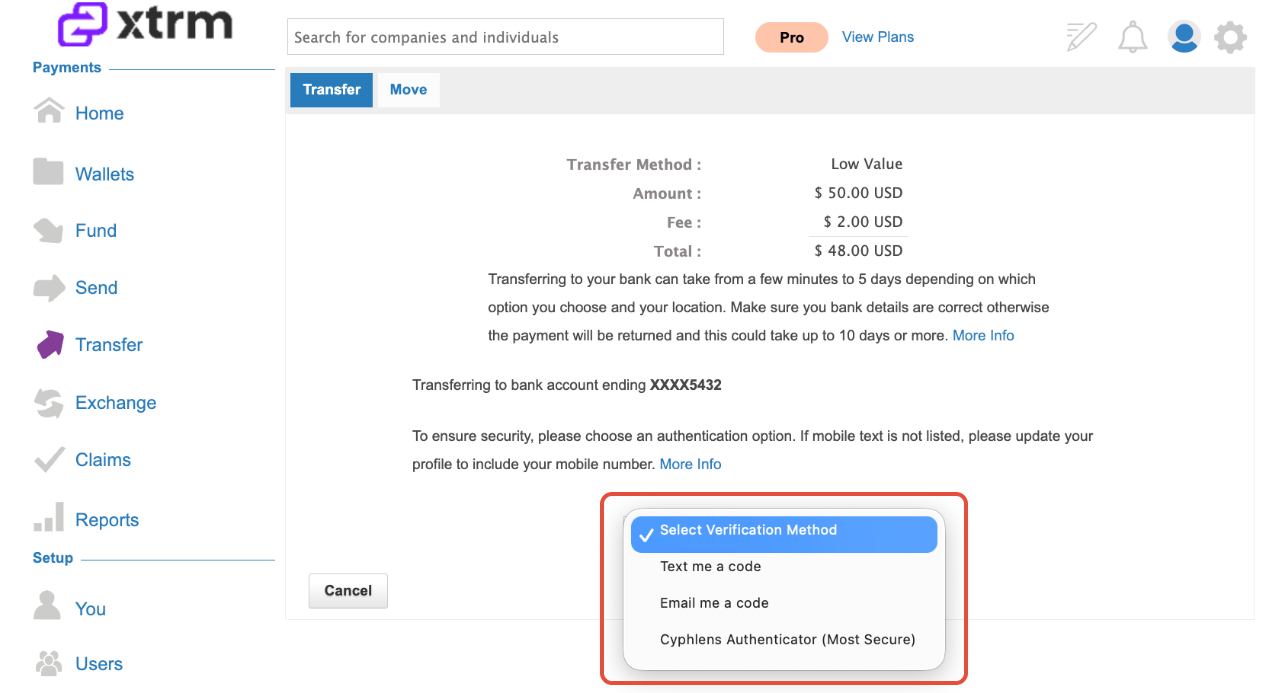
Select your preferred channel (Email, Mobile SMS or Cyphlens) to receive your One-Time Security Code for two-factor authentication.
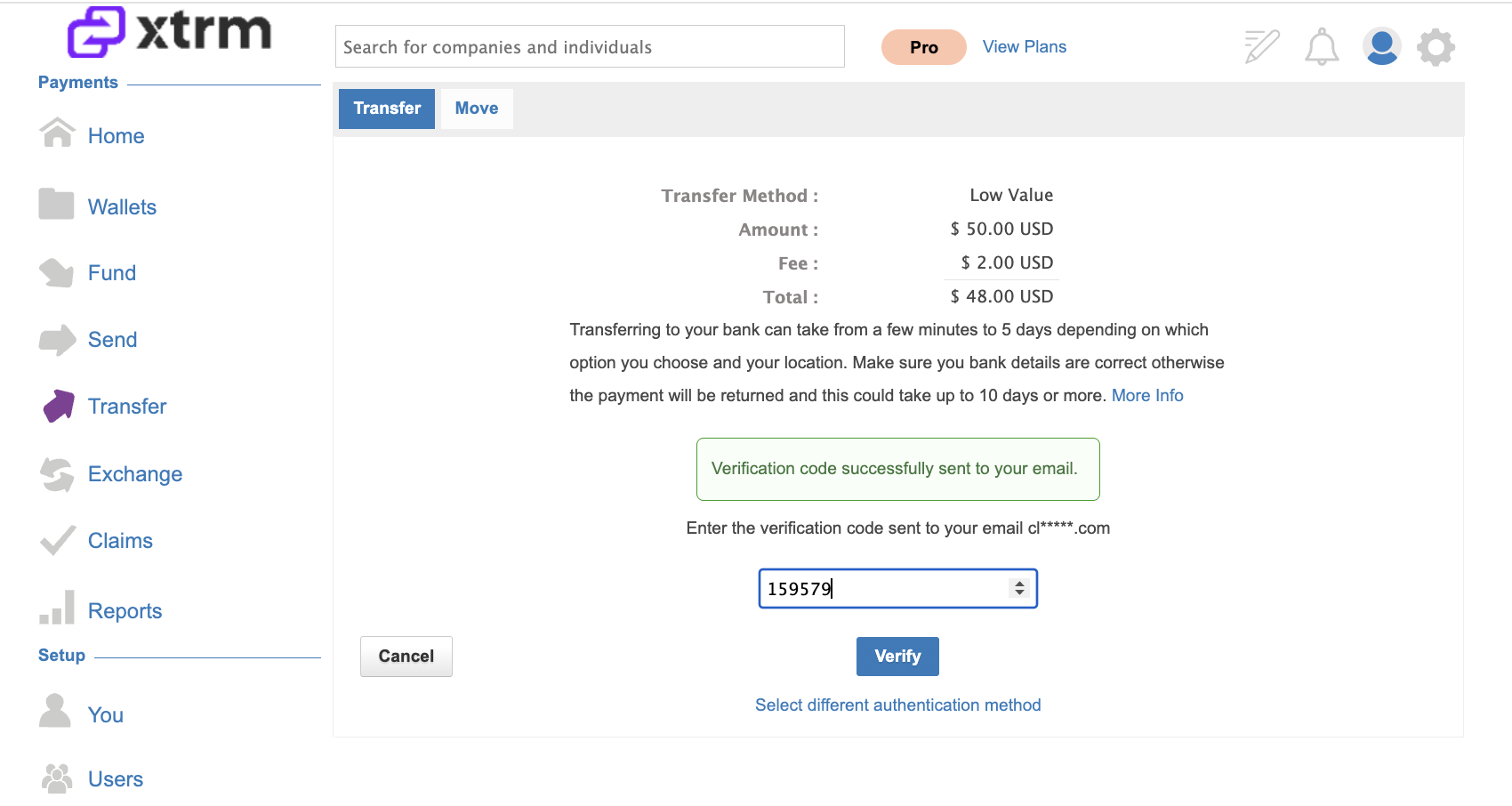
Enter the code received on your device and click Verify.
Once verified, click Transfer to finalize the transaction. You will be redirected back to your wallet, where the transaction will reflect as Completed.
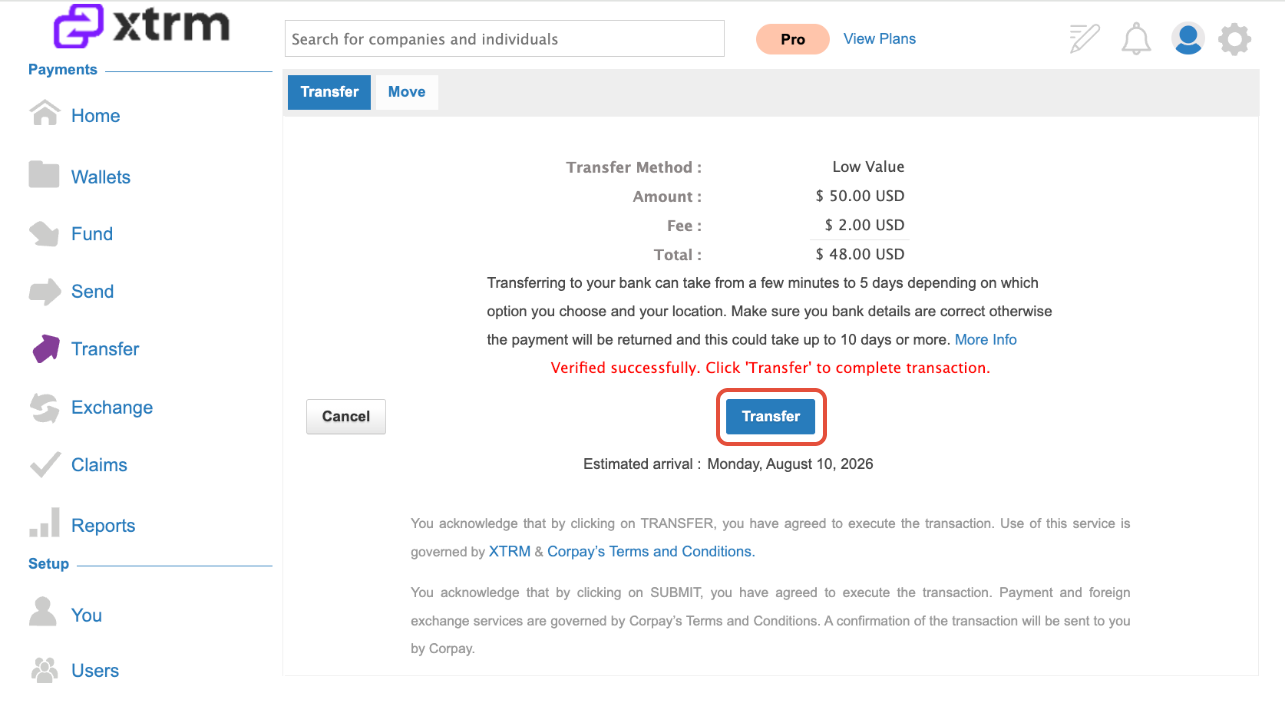
6. Record of Transfer:
Once initiated, you will return to Wallets to view your transfer record.
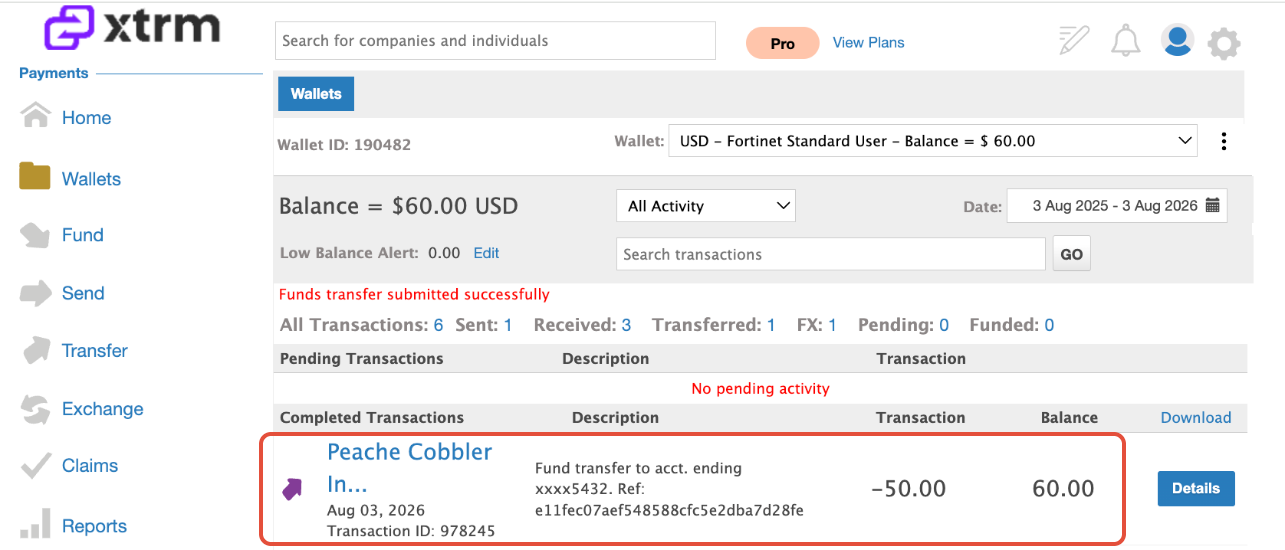
7. Bank Statement Record:
A transaction record will appear on your bank statement referencing either Xtrm or the specific remitter who sent the payment. (See example below)

Was this article helpful?
That’s Great!
Thank you for your feedback
Sorry! We couldn't be helpful
Thank you for your feedback
Feedback sent
We appreciate your effort and will try to fix the article