Overview
Payments are typically sent directly to a user’s Xtrm wallet. However, remitters can choose to send funds directly to a beneficiary partner’s bank account using Bank Direct (typically at the beneficiary’s request).
This enables incoming wallet payments to be automatically routed to a designated bank account, allowing beneficiaries to receive funds without logging into Xtrm.
Here are the steps to do so:
Create a Contact
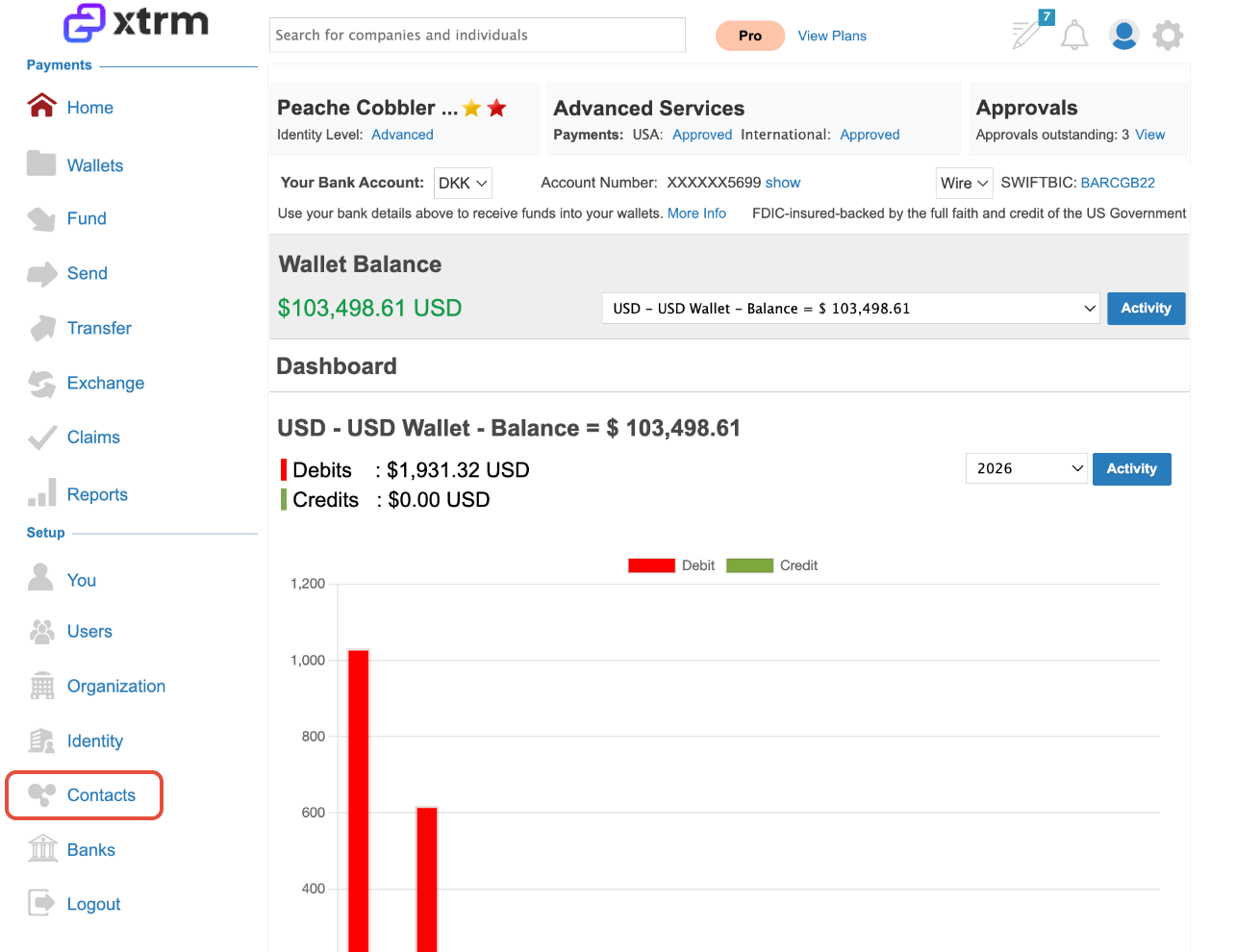
1. Log in to xtrm.com and navigate to Contacts
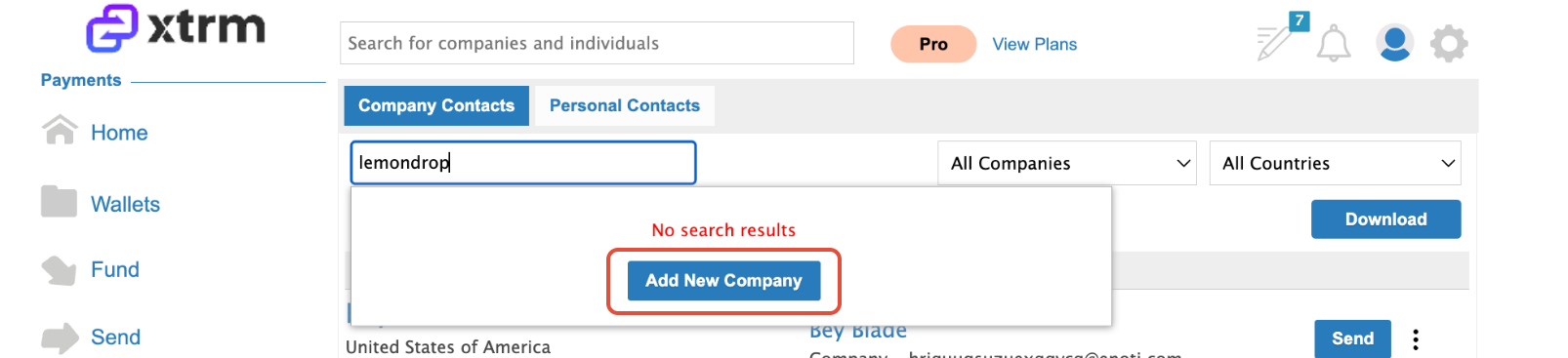
2. Search or Add Company
- Search for the company name you wish to send a payment to
- If the company does not exist, click Add New Company
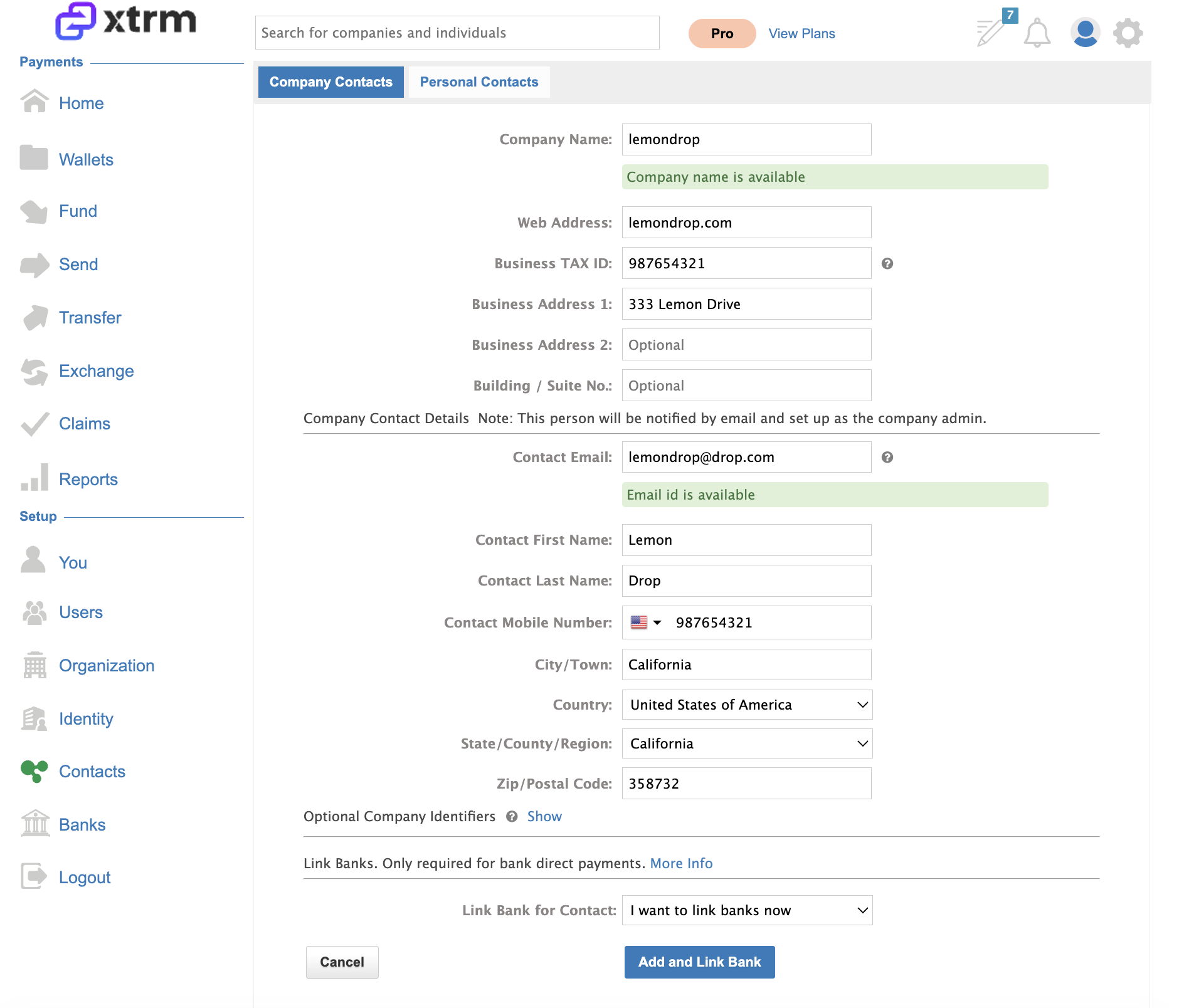
3. Enter Company Details & Link Bank
- Complete the required company information
- Select “I want to link banks now”
- Click Add and Link Bank
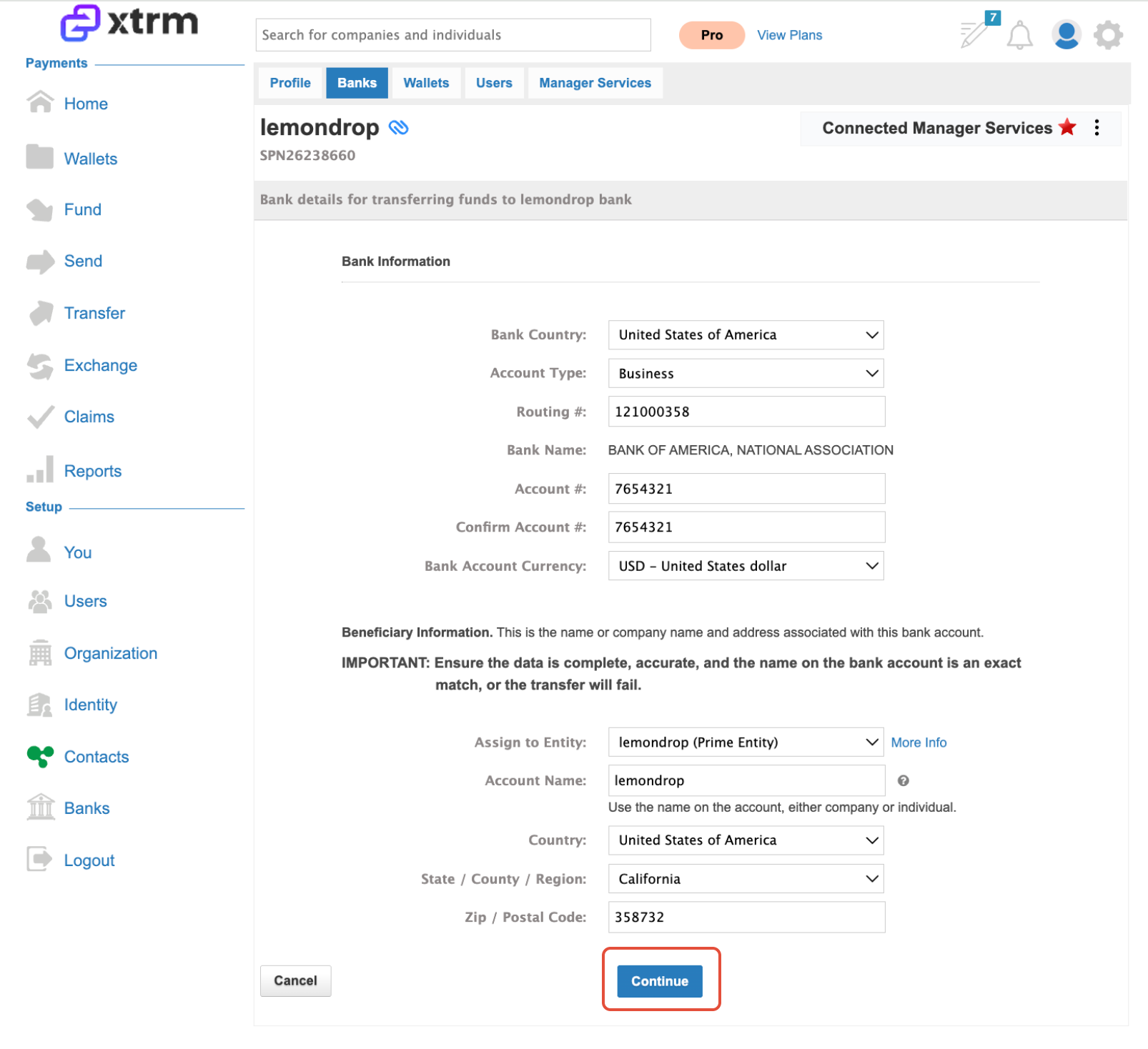
4. Add Bank Details
- Enter the beneficiary partner’s bank account details
- Ensure all banking information and currency selection are accurate
- Click Continue
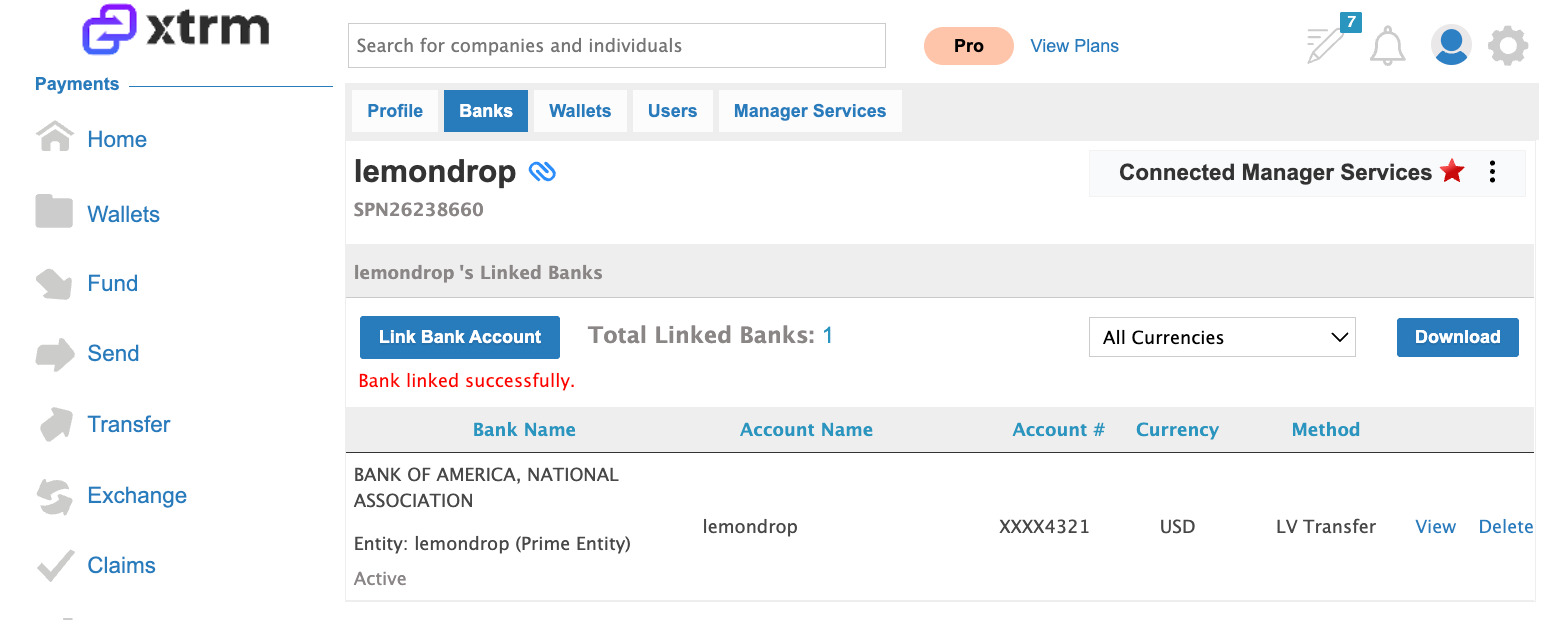
5. Confirm Bank Link
- The bank account will now appear under the beneficiary partner’s profile
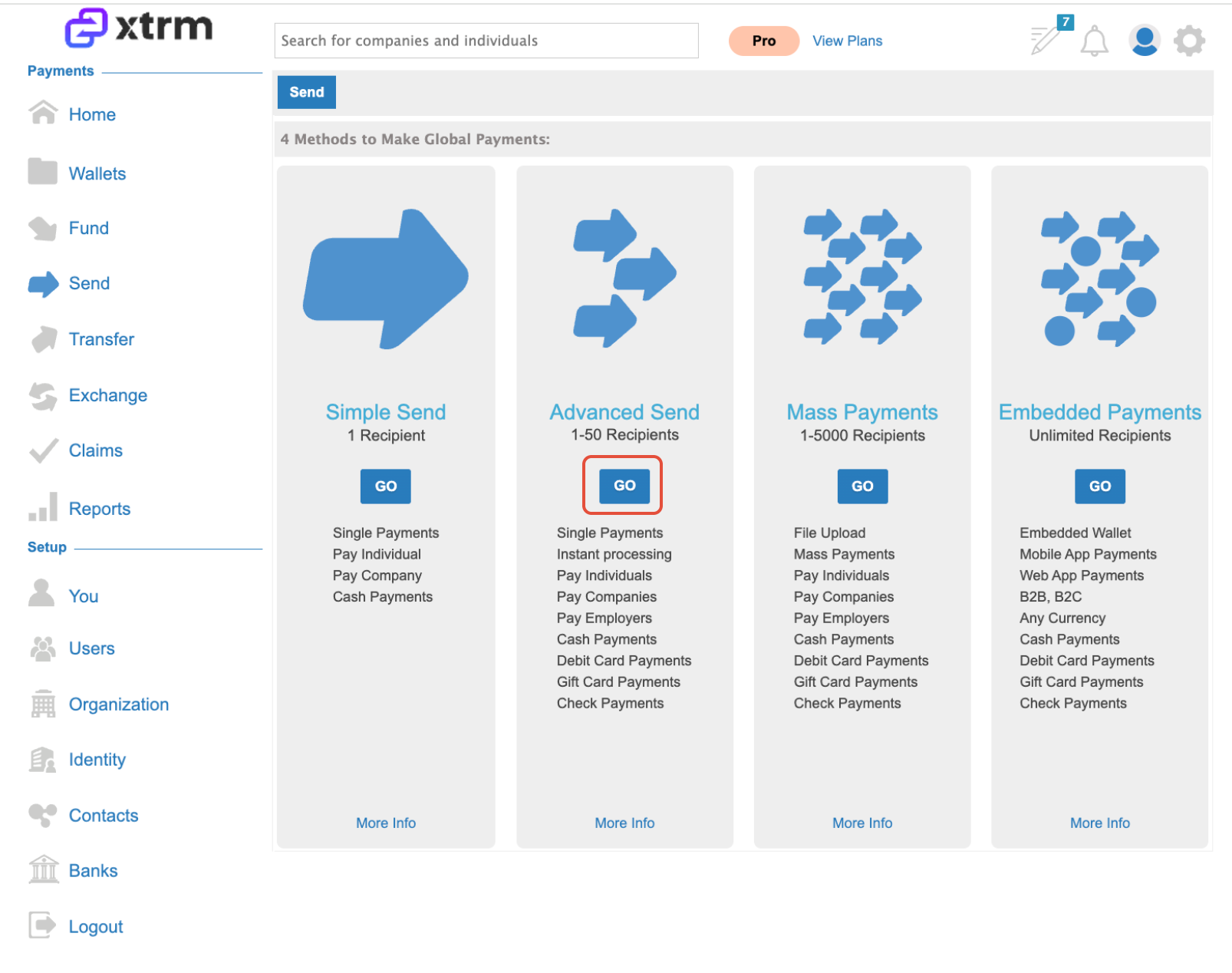
6. Initiate Payment (Advanced Send)
- Go to Send
- Select Advanced Send
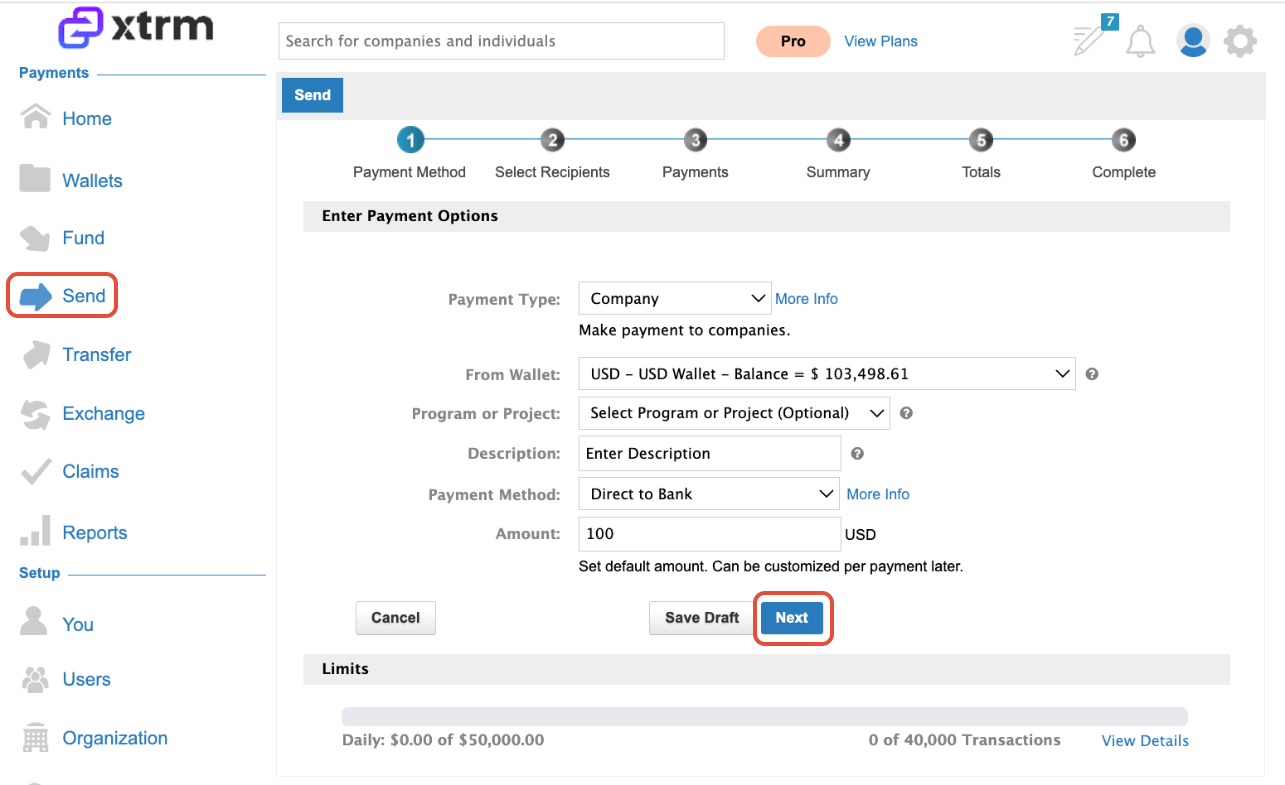
7. Select Payment Method
- Complete payment setup
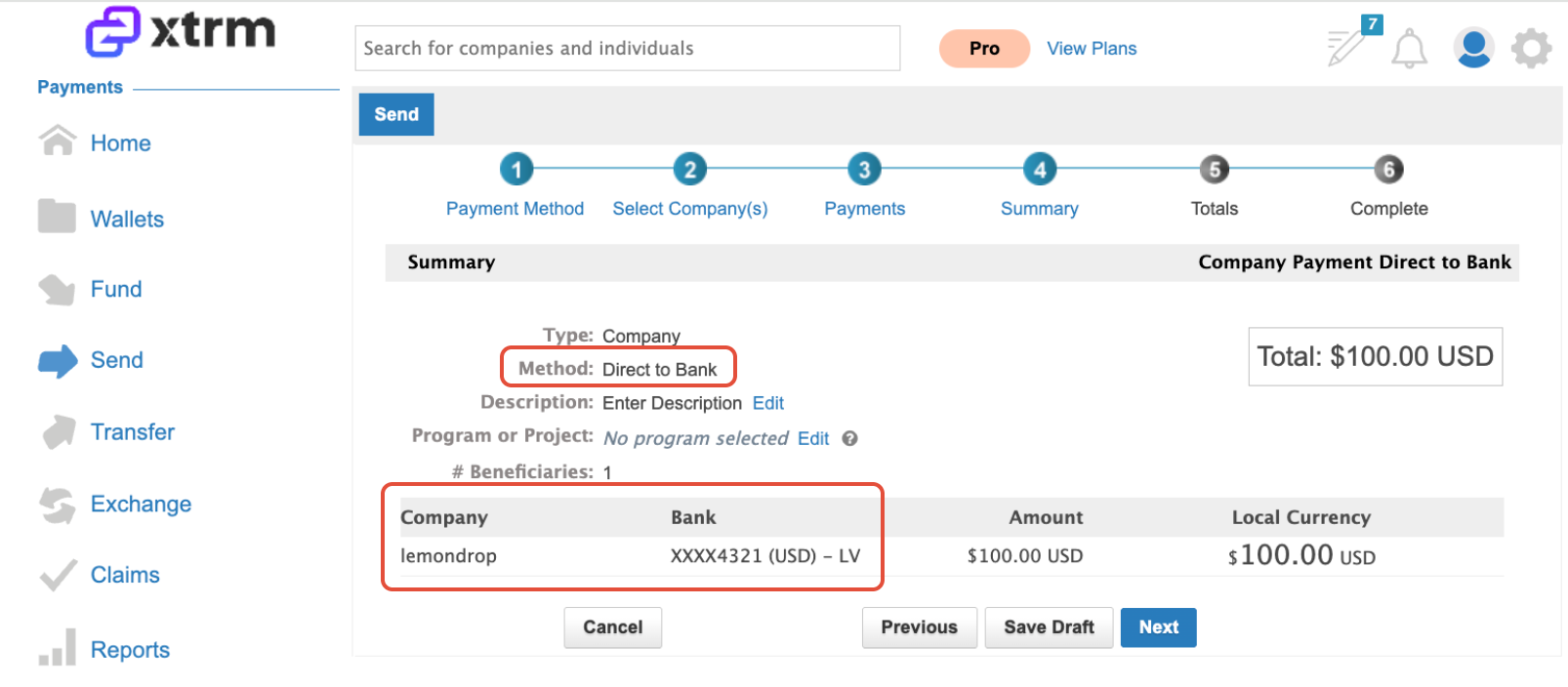
- Ensure Direct to Bank is selected as the payment method
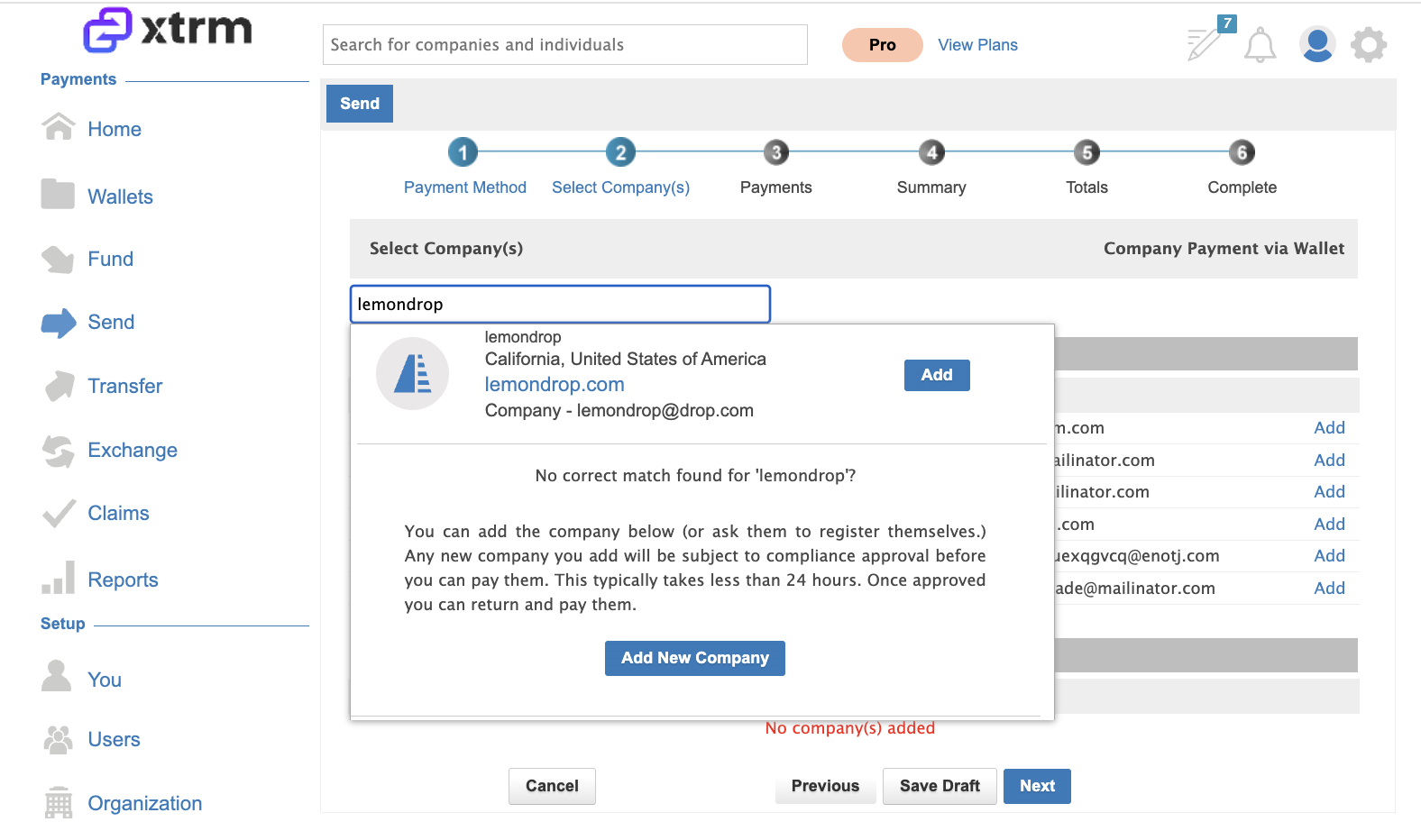
8. Add Company to Transfer
- Search for and select the company contact
- Click Add
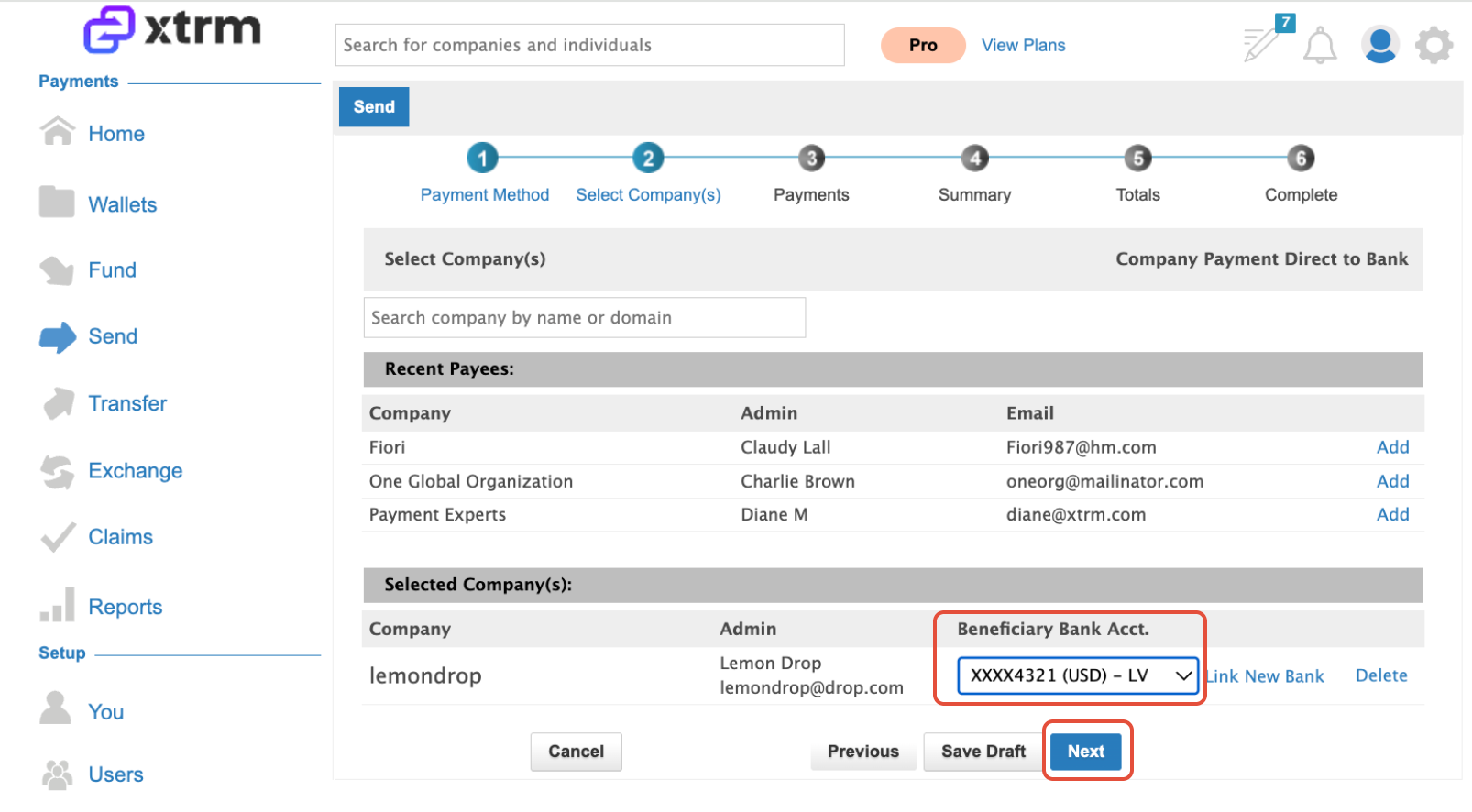
9. Select Bank Account
- The company will appear in the selected list
- Choose the linked bank account from the dropdown
- Click Next
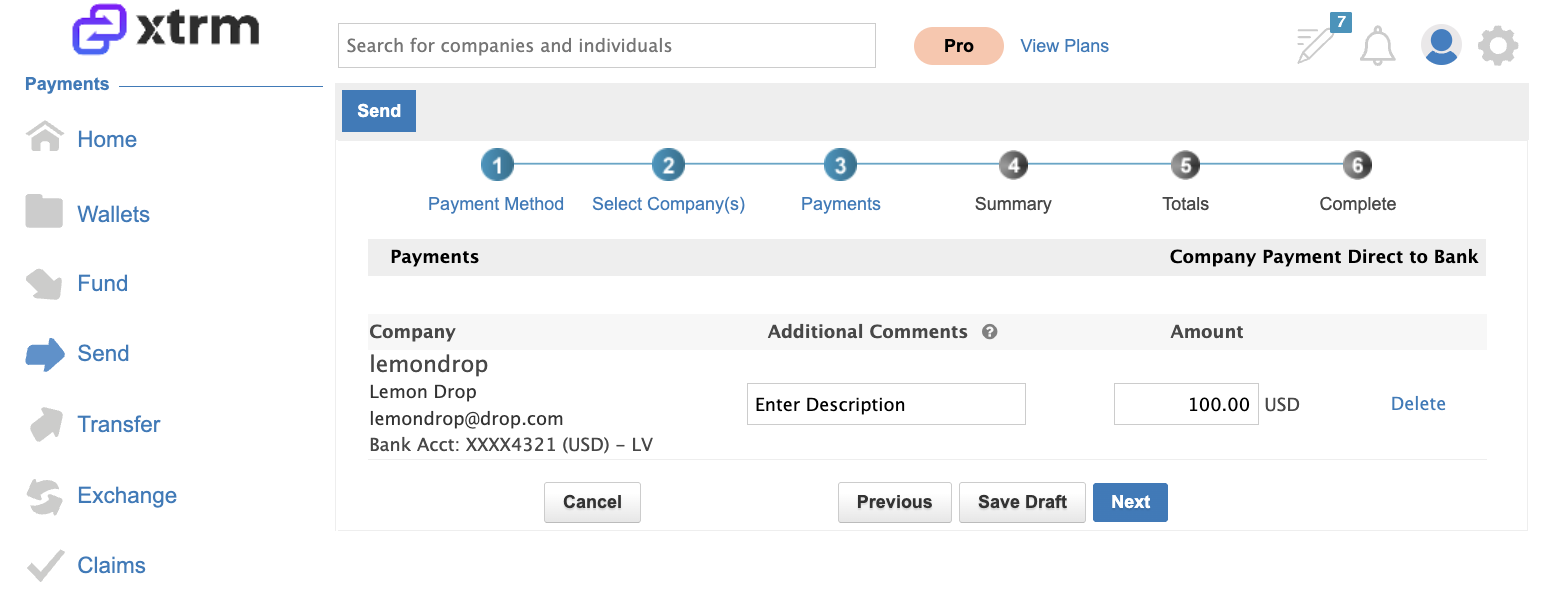
10. Review Transfer Details
- Review payment information
- Click Next
11. Confirm Review
- Review again for accuracy
- Click Next
12. Final Review
- Click Next
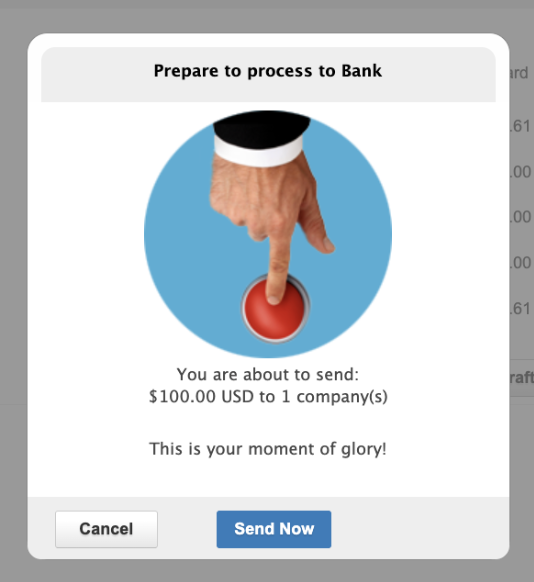
13. Send Payment
- Click Send Now
- This will initiate the transfer directly from the Xtrm wallet to the beneficiary’s linked bank account
- The beneficiary will receive their funds directly into their linked bank account without accessing Xtrm.
Was this article helpful?
That’s Great!
Thank you for your feedback
Sorry! We couldn't be helpful
Thank you for your feedback
Feedback sent
We appreciate your effort and will try to fix the article