ADDL005 — Setting Specific Email Alerts for Users
Last updated: October 7, 2026
Xtrm allows you to configure wallet-specific email alerts tailored to individual user permissions. Email alerts are set per user and per wallet, ensuring the right team members receive timely notifications for relevant transaction activity.
Enabling Incoming Wallet Payment Notifications
To receive email notifications when payments are received in an XTRM wallet:
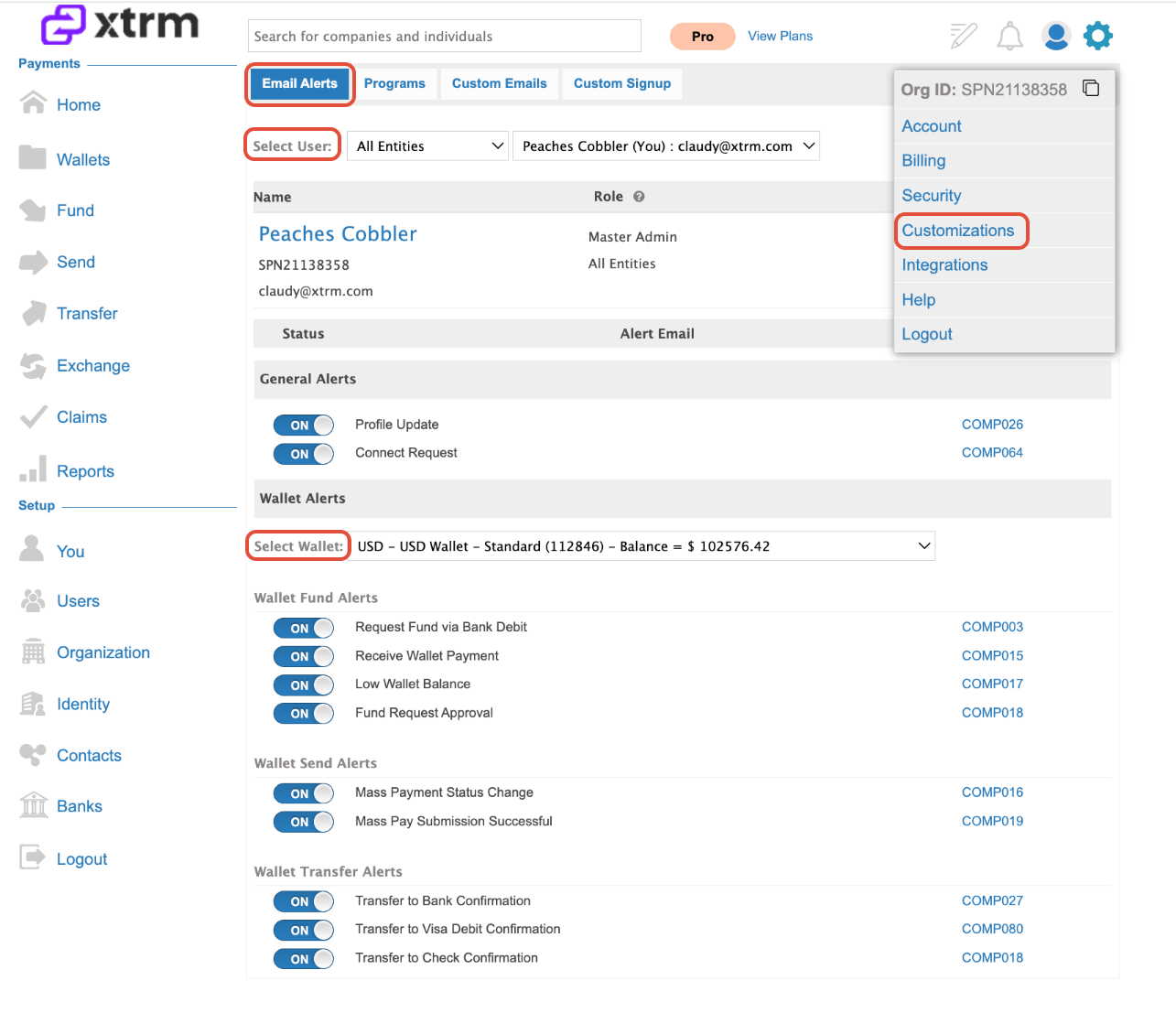
Click the settings cog in the top navigation.
Select Customizations.
Open the Email Alert tab.
Select your user from the dropdown.
Select the Wallet ID you want to monitor.
Toggle ON Receive Wallet Payment (alert code
COMP015).Click Save.
Note: If the wallet does not appear in the list, you may need to request access or have the wallet enabled for your user role.
User Roles & Permissions
Role | Alert Permissions |
Standard Users | Can configure and manage their own email alerts. |
Master Admins, Controllers, & Managers | Can configure email alerts for themselves or on behalf of standard users. |
How to Set Up Alerts
1. Open Settings:
Click the settings cog icon located in the top navigation menu.
2. Navigate to Customizations:
Select Customizations from the settings dropdown.
3. Select Email Alerts:
Click on the Email Alert tab.
4. Select User and Wallet:
Choose the target Regional User and specific Wallet ID you wish to configure notifications for.
5. Toggle Preferences:
Review the list of available notifications and toggle individual alerts ON or OFF according to your preferences.
Customizing Alerts
A list of available email alerts will be displayed. These can be toggled on or off based on your preferences for each wallet a user has access to.
Best Practices
Review Periodically: Update notification settings whenever roles change or new wallets are created.
Avoid Notification Fatigue: Only enable critical transaction alerts for active managers to keep inboxes manageable.