USER002 — Login Issues & Troubleshooting Guide
Last updated: October 7, 2026
Learn how to resolve common sign-in problems on Xtrm, including forgotten passwords, two-factor authentication (2FA) issues, and locked accounts.
Overview
If you are experiencing difficulty logging into your Xtrm personal or company account, standard security measures or browser settings are usually the cause. Use this guide to quickly diagnose and fix sign-in issues.
Quick Troubleshooting Steps
Verify Your Credentials & Email Format:
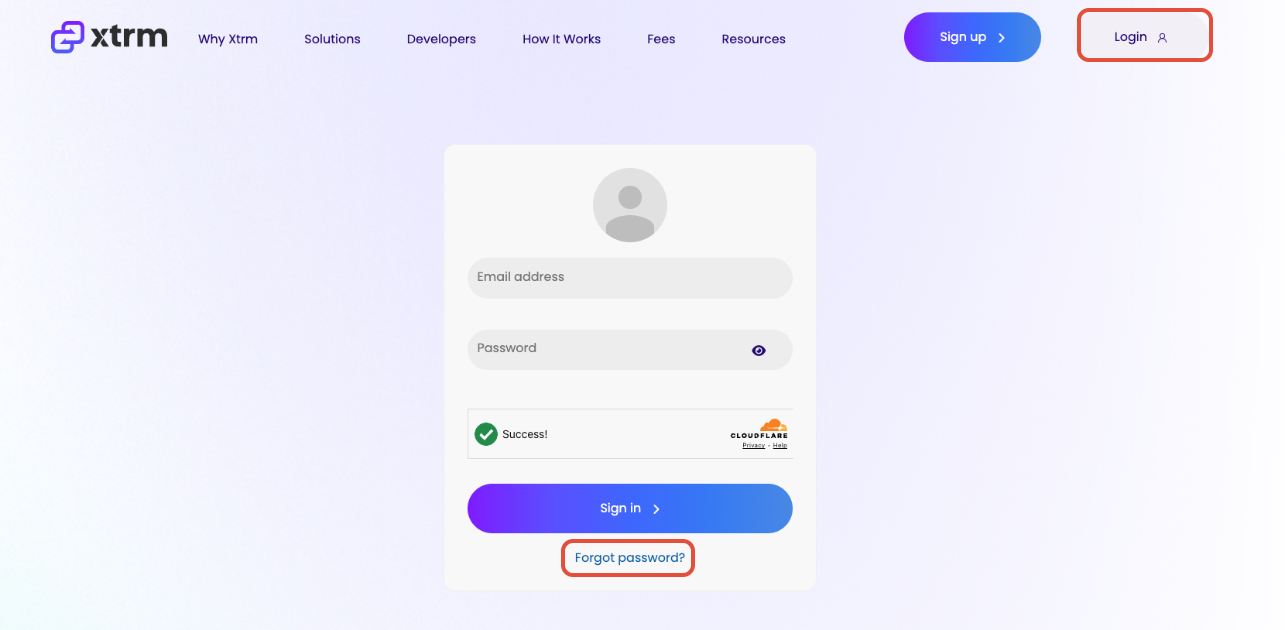
Ensure you are entering the exact email address associated with your Xtrm account. Check for common typos and ensure your Caps Lock key is off.
Reset Your Password:
If your credentials are not recognized, click Forgot Password? on the sign-in page. Enter your registered email address to receive a secure password reset link.
Check Two-Factor Authentication (2FA):
If prompted for an SMS verification code, ensure your mobile device has cellular service. If you changed your mobile phone number recently, you will need support assistance to update your 2FA profile. When requesting a new code, wait at least one minute between login attempts.
Clear Cache or Try Incognito Mode:
Corrupted browser cookies or outdated cache can interfere with sign-in sessions. Open a new Incognito/Private window or clear your browser cache and cookies, then try logging in again. Additionally, disable any browser extensions that block scripts, as these can interfere with the login process.
Common Sign-In Issues & Solutions
Password Reset Email Not Received
Spam filters or incorrect email entered
Check your Spam/Junk folder. Verify you entered the exact email address registered to your account. Add [email protected] and [email protected] to your contacts/safe senders list. If still not received, ask your IT team or ISP to ensure emails from xtrm.com and its subdomains are not blocked.
Account Locked
Multiple failed login attempts
Accounts lock automatically after several consecutive incorrect password attempts to protect against unauthorized access. Wait 15–30 minutes before trying again or request a password reset.
2FA Code Not Arriving
Carrier delays or outdated phone number
Request a new code. If your phone number has changed, contact [email protected] for identity verification and phone number updates.
Session Expired / White Screen
Outdated browser cache or cookie block
Clear your browser cookies/cache, disable ad-blockers and script-blocking extensions for Xtrm, or switch to an updated browser (such as Chrome, Edge, or Safari)
Still Need Assistance?
If you continue to experience login difficulties after attempting the steps above, please contact our support team at [email protected] with the following details—
The email address registered to your account.
A brief description or screenshot of the error message displayed.