USER004 — Personal Accounts: Changing Your Login Information (Email or Password)
Last updated: October 7, 2026
Overview
This guide provides clear instructions for Xtrm personal account holders on how to update login credentials—such as email addresses and passwords—directly from account settings. It also covers recovery procedures for forgotten passwords and steps to regain access if you no longer have access to your registered email address.
1. How to Update Your Email or Password (When Logged In)
If you know your current login details and want to update them in your profile:
Log in: Go to www.xtrm.com and sign in to your personal account.
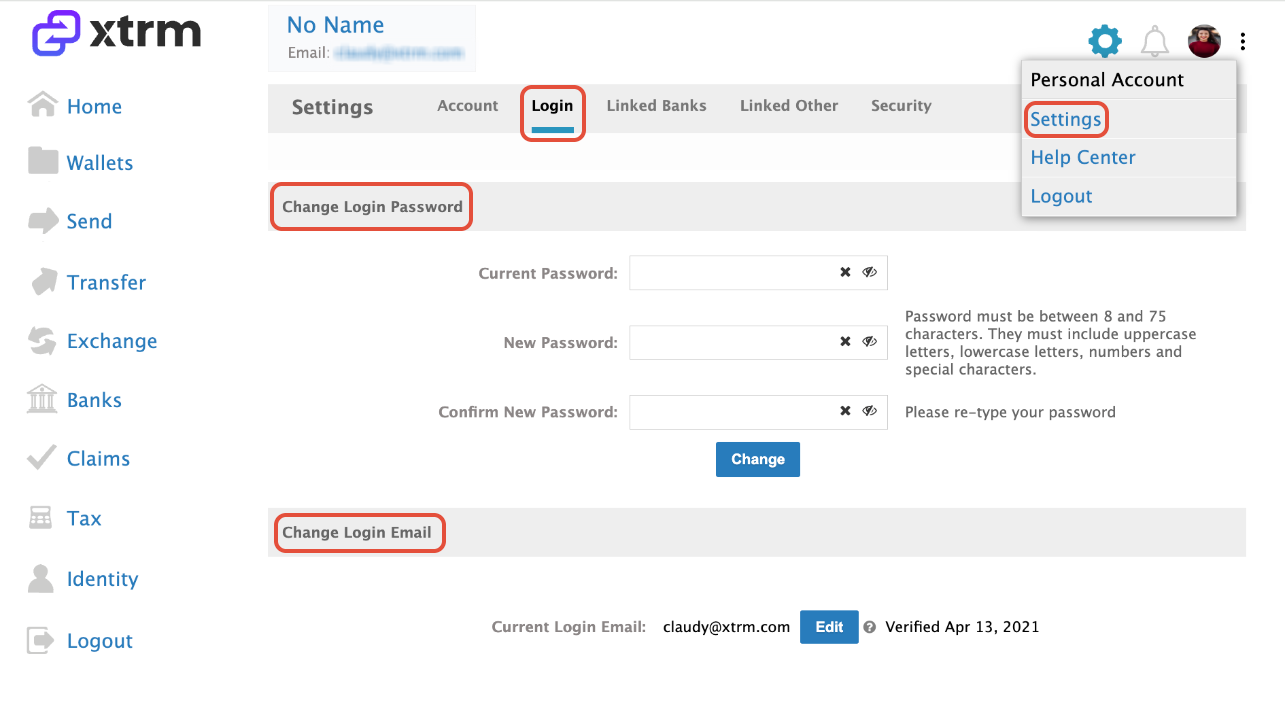
Access Settings: Click on the Settings gear icon located in the top-right corner of the page. and click on Settings and navigate to Login.
Update Information: Enter your Current Password, create a new password and confirm. Once complete click on Change. To change your email address, please proceed to click on Edit next to your Current Login Email and follow the prompts accordingly.
Security Verification Requirements: When changing your email address, you will need to provide: (1) A copy of an identifying document such as a driver's license or passport, and (2) The new email address you want to use. Support may also request additional verification information including the name of the company you are expecting funds from and your current mobile number with country code.
After your email address is successfully changed, use your new email address for all subsequent logins. If you need to reset your password after changing your email, visit the password reset page and enter your new email address.
2. Resetting a Forgotten Password
If you know your registered email address but cannot remember your password:
Go to the Xtrm Password Reset Page.
Enter your registered email address and follow the on-screen instructions to receive a password reset link.
If you don't receive the reset email: Check your spam folder, add [email protected] to your contact list, and ensure your IT department and Internet Service Provider (ISP) is not blocking emails from @xtrm.com or any subdomains of xtrm.com.
3. Recovering Account Access (Lost or Unknown Email)
If you cannot remember which email address is linked to your XTRM account, or if you no longer have access to that email inbox:
Submit a ticket through the Support Desk or email our support team directly at [email protected].
Include your full name, a copy of an identifying document (such as a driver's license or passport), and as many account details as possible (such as your current mobile number with country code, the name of the company you are expecting funds from, linked phone numbers, previous addresses, or transaction history) so our team can locate and verify your profile.