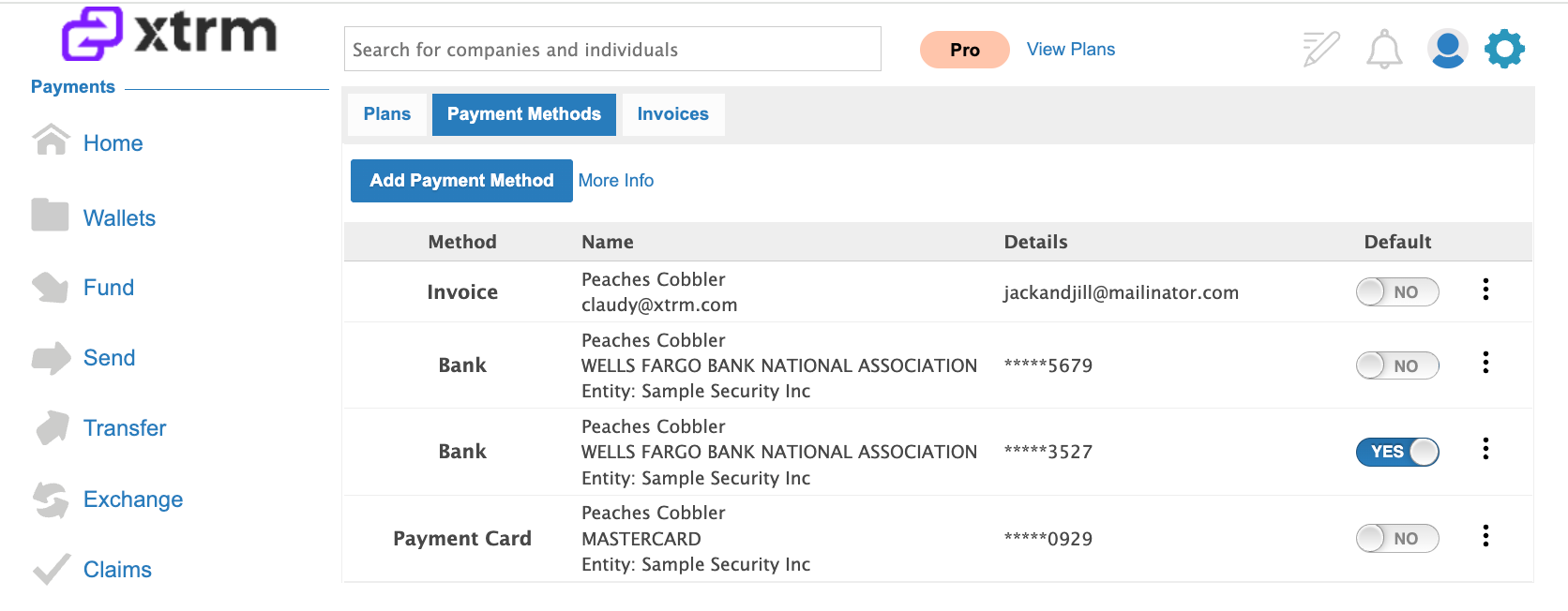
FEES002 — Company SaaS Fees Payment Methods
Last updated: August 26, 2026
Xtrm offers flexible, secure payment options for your recurring SaaS subscription fees. You can choose between monthly or annual billing cycles (annual commitments include discounted pricing) and cancel or update your plan at any time.
Security Note: All payment card and banking details are tokenized and encrypted according to strict industry security standards. Xtrm never stores raw credit card details.
Supported Payment Methods Summary
Payment Method | Requirements & Availability | Eligible Billing Cycles |
Credit or Debit Card | Global availability. Tokenized and encrypted. | Monthly or Annual |
Bank Account (Direct Debit) | Available for US bank accounts only via Plaid or manual entry. | Monthly or Annual |
Email Invoice | Electronic invoice sent via email for finance department processing. | Annual Plans Only |
Xtrm Wallet | Pay directly from a funded Xtrm wallet balance. | Coming Soon |
Setup Guides
Option 1: Add a Credit or Debit Card
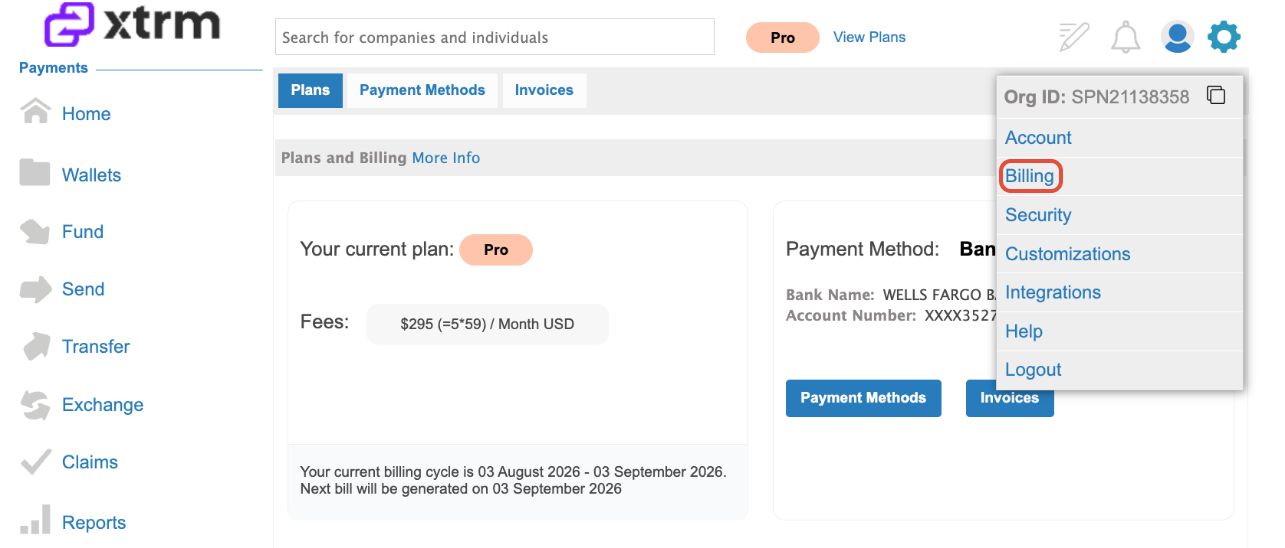
Log In & Go to Billing: Log into your XTRM account. Click the Settings Cog in the top-right menu and select Billing.
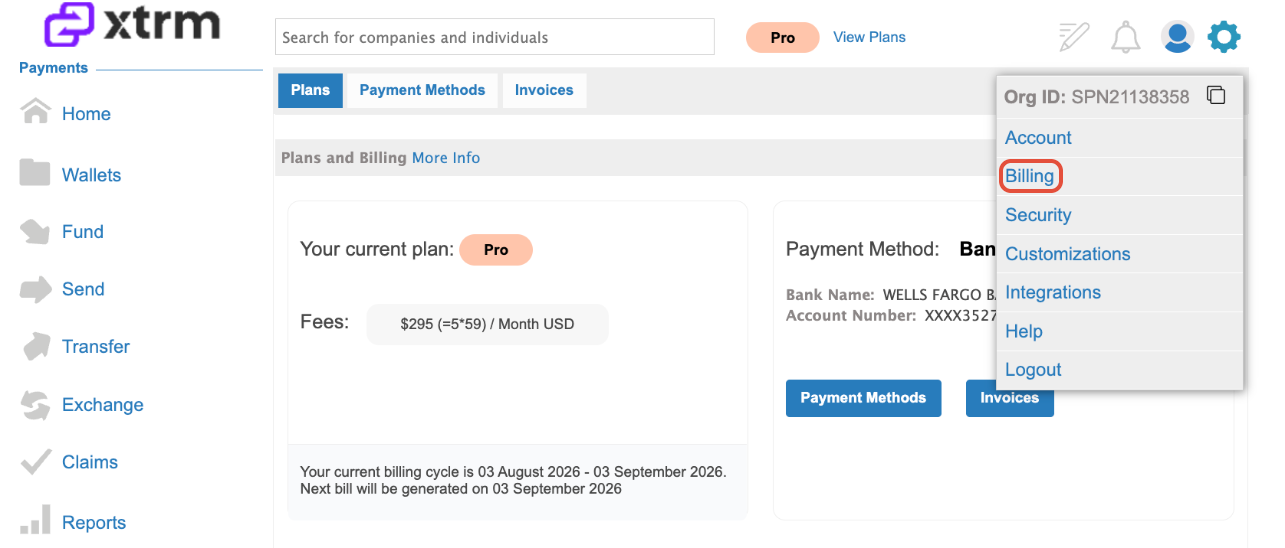
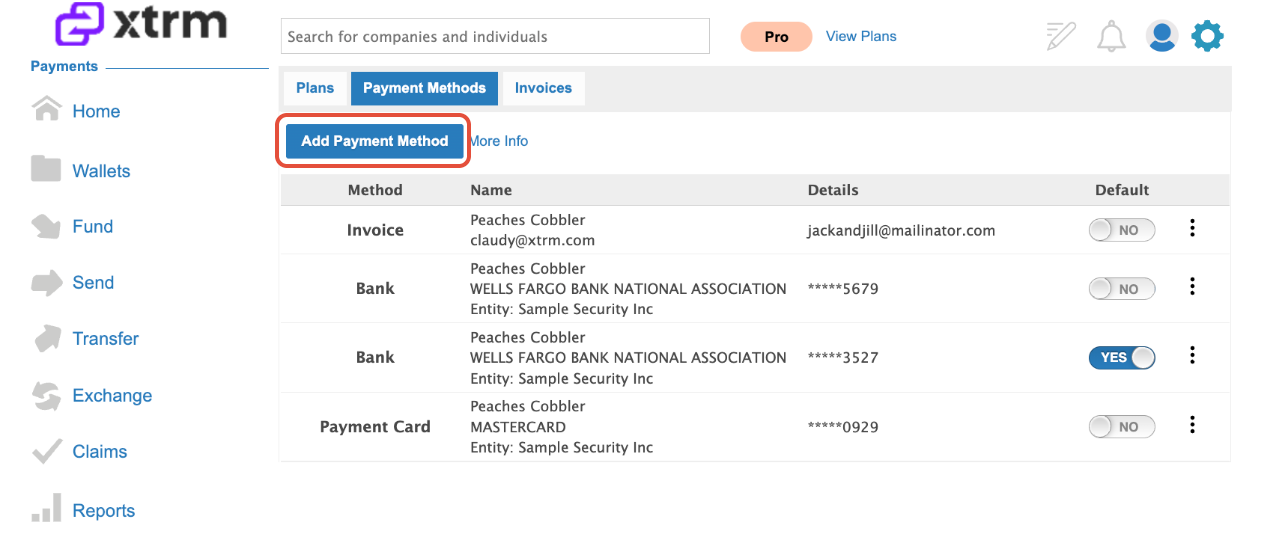
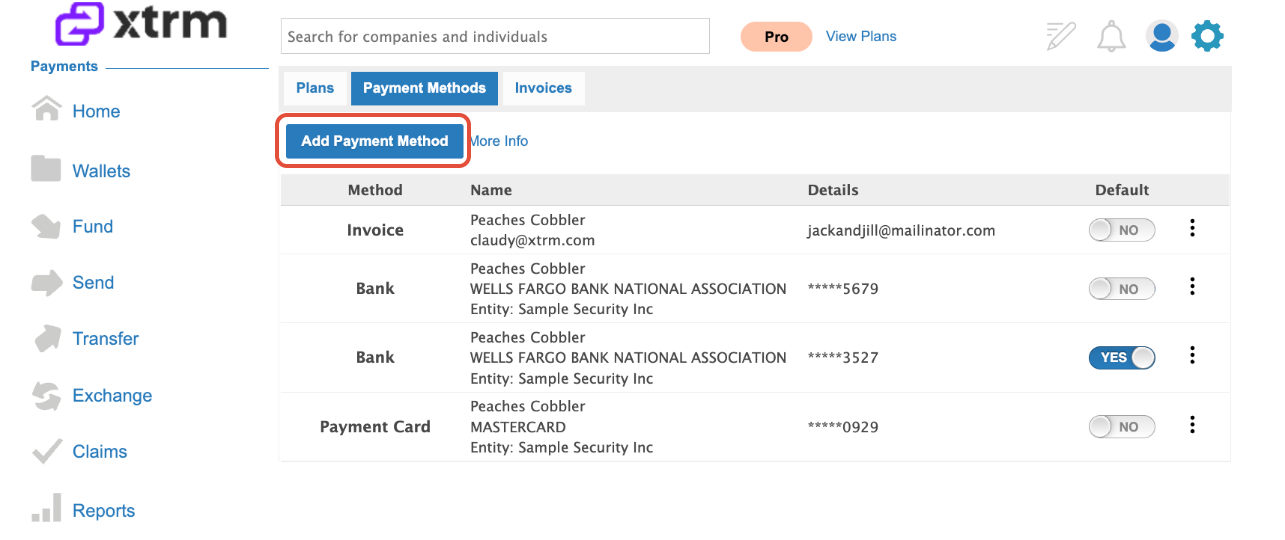
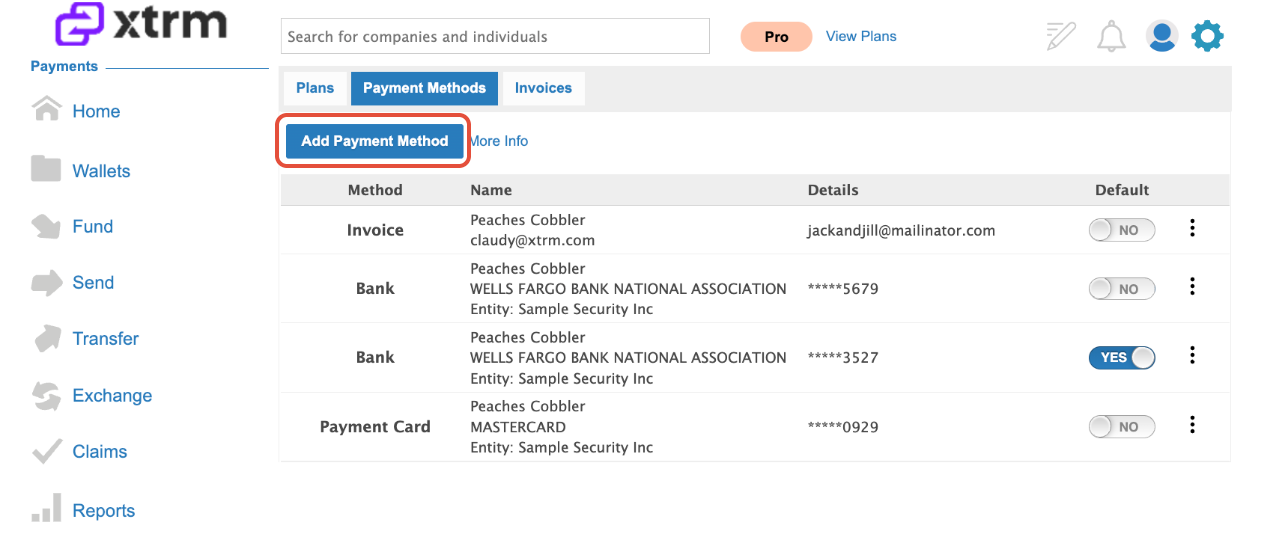
Access Payment Methods: Click on Payment Methods, then click Add Payment Method.
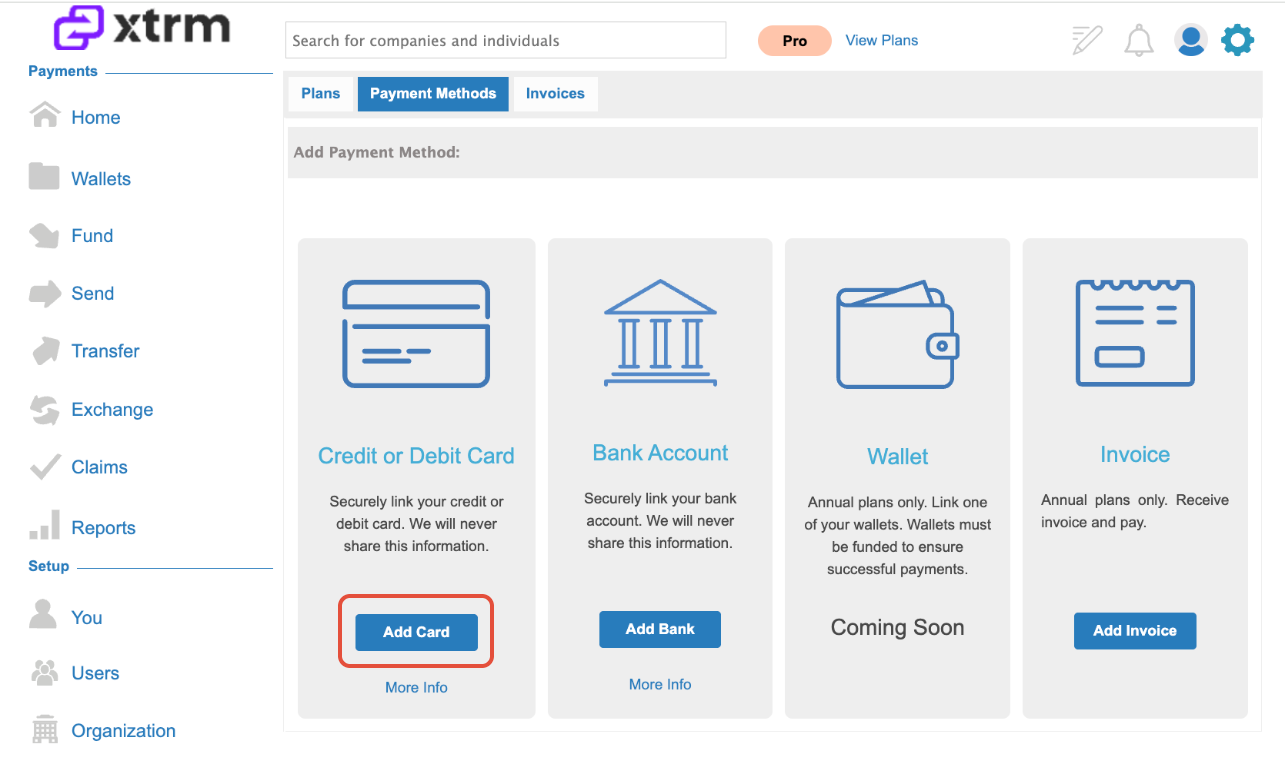
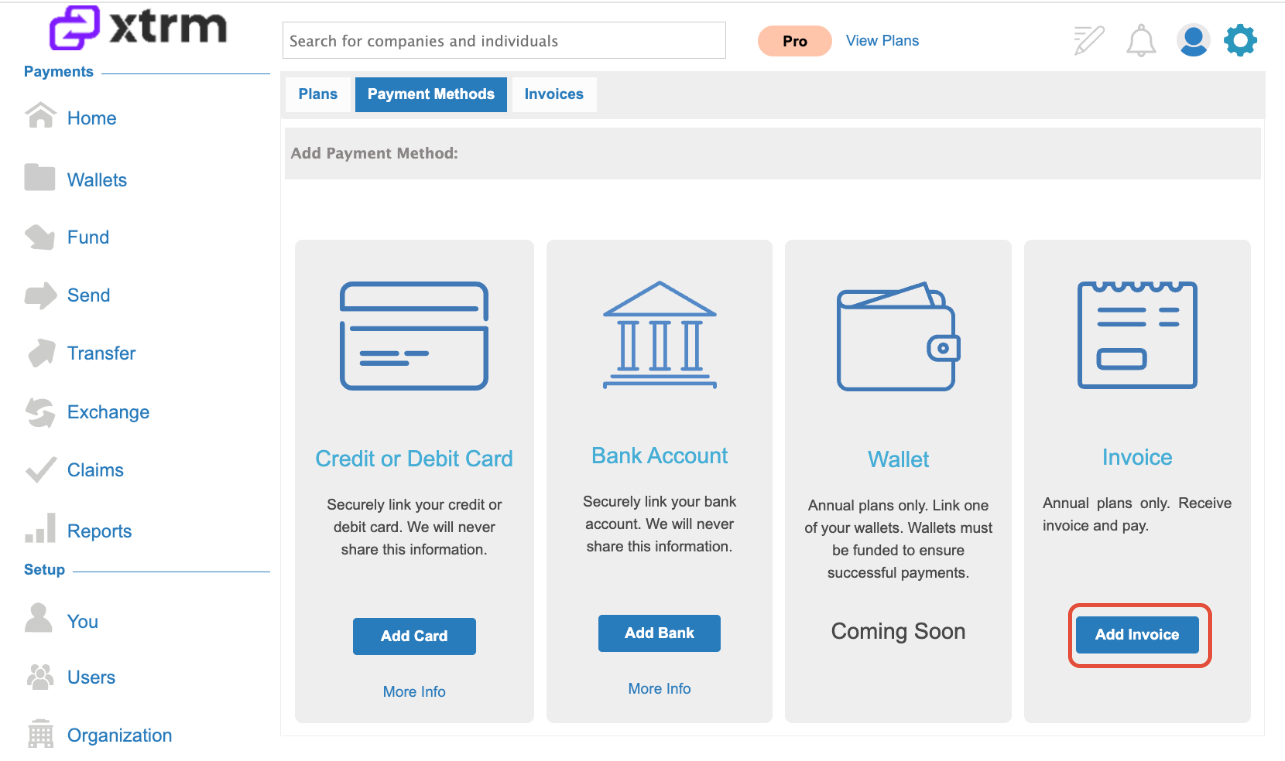
Select Card Option: Click Add Card.
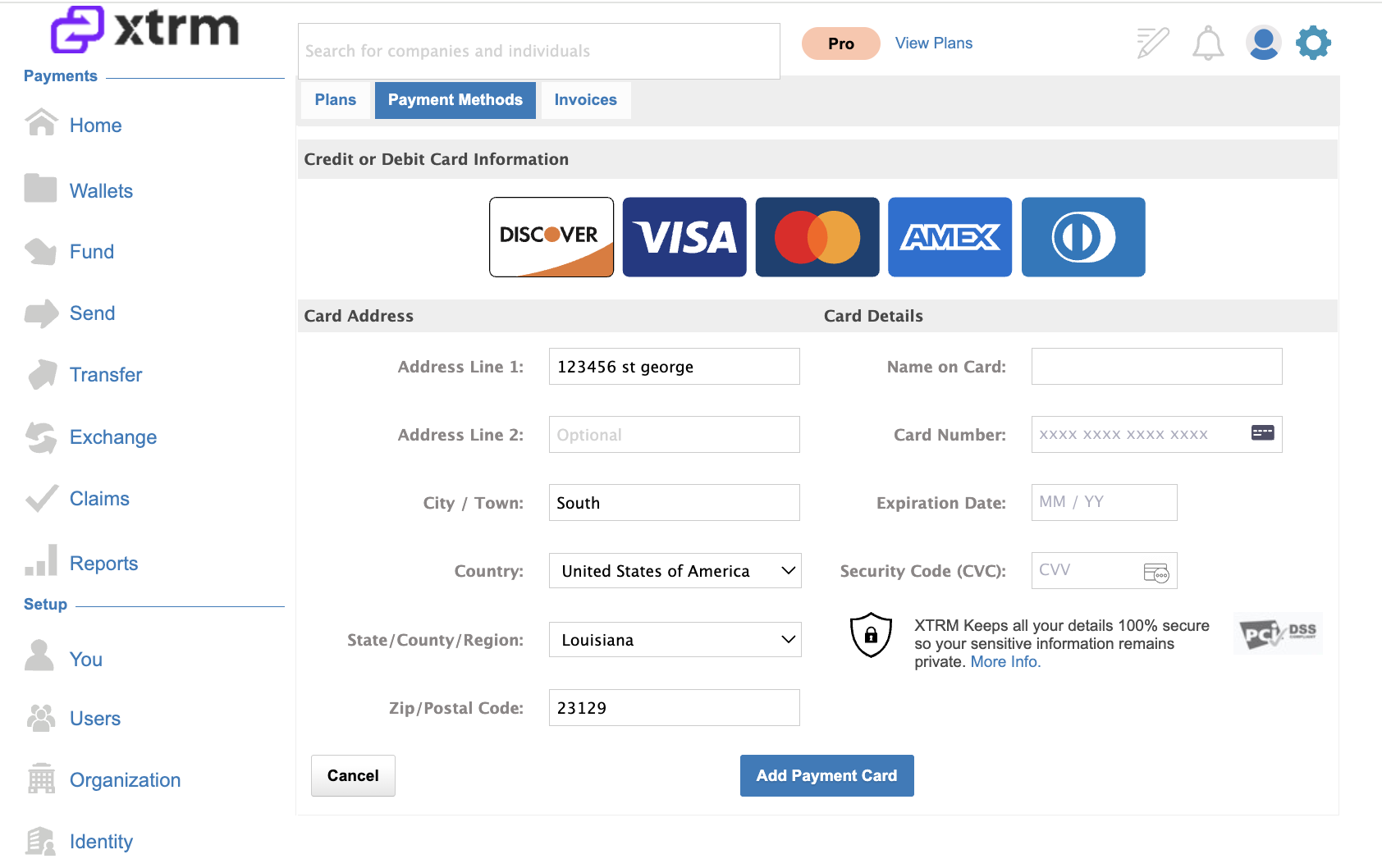
Enter Details: Input your credit or debit card details and click Add Payment Card.
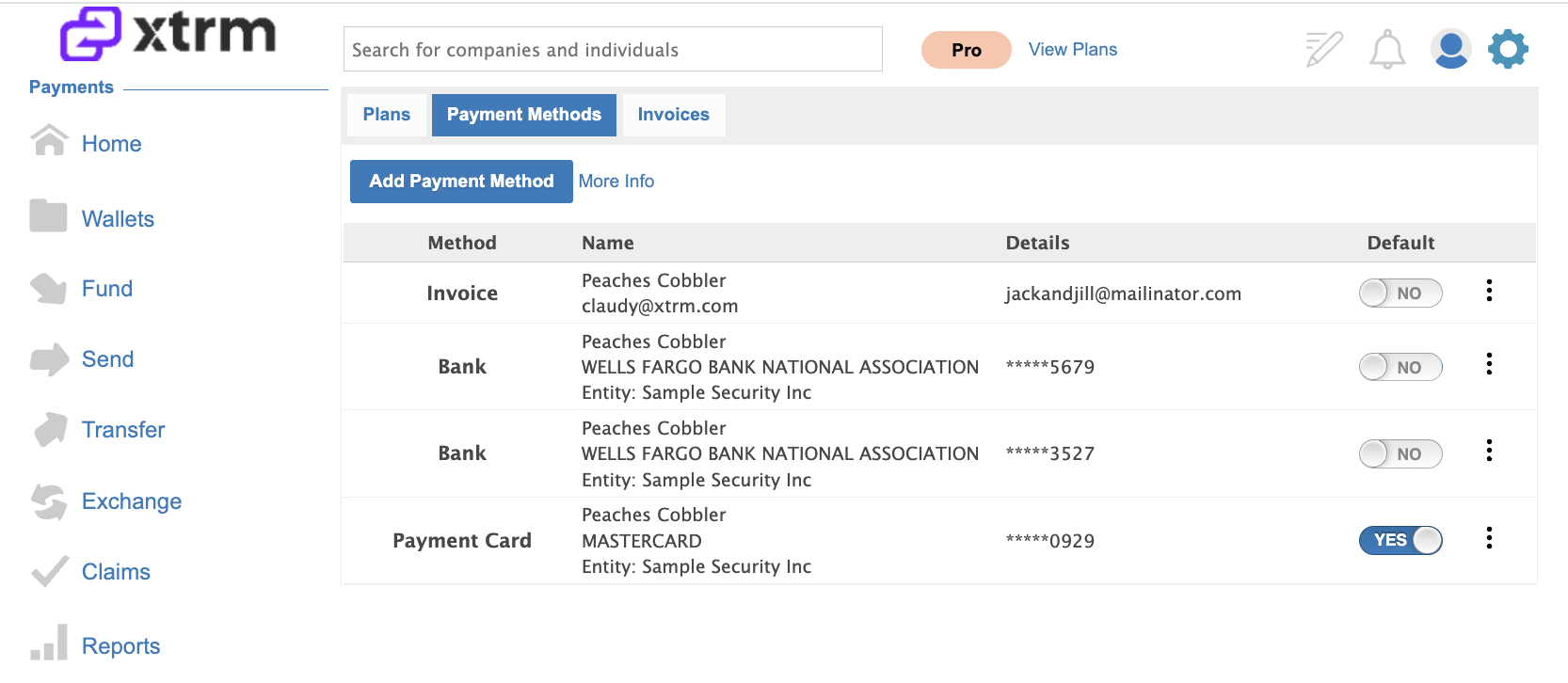
Set as Default: Locate the card under Payment Methods and mark it as your Default Payment Method for SaaS subscriptions.
Option 2: Add a Bank Account (US Direct Debit)
Navigate to Billing: Log into your XTRM account, click the Settings Cog in the top-right menu, and select Billing.
2. Access Payment Methods: Select Payment Methods and click Add Payment Method.
Select Bank Option: Click Add Bank.
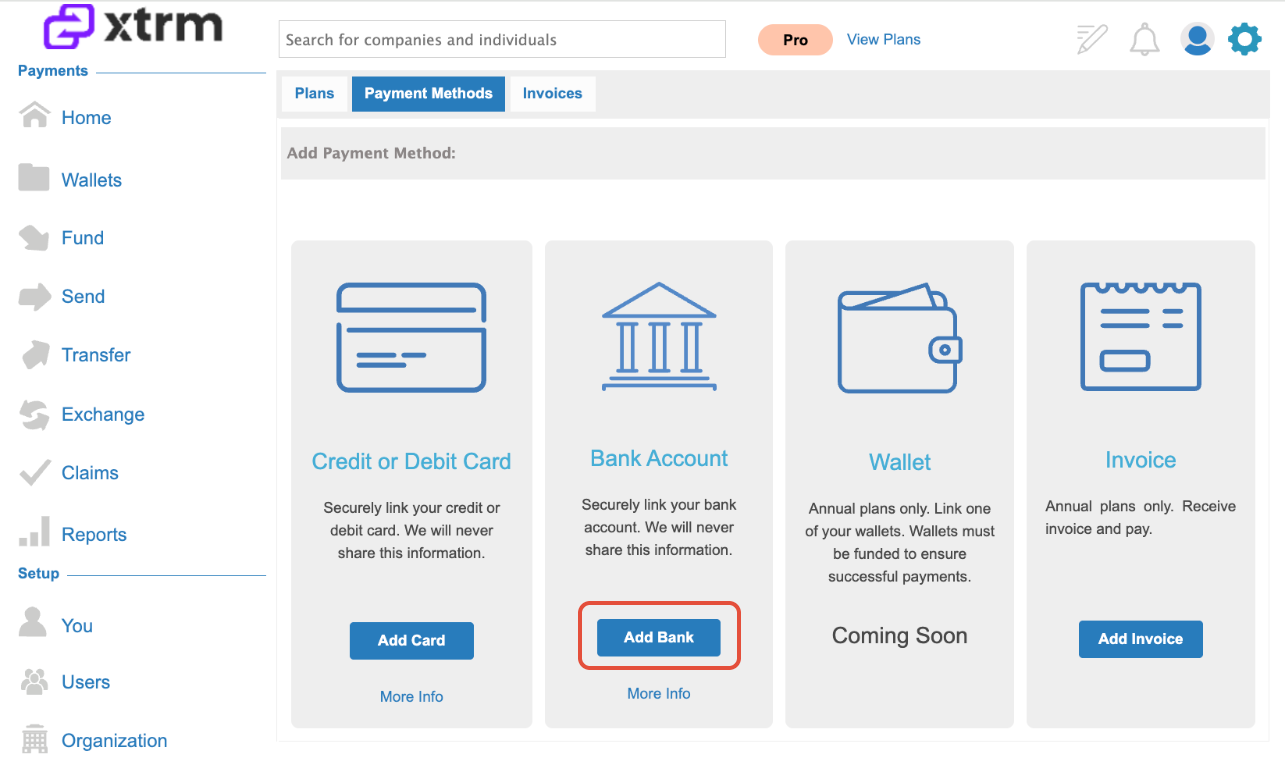
Link Bank Account: Choose your linking method:
Automatically via Plaid for instant verification.
Manually Link Bank by entering routing and account numbers.
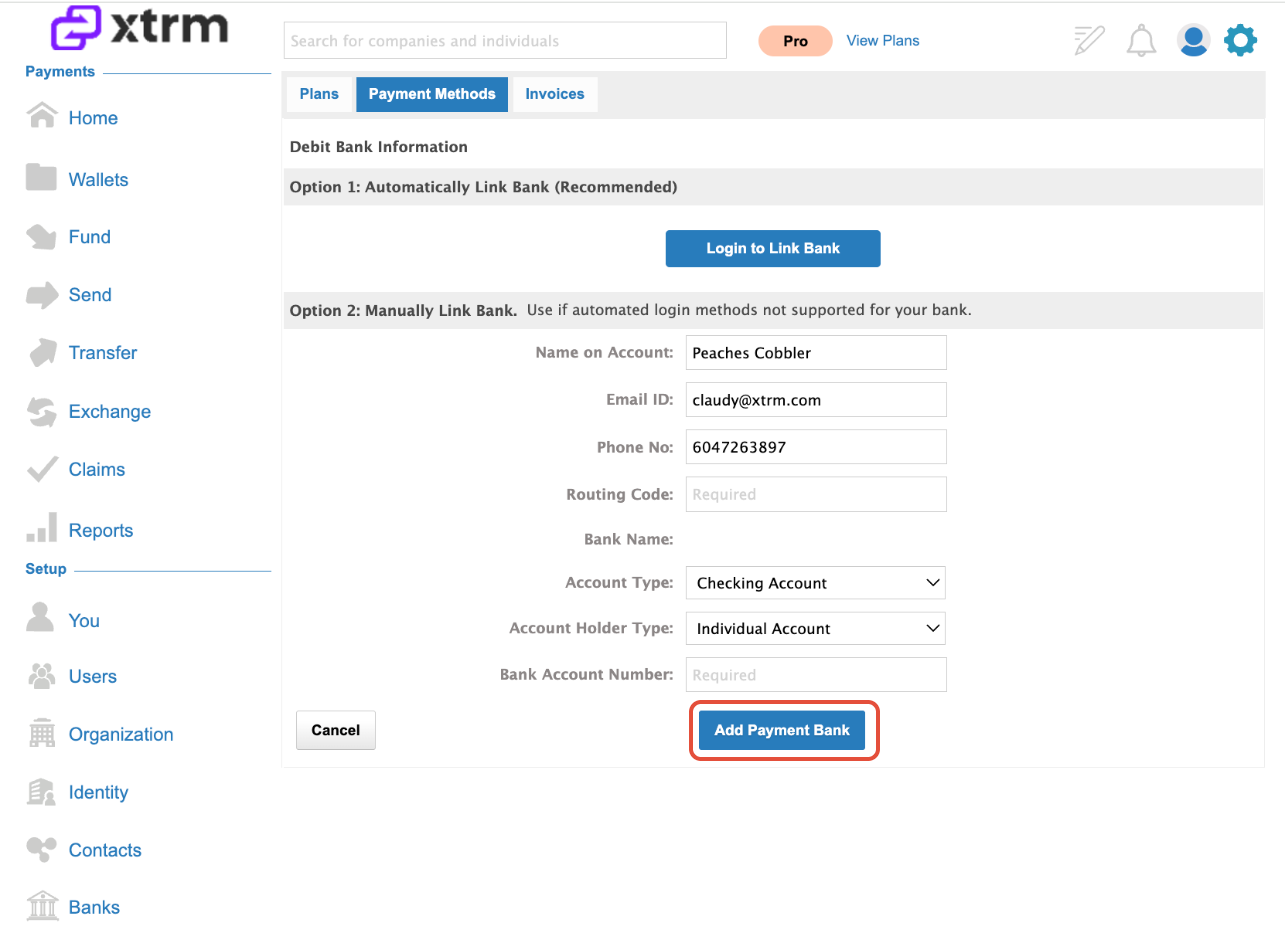
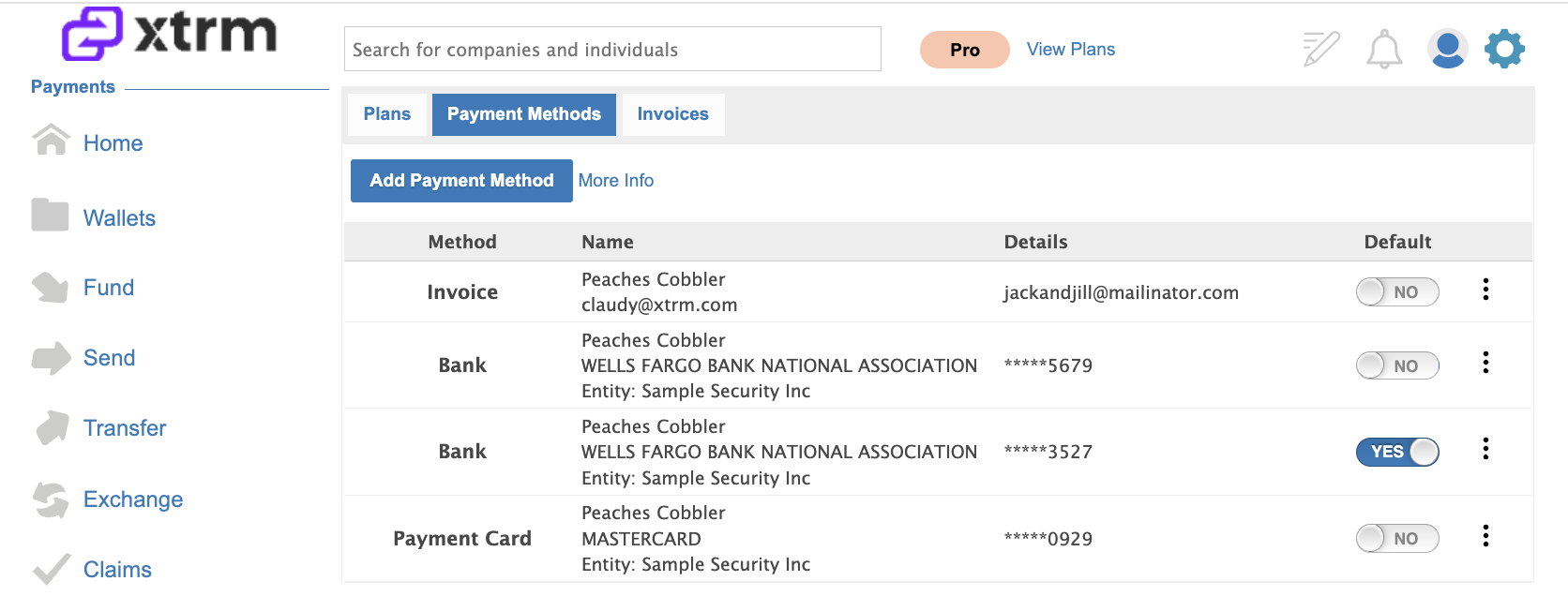
Confirm & Set Default: Click Add Payment Bank, locate the newly added account under Payment Methods, and set it as your Default Payment Method.
Option 3: Set Up Electronic Invoicing (Annual Plans Only)
1. Navigate to Billing: Log into your XTRM account, click the Settings Cog in the top-right menu, and select Billing.
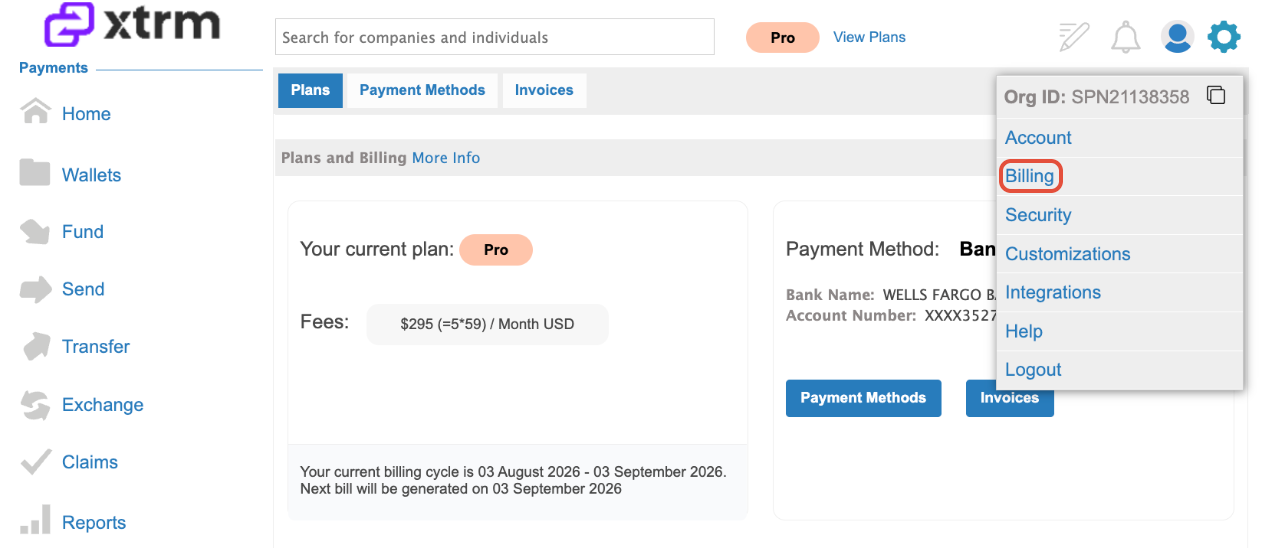
2. Access Payment Methods: Select Payment Methods and click Add Payment Method.
3. Select Invoice Option: Click Add Invoice.
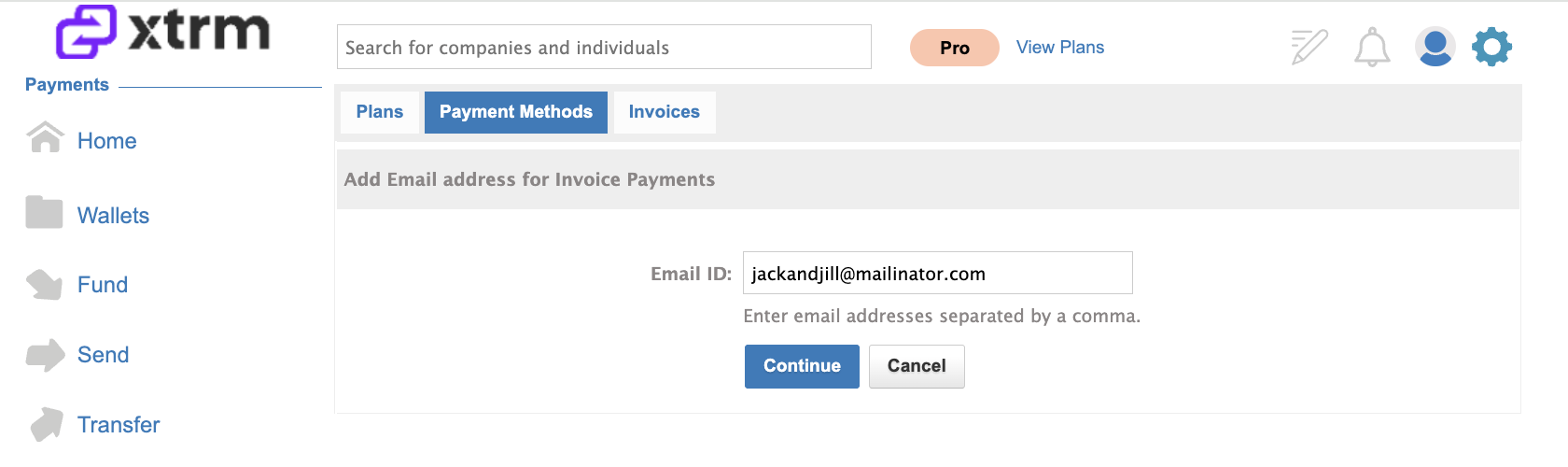
4. Specify Invoice Email: Enter the designated email address (e.g., your Accounts Payable department) to receive invoices and click Continue.
5. Set as Default: Select the invoice option under Payment Methods as your Default Payment Method for annual billing.