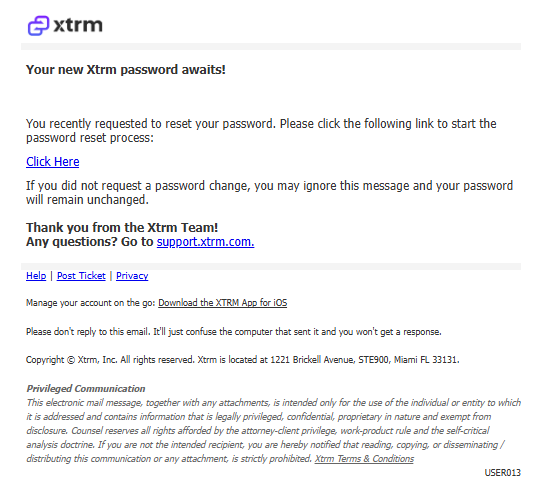
USER013 — Personal Account: Password Reset Email
Last updated: October 7, 2026
Overview
When you request a password reset for your Xtrm account, an email is sent to the address associated with your account. This email contains a secure link and the instructions needed to set a new password and regain access.
How to reset your password
Note: You must have validated your account before you can reset your password. If you haven't clicked the validation link in your account confirmation email, do that first.
Go to the Xtrm password reset page.
Enter the email address associated with your Xtrm account.
Open the password reset email sent to that address and follow the link.
Create your new password.
The reset link is valid for 20 minutes. If it expires before you use it, return to the reset page and request a new one. There is no limit on how many times you can request a link.
If you don't receive the email
Password reset emails are usually delivered within 5 minutes. If yours hasn't arrived after waiting at least 5 minutes:
Check your spam, junk, promotions, and quarantine folders. Automated emails are often filtered there.
Confirm you used the correct email address. The reset email is only sent to the address registered on your Xtrm account.
Add our sending addresses to your contacts or safe sender list:
Check with your IT department. Ask them to allowlist these domains and senders: xtrm.com, notifications.xtrm.com, [email protected], [email protected], and all emails from @xtrm.com and its subdomains (including xtrmmail.com).
Verify that the email address you're using to log in matches exactly what was used during account creation. The reset email is sent to the address used when the account was originally created, not necessarily your current login email.
After completing these steps, request a new reset link from the password reset page.
If you see a 404 error when clicking the reset link
If you encounter a 404 error when clicking your password reset link:
Request a new link from the password reset page.
Click the link in the email from [email protected] using the same browser where you requested the reset.
If you still see a 404 error, copy the complete link from the email and paste it directly into your browser's address bar.
If the error persists, try the process again in incognito or private mode, or use a different browser.
If more than 20 minutes have passed since requesting the link, it has expired. Request a new one.