USER012 — Personal Accounts: How to Set or Change Your Employer
Last updated: August 18, 2026
Overview
Linking your employer details to your personal Xtrm account ensures smooth processing for company-sponsored incentives, payroll, or partner disbursements. You can add a new employer or update your current employment information at any time from your account identity settings.
Step-by-Step Instructions
Log In: Go to www.xtrm.com and sign in to your Personal Account.
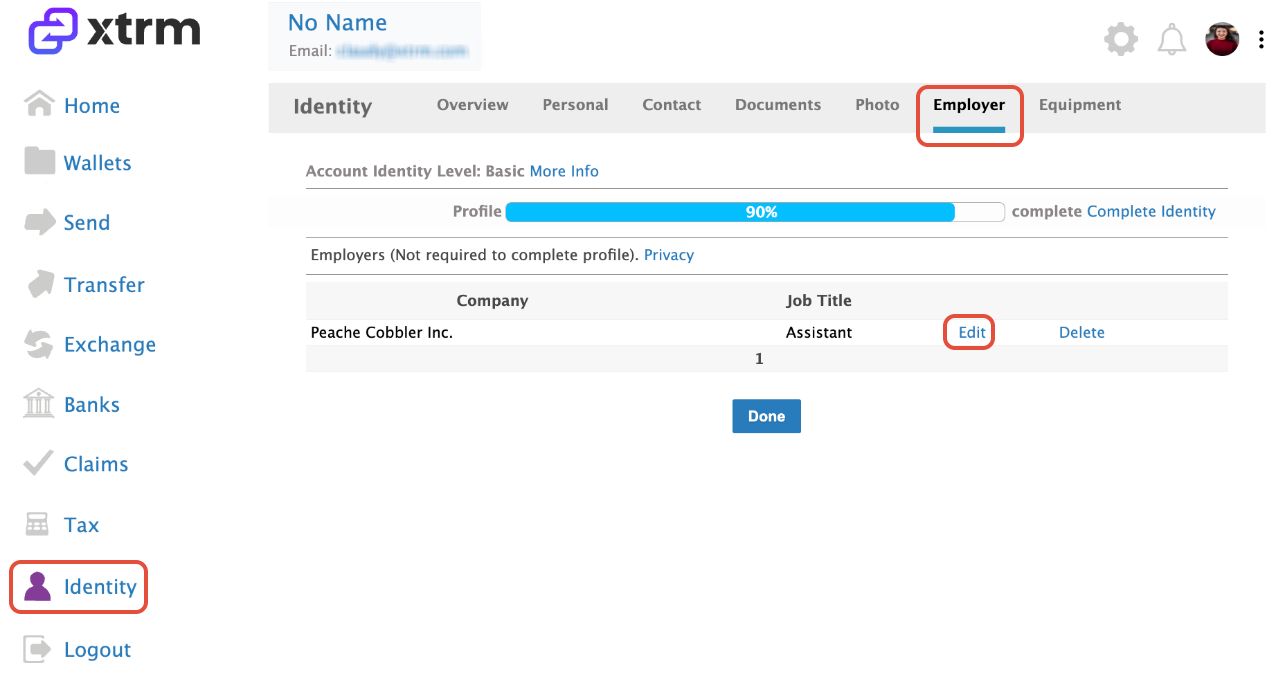
Access Identity Settings: In the left-hand navigation menu, click Identity.
Select Employer: Click on the Employer tab.
Add or Edit Details:
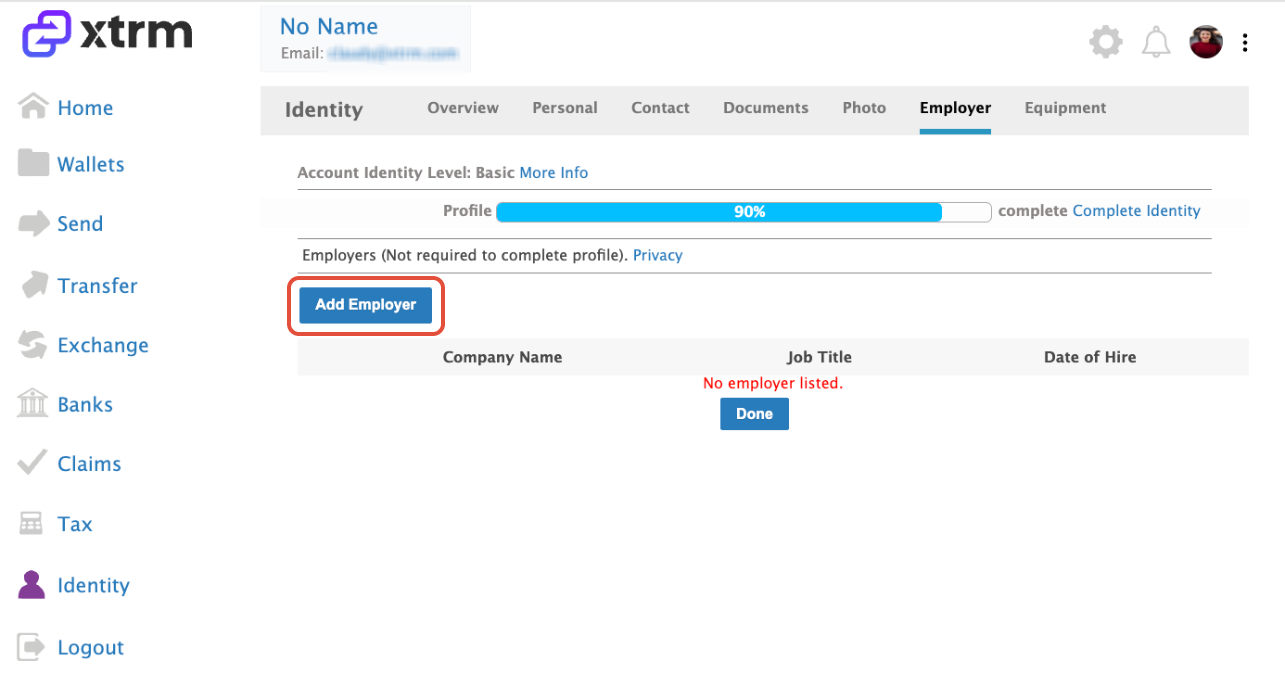
Click Add Employer to input your company details if no employer is currently linked:
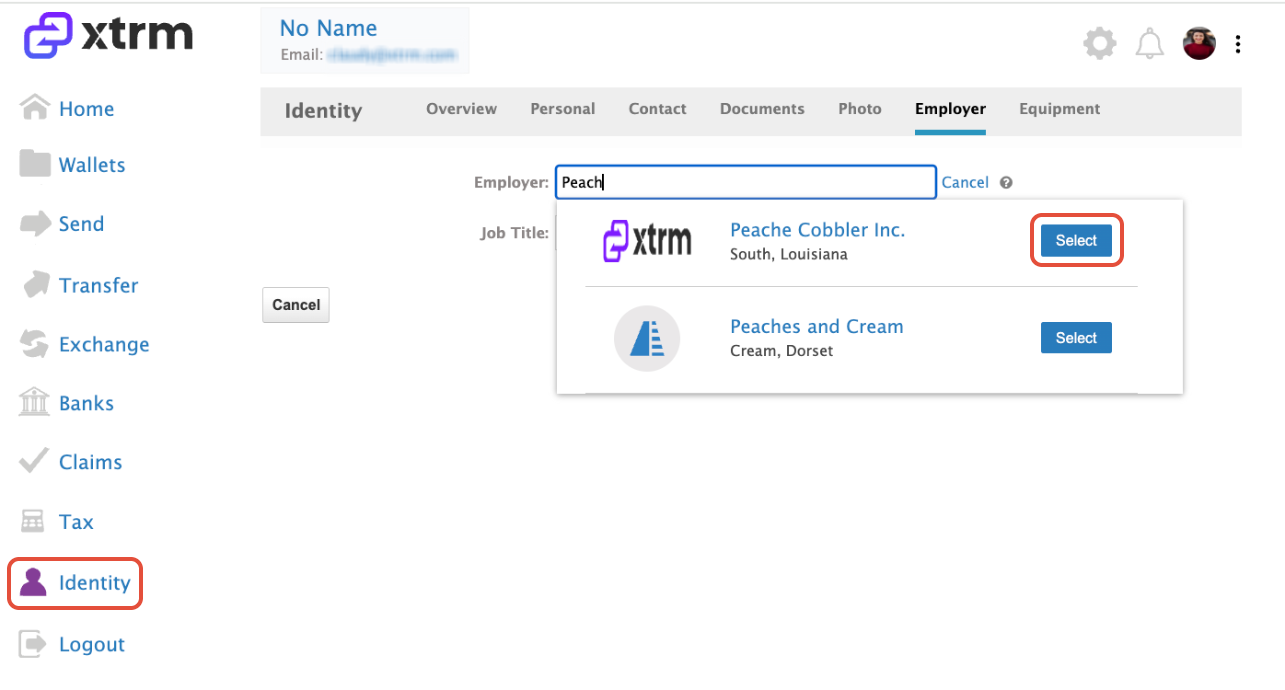
Search by Company name and click on Select, add the job title and click on Save:
Click Edit to update an existing employer’s information: