USER014 — Personal Accounts: How to Fix Incorrect Bank Information
Last updated: October 7, 2026
Overview
Entering accurate bank account details is essential for ensuring smooth transfers and withdrawals from your Xtrm wallet. If you have entered incorrect banking information—such as an invalid account number, routing number, or account holder name—you can easily edit or replace your bank account details directly in your account settings.
What Happens If a Transfer Fails Due to Incorrect Information?
Failed Transfer Notice: If a bank transfer is attempted with incorrect account details—including invalid account numbers, routing numbers, or mismatched beneficiary names or addresses—the receiving bank will decline the transaction.
Returned Funds: The funds will automatically be returned and re-credited to your Xtrm wallet balance, minus any bank return fees incurred. This process typically takes a couple of hours, but may take until the next business day.
Update Required: You must correct or replace your bank account details before attempting another withdrawal.
How to Delete or Relink Bank Details
Log in: Go to xtrm.com and sign in to your account.
Verify Exact Details: If your transfer was rejected due to an address or name mismatch, check your bank account record for the exact legal name and address on file with your bank. You must enter these exactly as they appear in your bank's records.
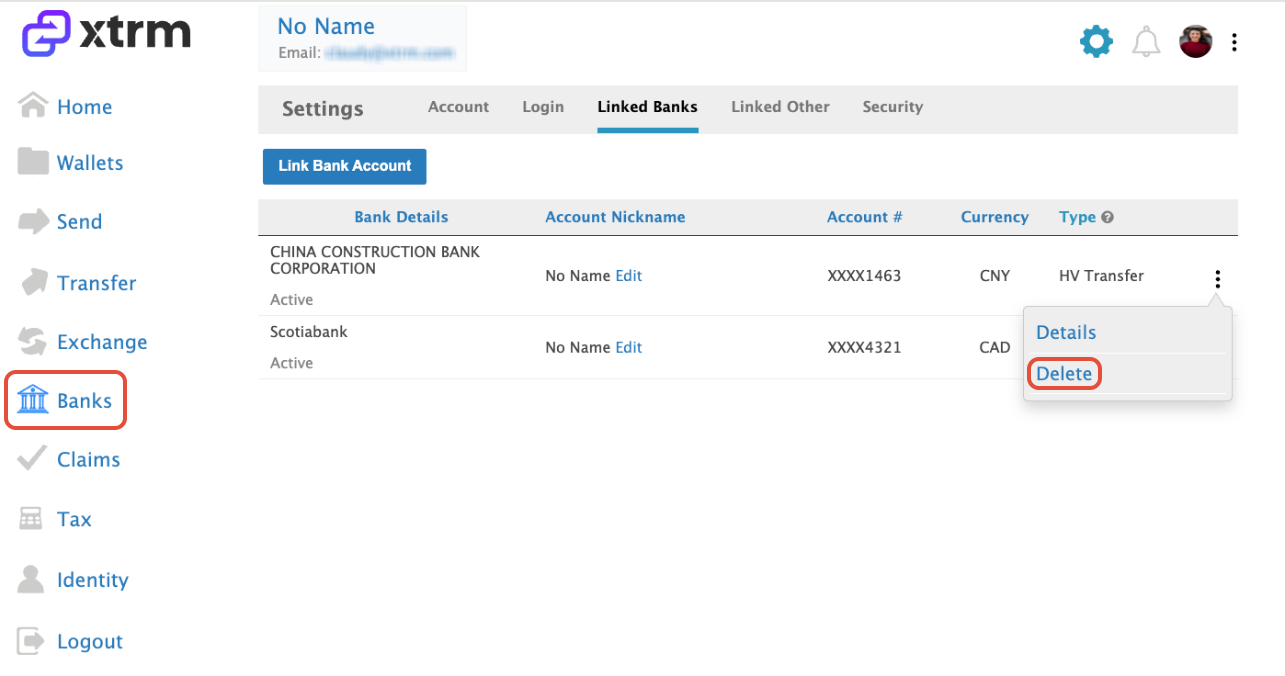
Click on Banks: Select Banks from the menu options.
Delete Incorrect Bank: Locate the incorrectly linked bank, click the ellipsis (⋮) icon next to it, and select Delete.
Add Correct Details: Click Add Bank to link your new, correct bank account information. Important: Use the ACH routing number for ACH transfers and the wire ABA routing number for wire transfers—using the wrong routing number type will cause the transfer to fail.
Resubmit Transfer: Once saved, return to Transfer or Send to re-attempt your transfer with the updated bank account.