USER027 — Personal Accounts: How Do I Transfer Funds to My Bank Account?
Last updated: October 7, 2026
Overview
Transferring funds from your Xtrm digital wallet directly to your bank account is a fast and secure way to withdraw your earnings, incentives, or rewards. You can transfer funds electronically via ACH, Wire, Instant Transfer or Rapid Bank Transfer once you have linked a valid bank account to your profile.
Prerequisites Before Transferring
Verified Account: Ensure your personal profile is completed to 100% to meet standard compliance and identity requirements.
Linked Bank Account: You must have at least one active bank account linked under your profile settings.
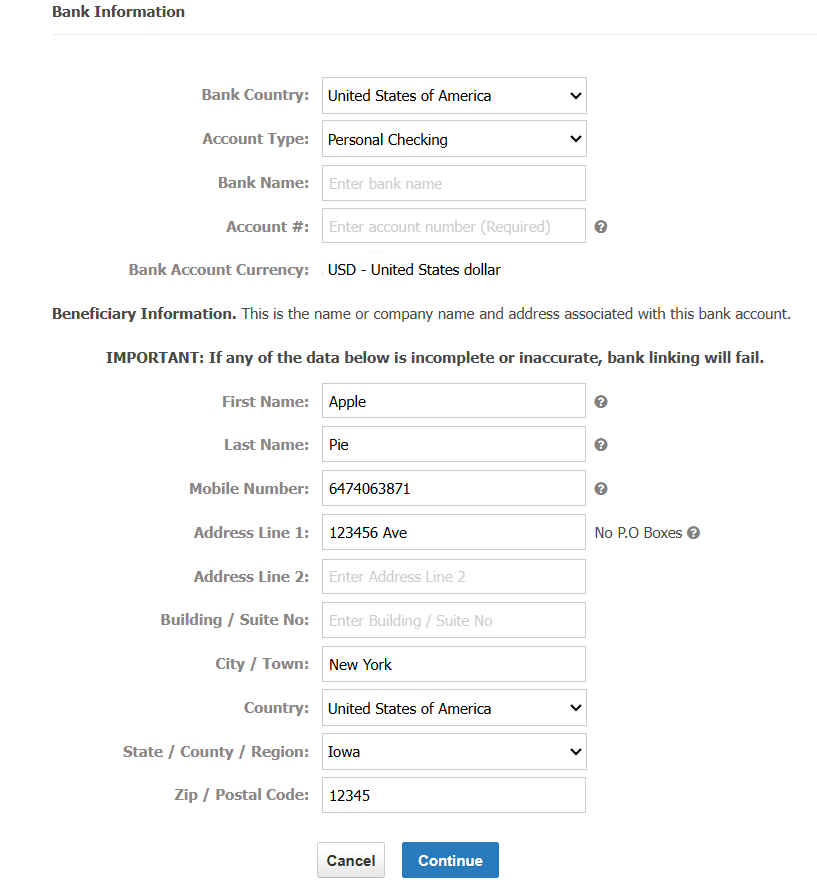
Exact Name and Address Match: Your beneficiary name and address in Xtrm must exactly match what is on file with your bank account, or the transfer will fail. Ensure your legal name and the address associated with your bank account are entered precisely in your Xtrm profile.
Account Type Verification: If linking a savings account, contact your bank first to confirm it can receive ACH payments, as some savings accounts have ACH receiving restrictions.
Sufficient Balance: Verify that your wallet balance covers both the transfer amount and any applicable processing or currency conversion fees.
Formatting Assistance: A complete formatting guide to help you link your bank account accurately can be found in our Help Center under TRANSFER007 — Bank Account Formatting Guide.
Transfer Limits: Contact support to request a limit review for a possible temporary increase.
How to Link your Bank Account and Initiate a transfer
1. Log In to Your Account:
Go to xtrm.com and sign in to your Personal Account.
2. Navigate to Transfer Options:
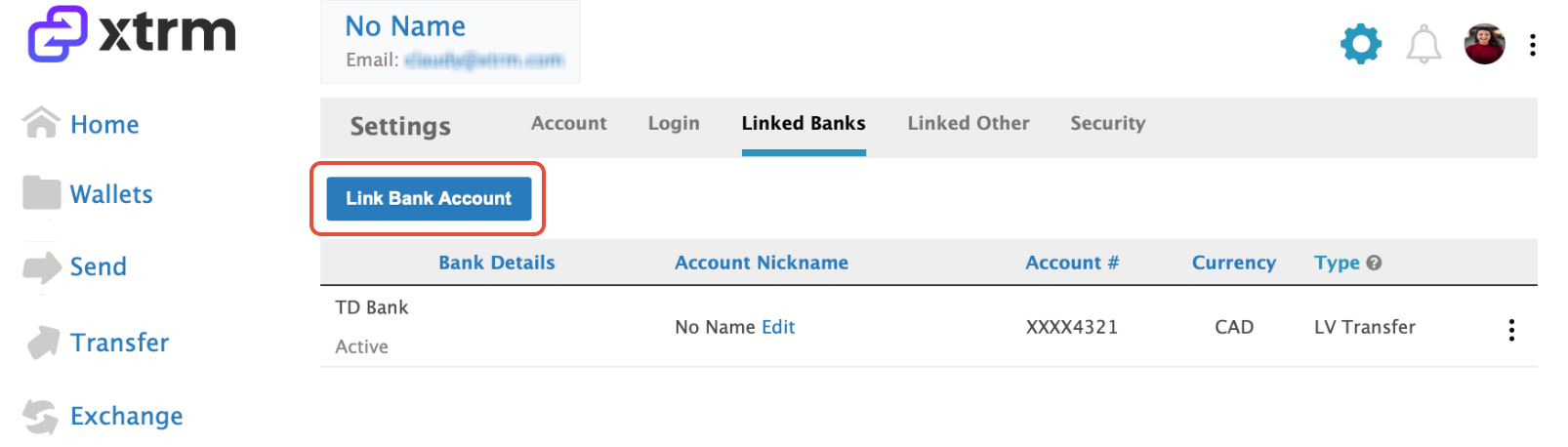
In the main menu, click Transfer or Send Funds and select Link Bank Account
3. Enter Bank Account Details:
Enter in the bank account details, then click Continue.
Troubleshooting "Pending" Transfer Status
If the status of your transfer shows as Pending, please review the following steps:
Don't Be Alarmed: A temporary pending status is part of standard bank processing and verification.
Re-Check Account Details: Delete the linked bank account, re-link it, and double-check that all routing, account numbers, and account holder details are correct.
Verify Linking (After 24 Hours): If the status remains "Pending" after 24 hours, check your Linked Bank Accounts section to verify whether the bank account has been successfully verified.
Incorrect Details Notification: If the bank details you provided are incorrect, Xtrm or the receiving bank will notify you to make the necessary updates before funds are processed. If you receive return code R03 ("No Account/Unable to Locate Account"), this means the recipient's bank was unable to locate the account provided for the payment, typically indicating the account number was incorrect or the account does not exist at that bank.
Support Resolution Process: If you contact Xtrm Support about a stuck transfer, responses from our banking partner typically come within the same day. Funds from failed transfers are typically returned to your Xtrm wallet within a couple of hours, but may take until the next business day, and you will receive an email notification when funds are returned to your wallet.
Additional Troubleshooting for Instant/Rapid Transfers
Expired or Inactive Destination Card: Instant transfers to expired or inactive debit cards will fail and remain in processing status. Xtrm will cancel the payment and return the full transfer amount, including fees, to your Xtrm wallet. Once the funds are returned, you can initiate a new payout to a valid card or use a standard bank transfer method.
Bank Does Not Support Real-Time Payments: Instant or RTP transfers can fail when the destination bank account does not support real-time payments. When this occurs, the funds are automatically returned to your Xtrm wallet and any instant transfer fees are waived. You must then reinitiate the transfer using the standard ACH or bank transfer method.
Tracking Returned Funds: Check your Xtrm transaction history for status updates, such as Pending, In Progress, or Completed, and verify your wallet balance once the funds are returned.
Troubleshooting Transfer Errors
General Failed Transfer Troubleshooting
If your bank transfer fails, follow these steps to resolve the issue:
Open Linked Bank Accounts and delete the failing bank link.
Re-link the bank account and confirm:
Account holder name exactly matches the bank record.
Correct account number is entered.
Correct routing number for your transfer type:
ACH routing for ACH transfers.
Wire routing for domestic wire transfers.
Re-initiate the transfer from the same currency wallet as the bank account's local currency.
If the transfer fails again after following these steps, contact Xtrm Support and provide the exact error text from Wallet Activities, the transfer method chosen (ACH or wire), and the last 4 digits of the account number for further investigation.
Transfer Blocked: "Previous Transfer in Progress"
If you receive the error message "Your previous transfer is in progress. Please try later," this may indicate that a failed transfer is blocking new attempts.
What Happened: A previous transfer attempt may have failed but remains in a pending state in the system.
Resolution: Contact Xtrm Support to clear the blocked state and allow new transfers to proceed.
Transfer Blocked: "7 Day Transfer Limit Exceeded"
If you receive the error message "7 day transfer limit exceeded" when attempting to transfer funds, you can increase your account limits by adding your SSN/Tax ID to your profile:
Log in to your account at xtrm.com.
From the left-hand navigation menu, click Identity.
Select the Personal tab.
Enter your SSN/Tax ID.
Click Save.
After saving, try initiating the bank transfer again.
Warning: If you see an error message after submitting a transfer, check your email for a confirmation before retrying. Transfers can succeed in the background even when an error is displayed on screen. Retrying without checking may create duplicate transfers for the same amount.
Viewing Transfer Details and Activation Links
To view details of completed transfers, including activation links and tokens:
Navigate to your Wallet section.
Click on Wallet Activities.
Click on the specific transfer to view its details, activation link, and token.
If transfer details are not accessible, contact Xtrm Support to update the transaction and make the details viewable.
4. Select Your Bank & Currency Wallet:
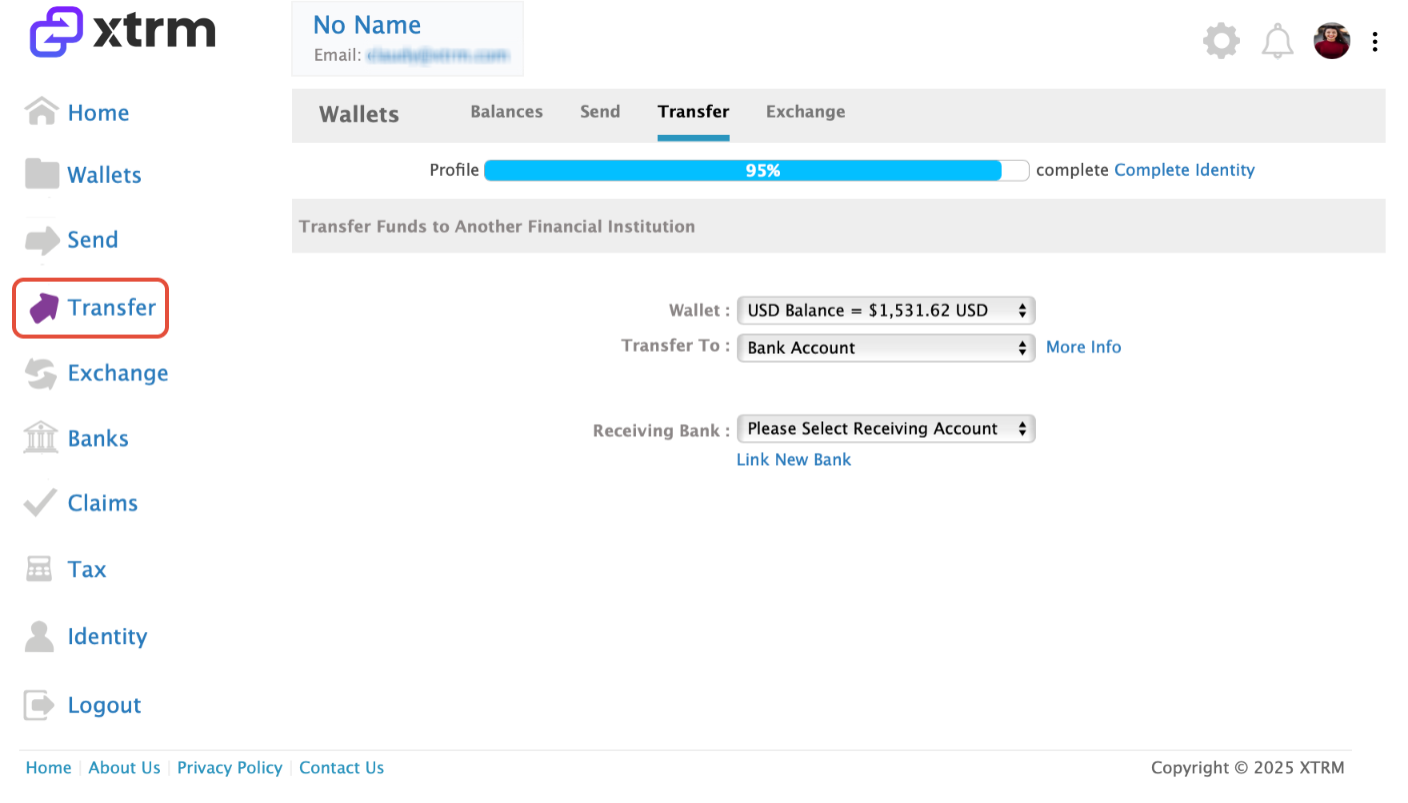
Choose the Source Wallet (e.g., USD, EUR, GBP) you wish to transfer funds from.
Select your linked Destination Bank Account from the list.
Important for cross-currency transfers: When transferring to a bank account in a different currency than your wallet (e.g., from a USD wallet to a UK GBP account), you must select the bank account's local currency as the transfer currency, not your wallet currency. Banks typically reject transfers sent in the wrong currency (for example, UK banks will reject USD transfers to GBP accounts). Xtrm automatically handles the foreign exchange conversion when you select the correct local currency.
5. Enter Transfer Amount:
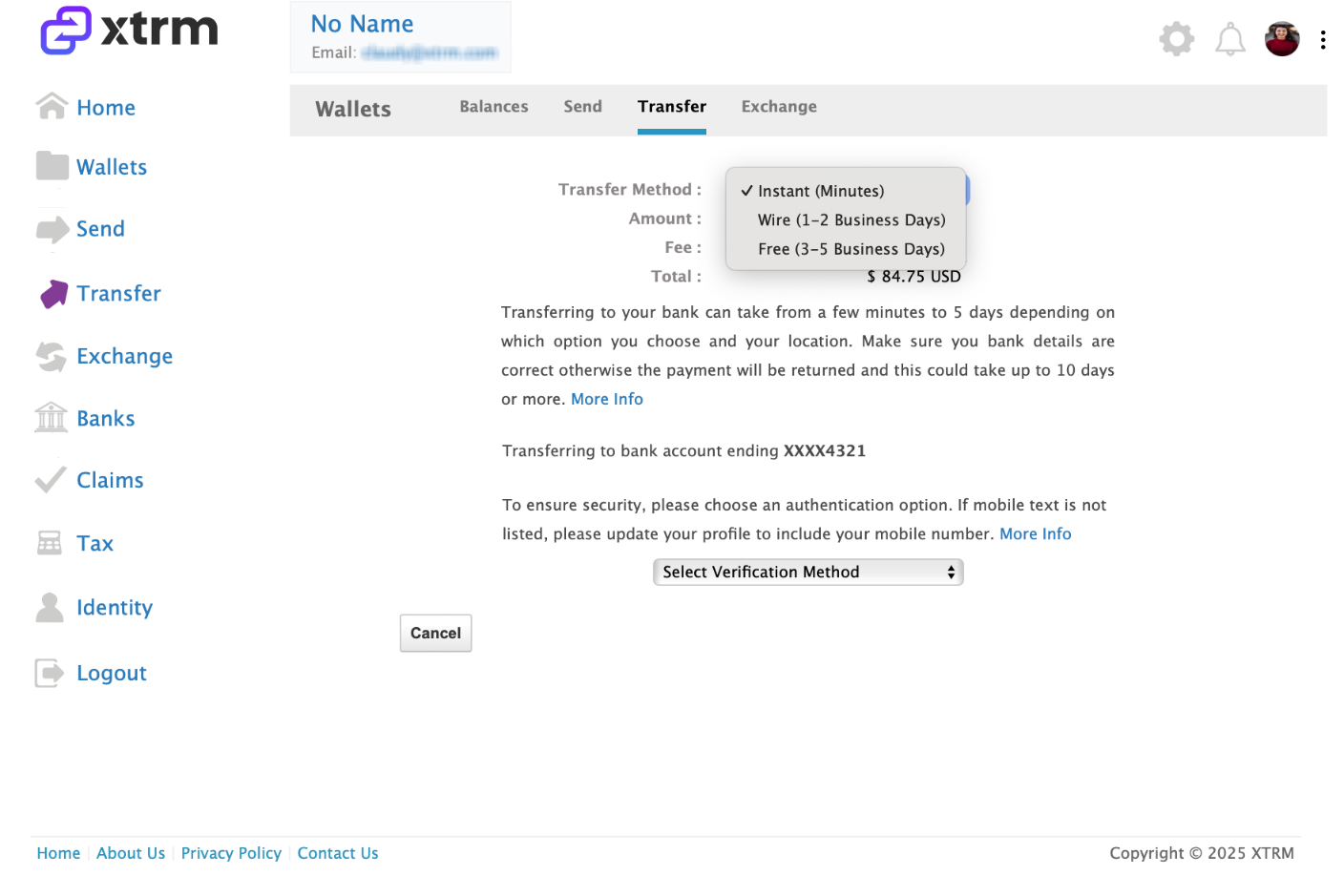
Input the amount you wish to withdraw. The system will automatically display applicable transfer fees, exchange rates (if transferring across currencies), and the final net amount to be deposited.
6. Review & Confirm Transaction:
Double-check all transfer details and click Confirm or Submit Transfer. You will receive an on-screen confirmation and a transaction receipt via email.
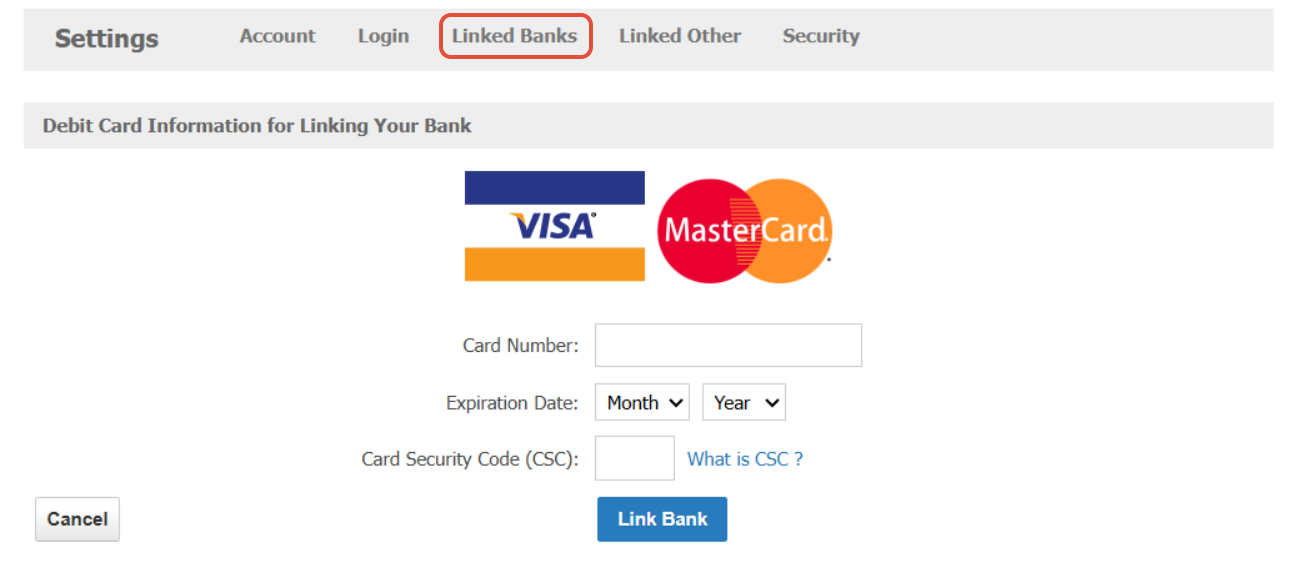
7. Rapid Bank Transfer Option (US Only):
If the Instant Transfer option is not supported by your receiving bank, the Rapid Bank Transfer option is available. This method utilizes your linked bank debit card and is strictly available within the United States. Note that the Rapid Bank Transfer method cannot be used for transfers above the standard $25,000 limit — approved limit increases only apply to linked bank account transfers.
8. Identifying Deposits on Your Bank Statement:
Once processed, the transfer will display on your bank statement under either the remitter's name or Xtrm Inc., depending on your financial institution's reporting format.
Rapid Bank Transfer

Standard Bank Transfer

Processing Timeframes
Rapid / Instant Transfer (US): Immediate to same-day delivery (via supported bank debit cards).
Standard ACH / Direct Deposit (US): 1 – 3 business days.
International Wire Transfer: 2 – 5 business days (depending on receiving bank and country location).
Tip: Bank processing times do not run on weekends or public holidays. If a transfer is submitted on a Friday, processing begins the following business day.
Troubleshooting Missing or Delayed Transfers
If your transfer is missing or delayed, follow these diagnostic steps:
Verify Transfer Status and Details:
Open your Wallet, then navigate to Wallet Activities.
Select the specific transfer and click Details to confirm the status, transfer amount, and last four digits of the destination account match your actual bank account.
If Status Shows "Completed":
If at least 1 to 5 business days have passed since completion, your bank may have the funds under review.
Contact Xtrm Support to initiate a bank trace and obtain proof of transfer that you can share with your bank to expedite crediting.
If Status Shows "Pending" or "In Progress":
Transfers made after 7:00 PM EST, on weekends, or on holidays typically take longer to process, and all transfers may be subject to review.
If the transfer has been in this status for more than 2 to 3 business days, contact Xtrm Support to cancel the transfer and refund the amount to your wallet so you can retry.
Extended "In Process" Status:
If a bank withdrawal shows as "in process" for an extended period and has not arrived in your bank account, the transfer may have been cancelled by the banking partner.
When this happens, the funds are automatically returned to your Xtrm Wallet. Log in to verify that the funds have been returned.
Before Re-Initiating After Resolution:
Once funds are returned to your wallet, verify that your linked bank account details are complete and that the account type is correctly set to CHECKING, not savings or another account type.
Consider linking an alternative bank account rather than reusing the same account that experienced the issue, as this can help prevent recurring transfer problems.