COMPANY026 — How to Fund Your Customers' or Partners' Wallets
Last updated: August 26, 2026
As a remitter or platform manager on Xtrm, you can directly deposit funds into the digital wallets of your connected customers, partners, or beneficiaries. This capability allows you to manage payouts, incentives, rebates, or operational advances centrally.
Before funding customer or partner wallets:
Advanced Services Approval: The customer or partner company must be Advanced Services Approved (indicated by a Yellow Star icon).
Connected Manager Services Status: You must hold a Manager Account (indicated by a Red Star icon).
Connected Accounts: The recipient company or individual must be added as a contact or connected entity within your Xtrm account. If you are not connected, please reach out to [email protected] for assistance.
Sufficient Balance: Ensure your paying wallet has sufficient cleared funds or an active linked payment mechanism.
Method 1: Fund via the Wallets Menu (Recommended)
Follow these steps to log an inbound funding request and generate pending records in Xtrm:
Navigate to Contacts: In the left-hand navigation menu, click Contacts.
Filter Connected Contacts: In the dropdown menu, select Connect to display all connected company contacts.
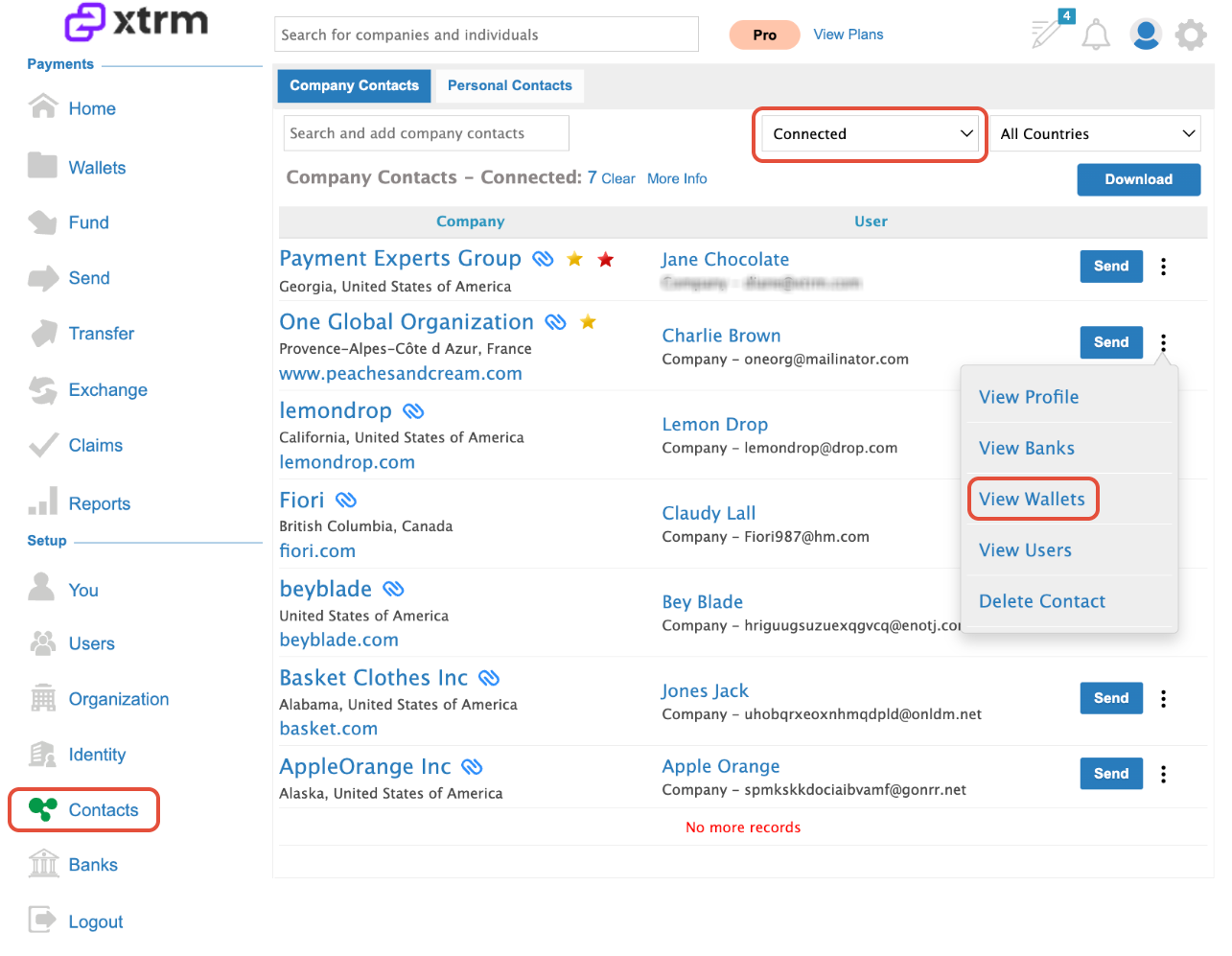
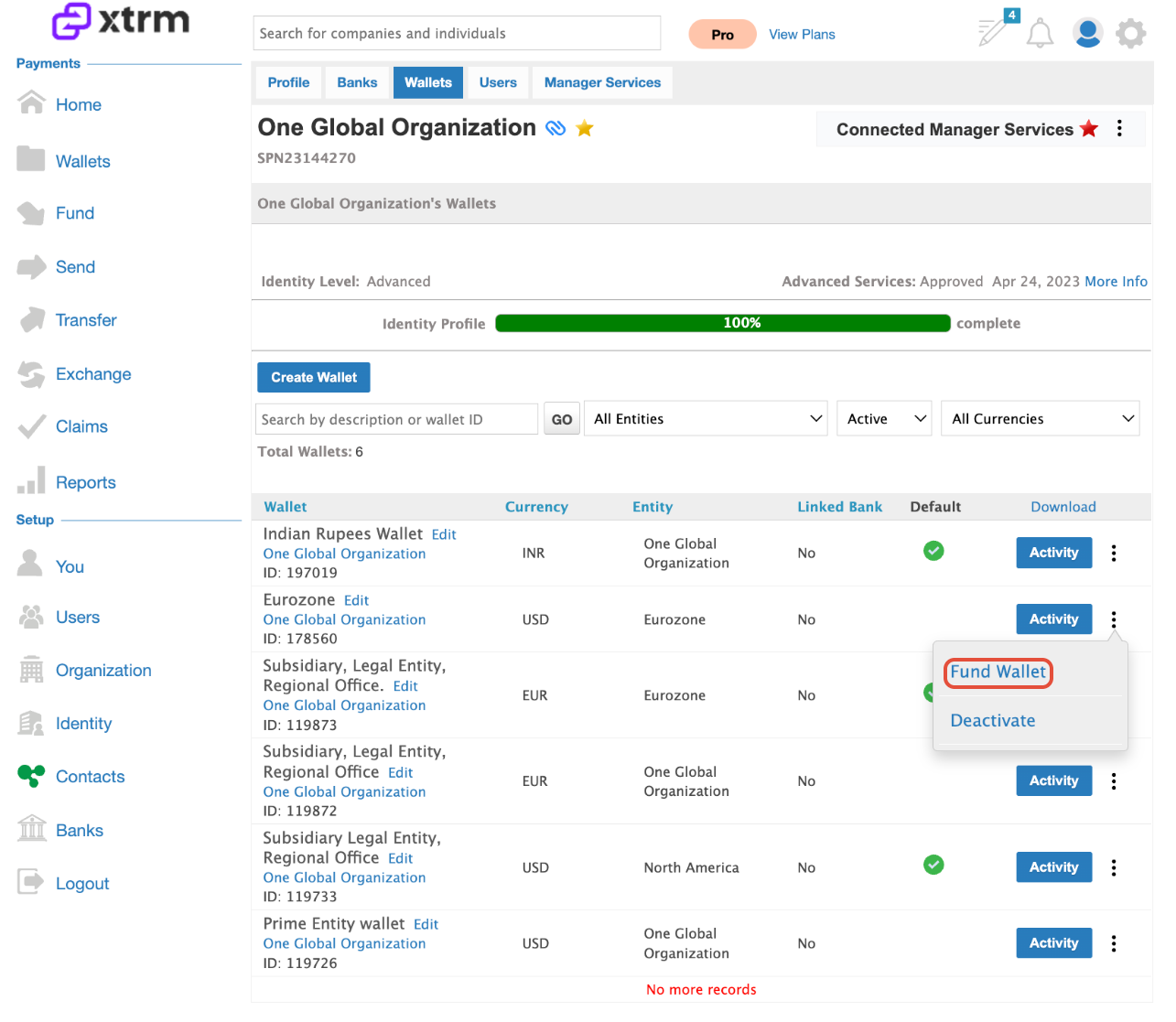
Select Fund Wallet Action: Find the specific wallet you wish to fund. Click the action dropdown menu for that wallet and select Fund Wallet.
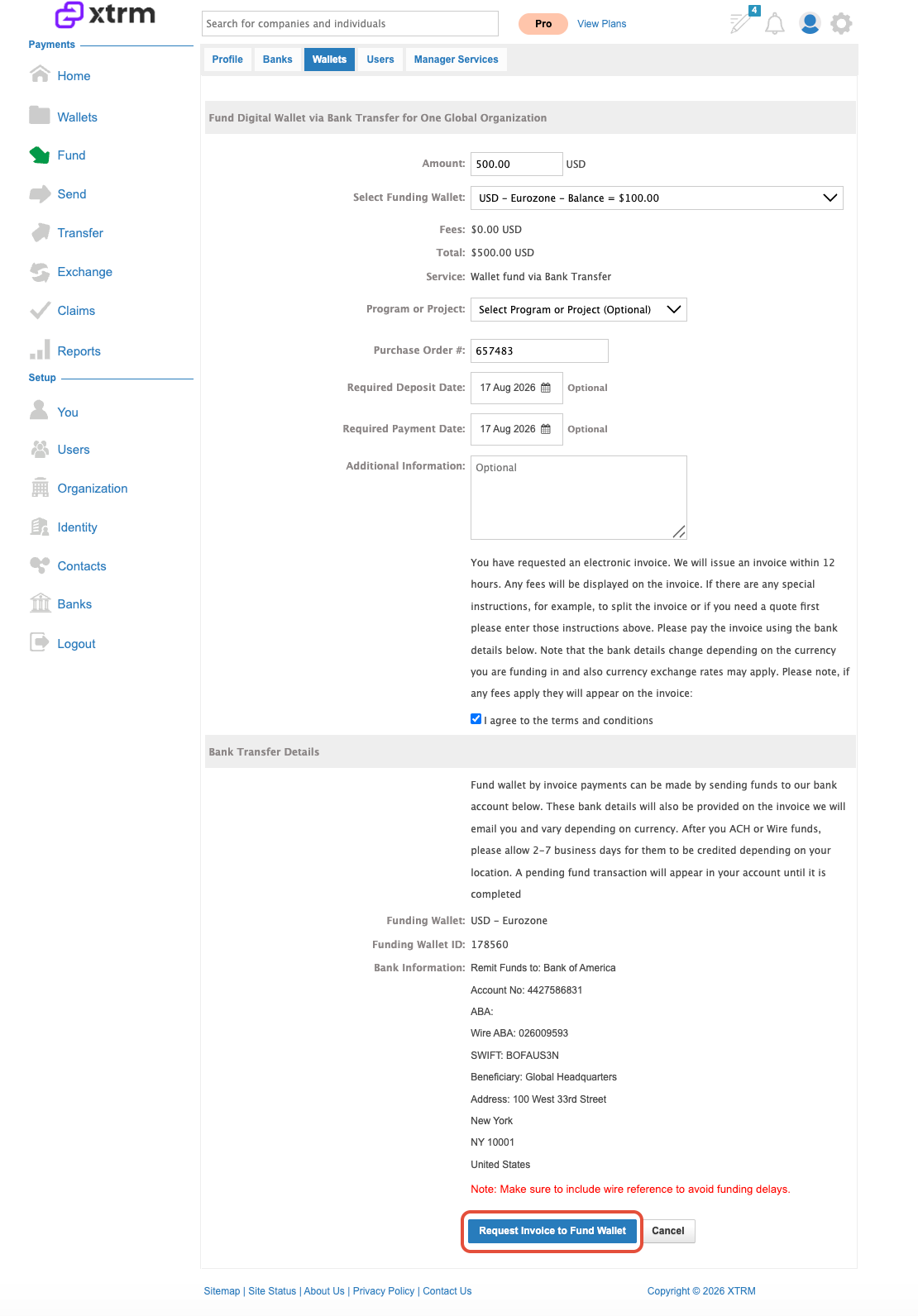
Enter Funding Details: Enter the Fund Amount and select whether an Invoice is required.
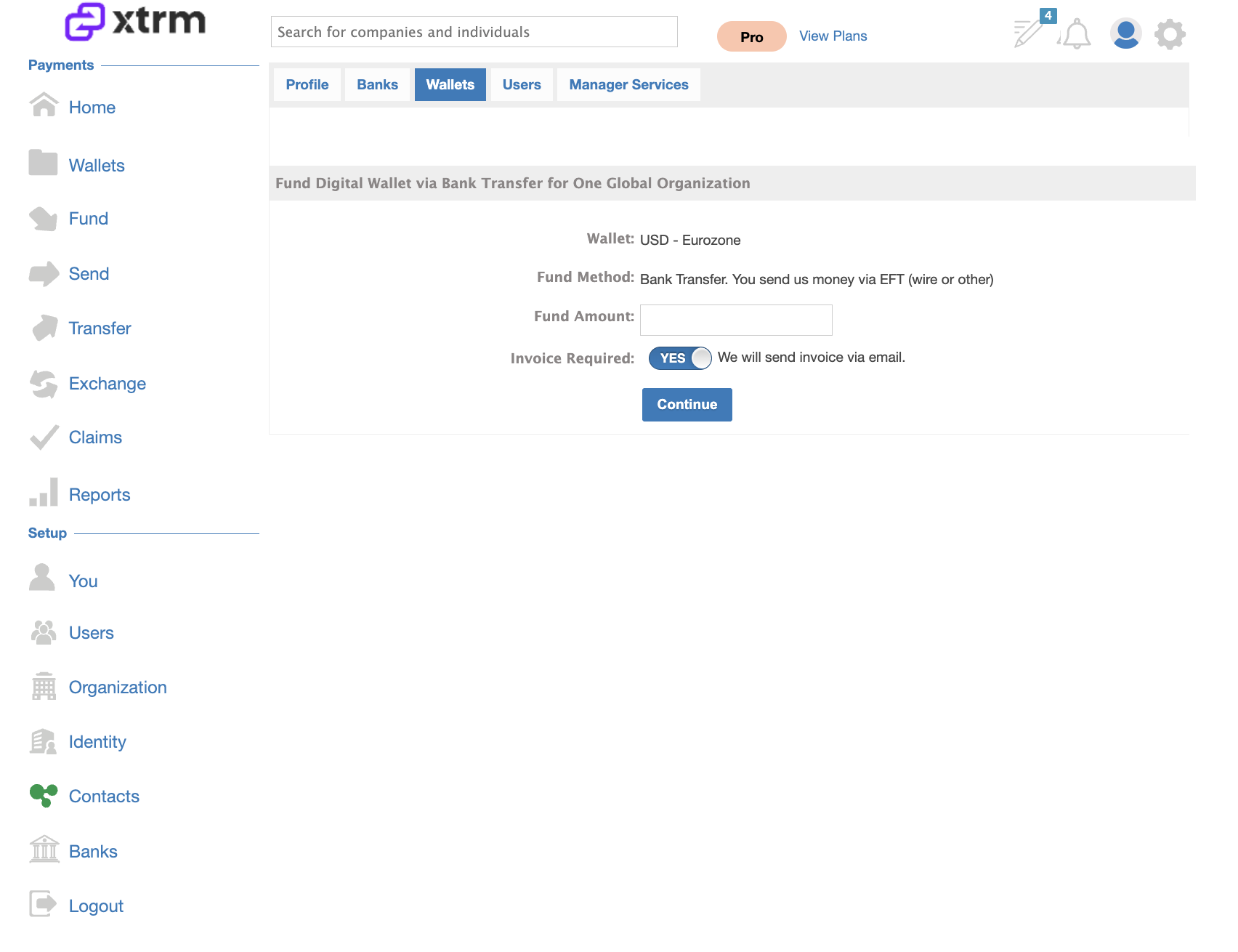
Confirm & Initiate Inbound Transfer: Review the funding bank details provided at the bottom of the screen. Click the submission button to Request Invoice to Fund Wallet for your customer/partner. This automatically notifies the Xtrm team to expect the incoming payment.
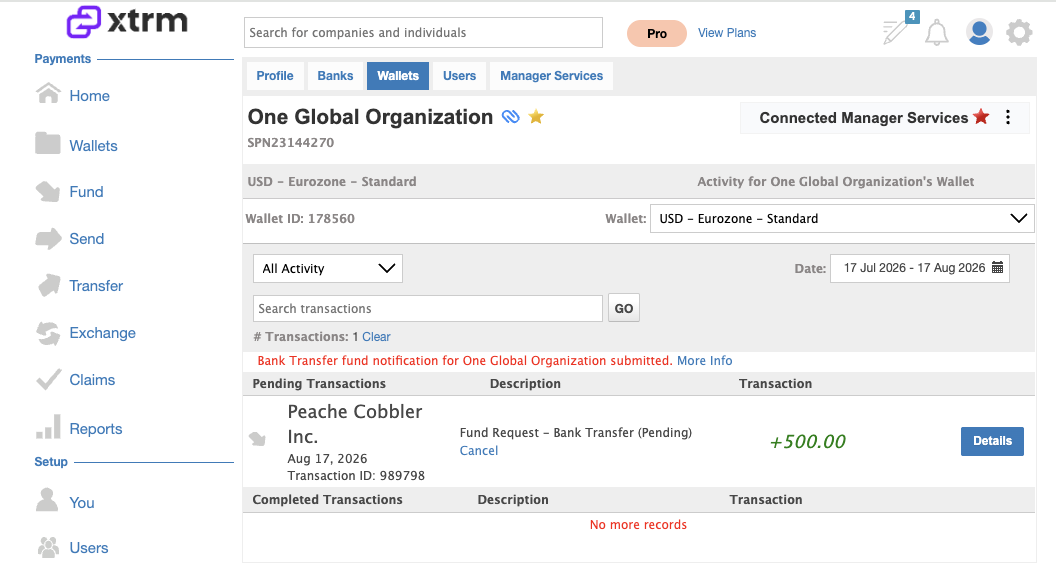
Notify Xtrm Team: This creates a pending fund record for your customer or partner and automatically notifies the Xtrm team to expect the incoming payment.
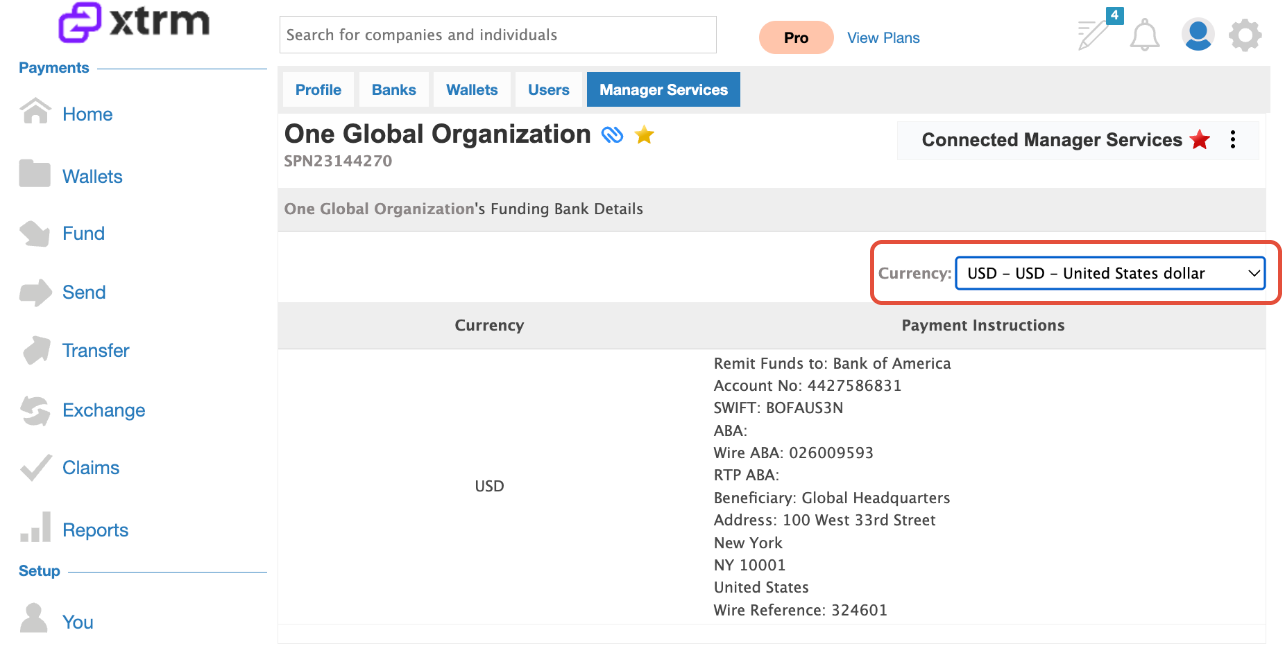
Method 2: Obtain Funding Bank Details Only
If you only need the wiring/bank instructions without creating an inbound funding notification in the wallet menu:
Under the connected Contact, select Banks.
Locate the Connected Manager Services section and click the ellipsis (three dots).
Click Get Funding Bank Details to view the full deposit instructions.
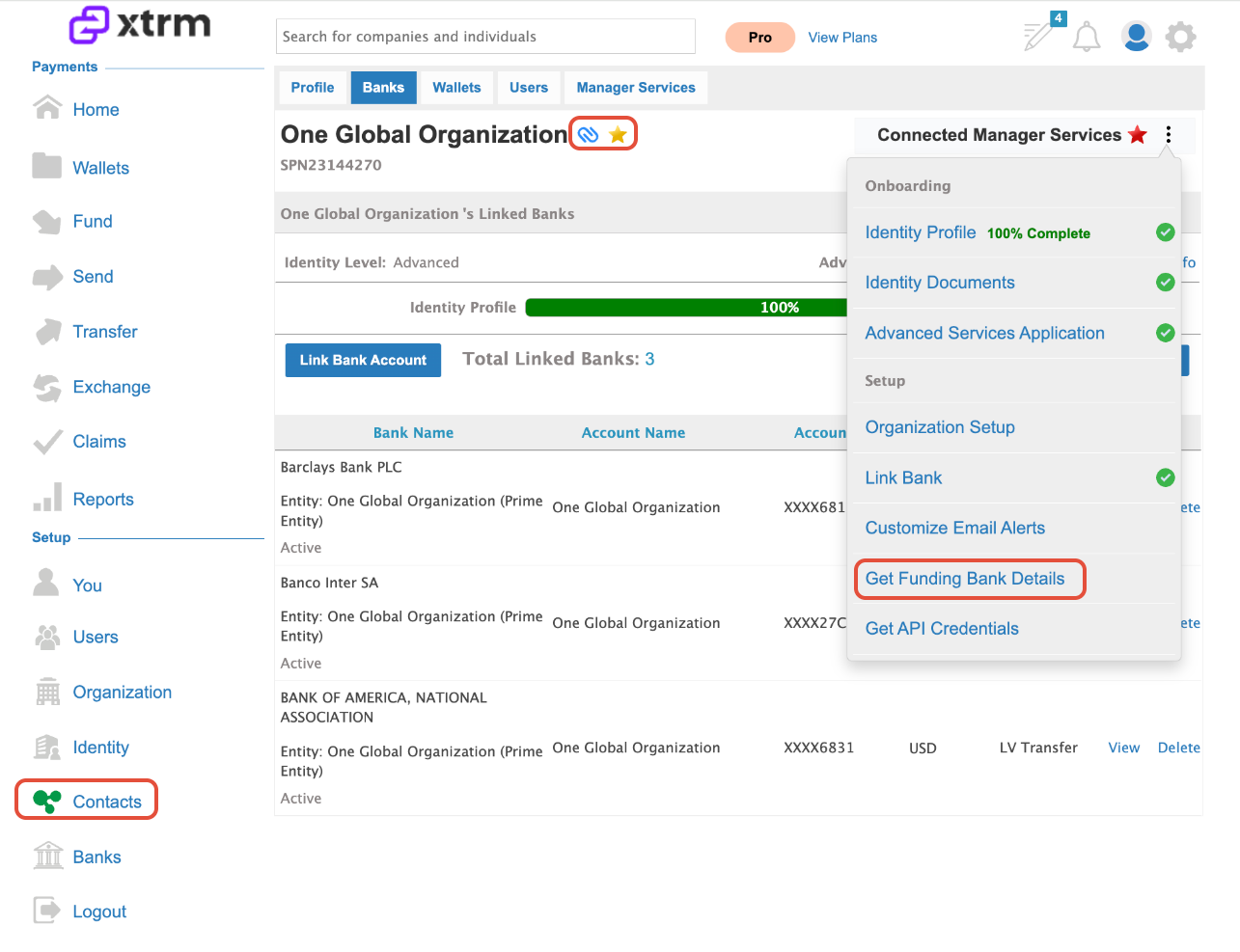
Funding information is displayed, and you can also select the currency from the dropdown and choose the appropriate currency to be funded.