COMPANY009 — How to View and Process Claims
Last updated: August 26, 2026
Learn how to review, manage, and payout submitted claims within Xtrm, as well as how claims appear to individual users.
Reviewing and Processing Claims
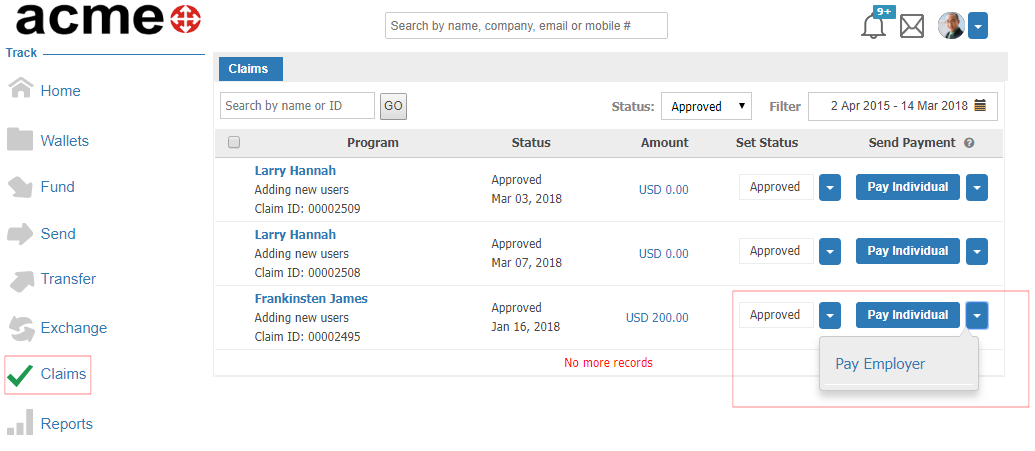
Go to the Claims section on the left navigation menu.
Locate the claim you wish to process and update its status (e.g., Approve, Reject, or Expire).
Payout Options upon Approval:
Pay the Individual: The user receives an email notification alerting them that funds are available to view and manage in their account.
Pay the Individual's Employer: The admin of that company receives an email notification and can log into their company account to view the payment along with details of the employee who submitted the claim.
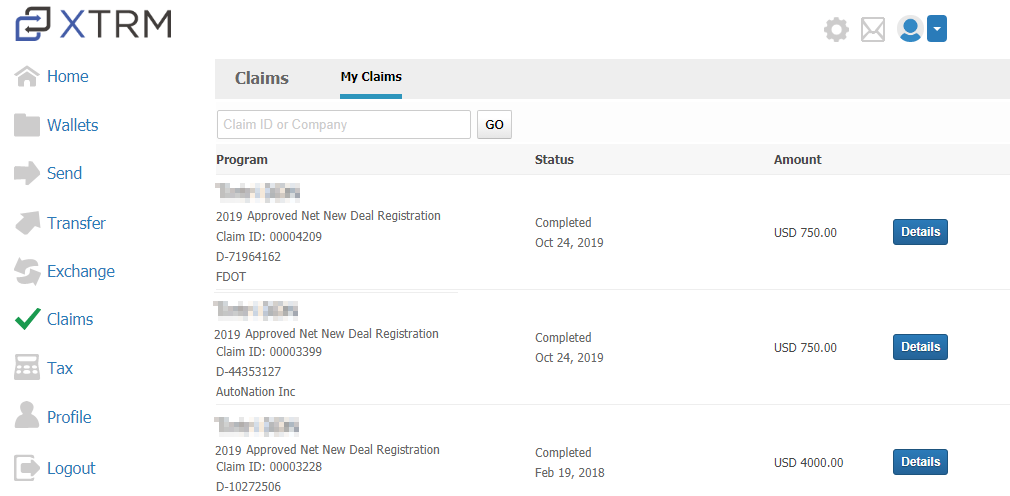
Completion: Once paid, the claim status automatically updates to Completed.
How Claims Appear to Individual Users
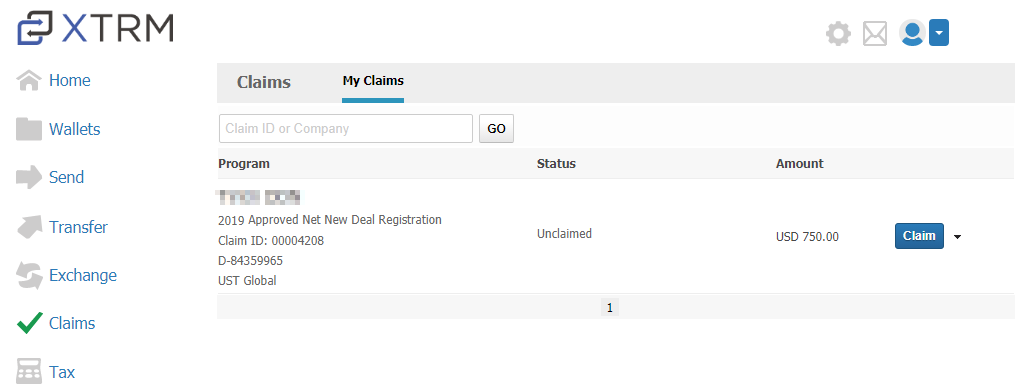
Submitting / Requesting Approval: Claims are listed in individual XTRM accounts under Claims on the left menu. Users simply click on a claim to submit or request approval.
Paid Claims: Once approved and paid, the claim updates to show a completed state with transaction details in the user's account dashboard.