COMPANY011 — How to Add Individuals to Your List of Beneficiaries
Last updated: August 26, 2026
Individuals are automatically added to your personal Contacts list when:
You send them a payment for the first time.
They register through your organization's branded signup portal.
If an individual does not appear in your list automatically, you can manually search for them and add them to your contacts. Maintaining an up-to-date contacts list ensures accurate transaction history and streamlined tax/compliance reporting.
How to Manually Add an Individual Contact
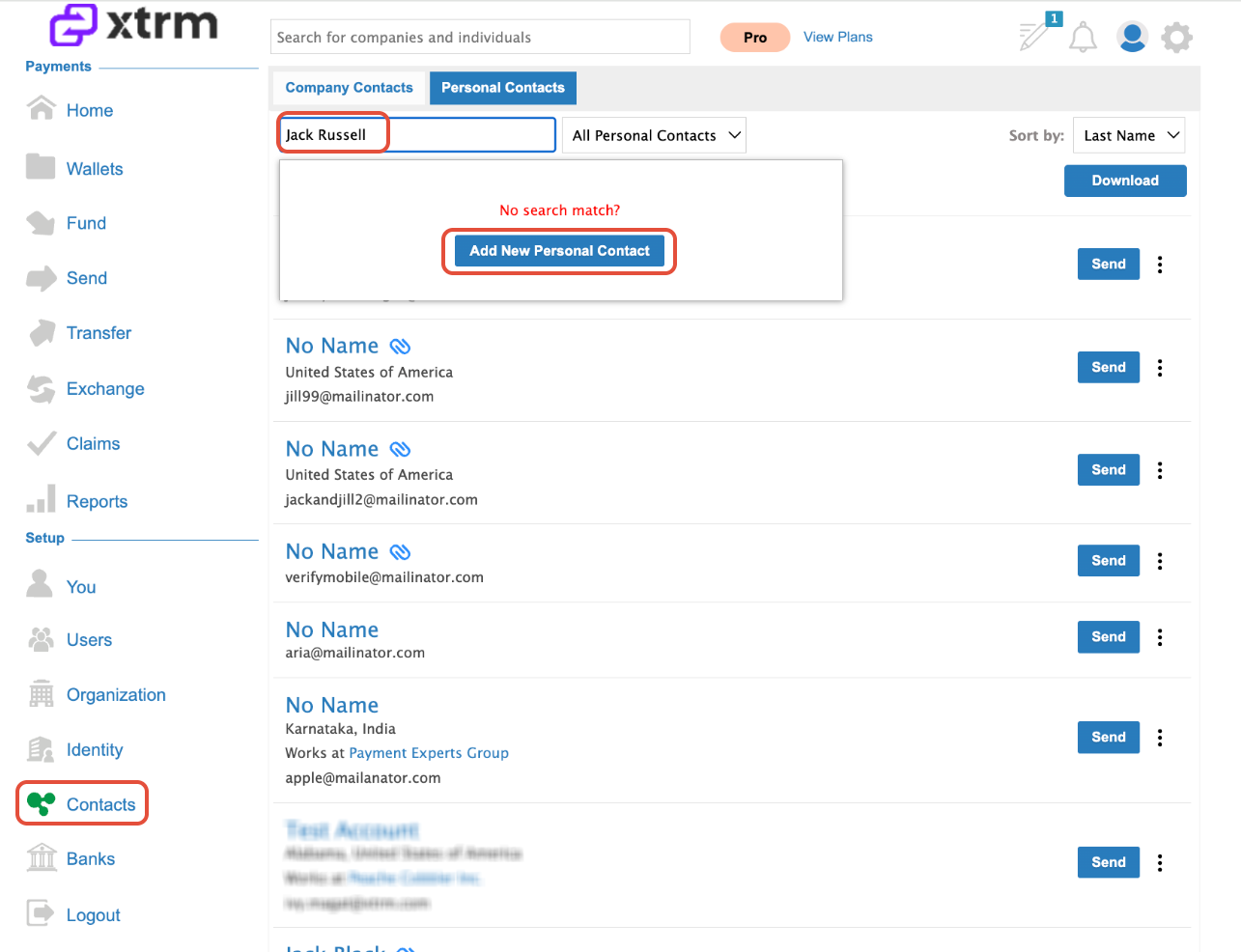
1.Navigate to Contacts:
Log in to your account and select Contacts from the left-hand navigation menu.
2.Search for the Individual:
Type the individual's full name or email address into the search bar.
3.Add the Contact:
Existing Xtrm Account: If the individual appears in the search results, click Add next to their profile.
New Contact: If they do not appear in search results, click Add New Personal Contact to create their entry or send an invitation.
Key Tips & Best Practices
Automatic Linking: Whenever possible, encourage beneficiaries to sign up via your custom branded portal. This eliminates manual setup and automatically tags them to your organization.
Reporting Accuracy: Adding individuals before initiating payouts helps ensure reporting and audit trails reflect complete beneficiary details.