COMPANY012 — Understanding Your Mass Payment Submission Status
Last updated: September 22, 2026
Keeping track of your mass payment files is essential for financial planning. Xtrm provides real-time status updates both within your dashboard and via automated email alerts.
You can customize who receives these status notifications by updating your account alert preferences.
How to View Payment Status
To monitor the progress of your mass payment files:
Log in to your Xtrm account.
Navigate to the Send menu.
Select Mass Payments to view the status history and current progress of your submissions.
Open your submission by clicking on the Batch ID.
In the Details section, check the Source Wallet field to confirm the correct wallet ID is being used for the payment.
Note: Mass payment submissions do not appear in the wallet's Pending table during pre-processing. They track exclusively on the Mass Payments page until the batch is queued for processing.
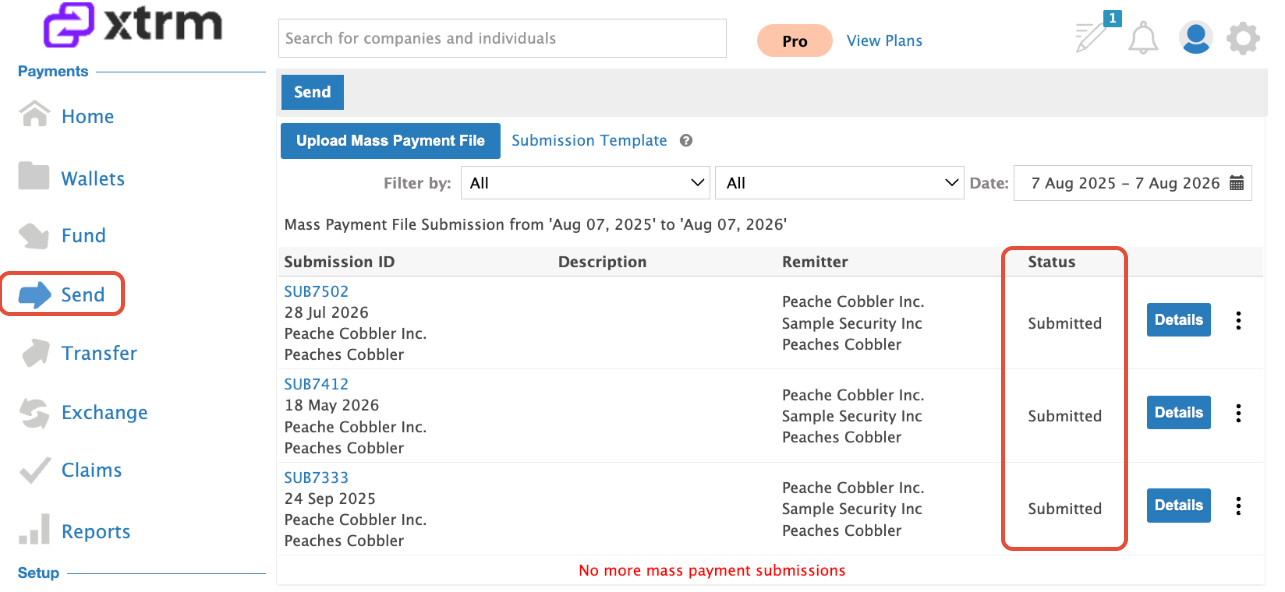
Understanding Submission Statuses
Below is a breakdown of what each status means for your file:
When a submission moves to Queued for Processing, validation and funding have been confirmed. If your wallet has insufficient funds, the status will switch to Invoice and you will receive funding instructions via email.
Status | Description |
Submitted | Your file has been successfully uploaded to the system. |
Pre-processing | The file is currently being validated; potential errors are being identified and corrected. |
Invoice | An invoice has been generated for the necessary funding to cover the submission. |
Fund Received | The payment funds have been successfully received by Xtrm. |
Prefund Transfer | Funds are being moved to the designated sub-ledger. (Note: This typically takes 3–5 business days). |
Queued for Processing | Validation is complete, funds are available, and the file is in line for execution. |
Processed | The payment file has been fully executed. |
Pro-Tips for Success
Set Up Notifications: Ensure your financial team receives automatic updates by configuring "Payment Status" alerts in your user settings. This saves you from having to log in manually to check progress.
Proactive Monitoring: If you notice a file has been stuck in "Pre-processing" for an extended period, it may indicate a data validation error within the file that requires your attention.