TRANSFER007 — Setting a Default Bank for Bank Direct Transfers
Last updated: October 7, 2026
Setting a Default Bank Account ensures that any automated or direct bank payments received in your Xtrm
wallet are automatically routed to your preferred bank account without requiring manual approval each time.
Use Case Example
Scenario: You want USD payments received into your USD specified wallet to be automatically forwarded to the designated USD bank account once received.
Integration
You can configure claims to flow directly to partners' bank accounts instead of their wallets.
Partner Requirements:
Before configuring Bank Direct for a partner, ensure the partner has completed these steps in their Xtrm account:
Register for an Xtrm account.
Link their bank account.
Set the linked bank account as the default for their USD wallet (see instructions below).
Configuration:
Once the partner has completed the setup above, configure their payment method in the Partner Portal by setting claims to Bank Direct instead of Choice (Wallet). When the partner makes claims through the Partner Portal, funds will flow directly to their linked bank account, bypassing the wallet balance.
Notify the Remitter
Inform the remitter that you want to enable Bank Direct.
Provide them with the specific wallet details you want to be paid into (e.g., your USD Wallet).
Set the Default Bank for That Wallet
Once a payment is sent to the selected wallet, it will automatically be forwarded to the default bank account you set.
Notify the Remitter
Inform the remitter that you want to enable Bank Direct.
Provide them with the specific wallet details you want to be paid into (e.g., your USD Wallet).
Set the Default Bank for That Wallet
Once a payment is sent to the selected wallet, it will automatically be forwarded to the default bank account you set.
Notes
Automatic Forwarding Requirement: All Bank Direct payments are first deposited into your wallet, then instantly transferred to the designated default bank account.
Missing Bank Account: If no default bank account is linked to the target wallet when a Bank Direct payment is received, the funds will remain safely in your wallet balance until manually transferred or until a default bank is assigned.
Updating Bank Details: If your bank account information changes, you must delete the old bank account and add the new one with correct country and base currency settings, then update the default bank in your wallet settings to prevent transfers to outdated accounts.
How to Set or Change Your Default Bank Account
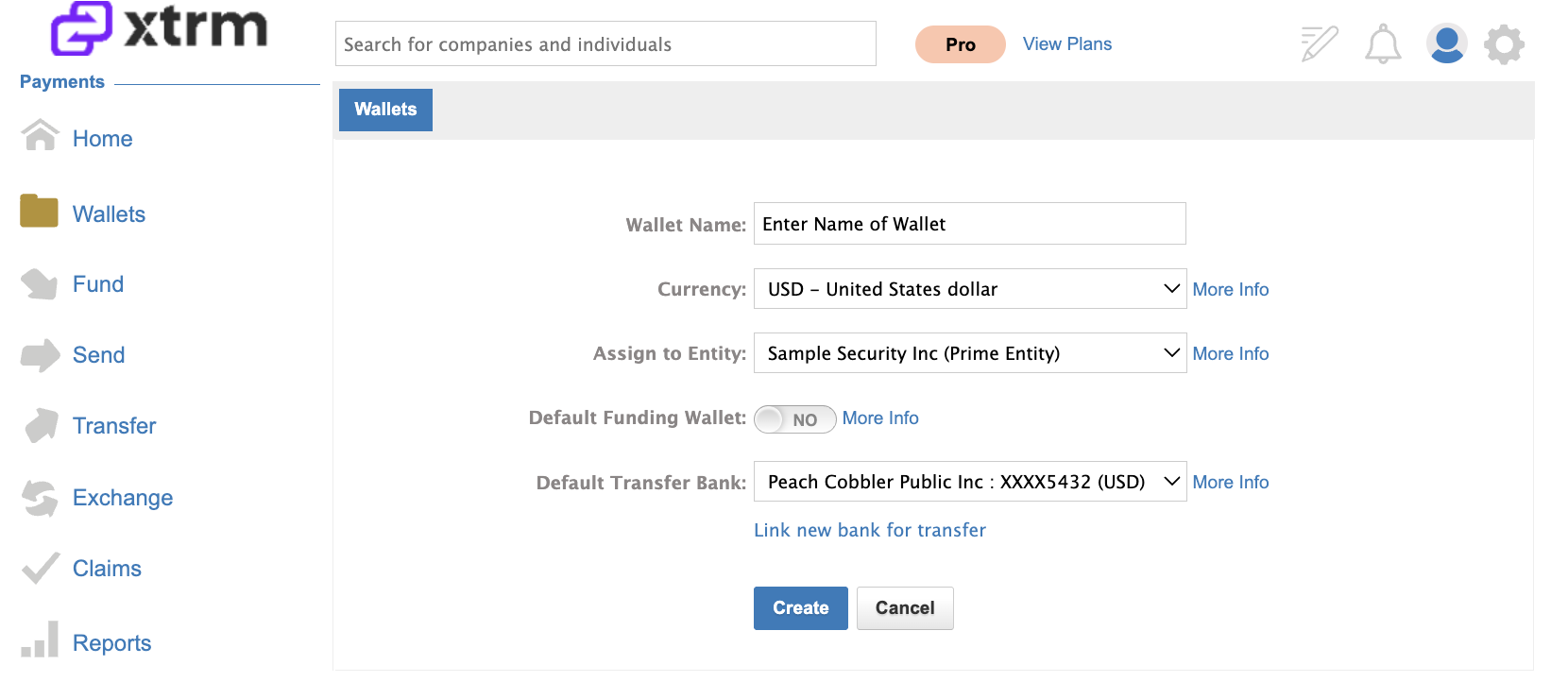
Option A. Setting a Default Bank During Wallet Creation
Navigate to Wallets and Select Create Wallet.
Complete the initial wallet details (e.g., wallet name and currency).
Under the Default Bank section, select an existing linked bank account or choose Link New Bank to add a new one.
Note: A default bank can be set during initial wallet creation or updated anytime by editing the wallet settings.
Option B. Editing an Existing Wallet
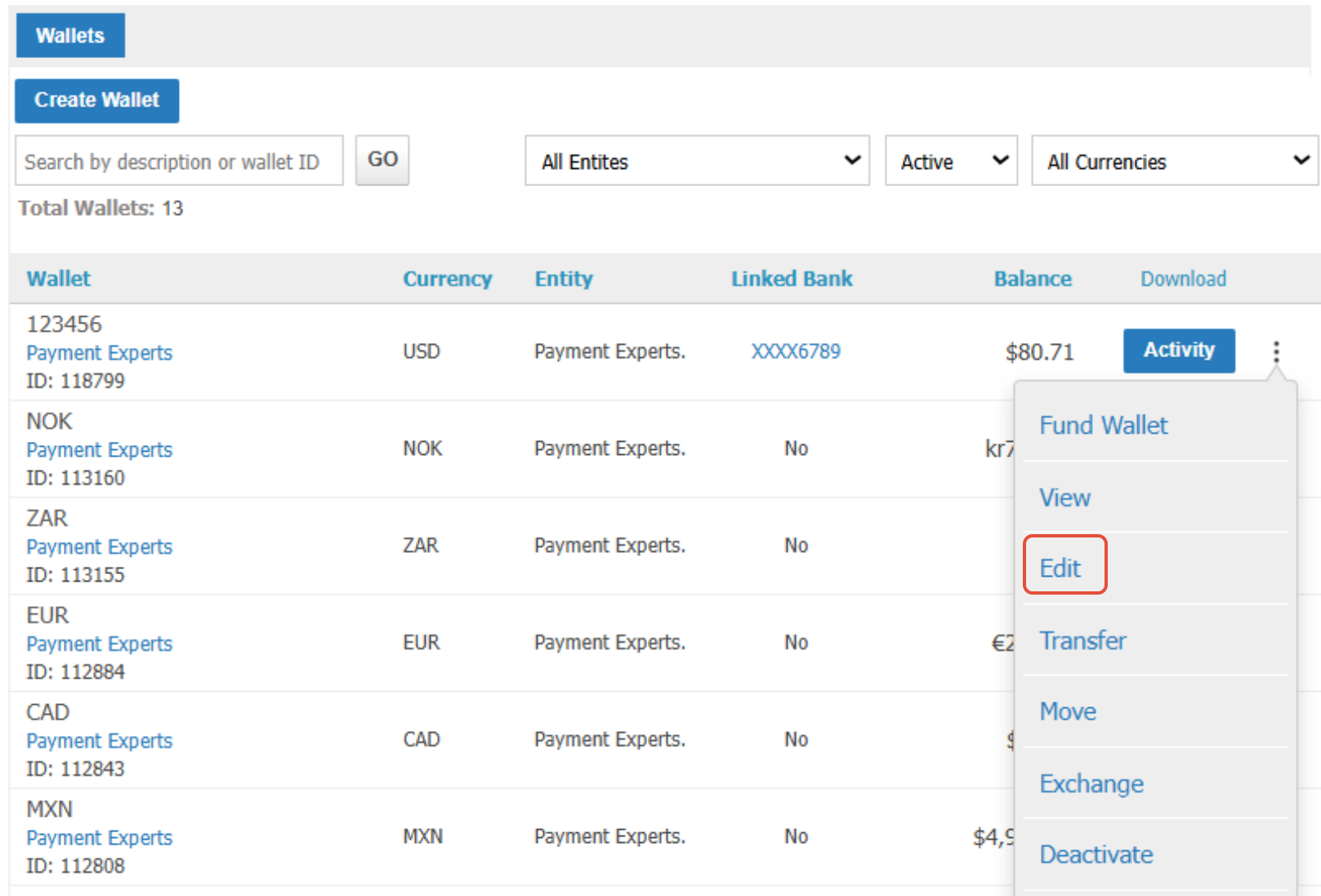
Go to My Wallets.
Locate the wallet and click the Options Menu (⋮), select Edit.
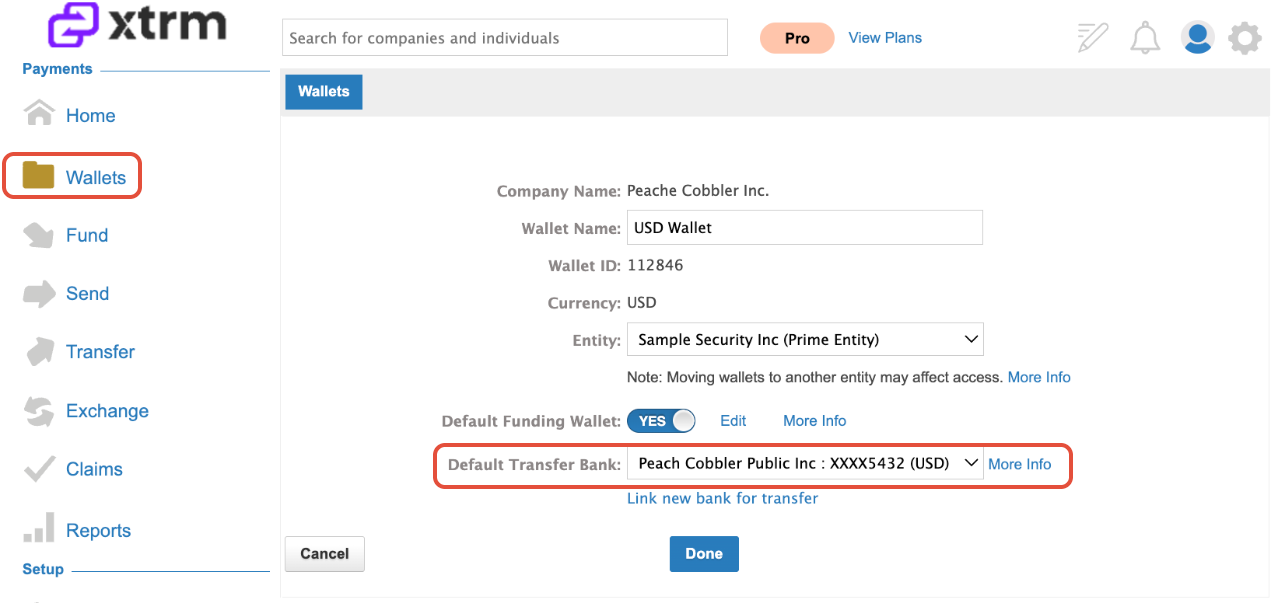
3. In the Default Transfer Bank dropdown, select an existing bank or choose Link New Bank to add a new one.
Updating Bank Account Information
If your bank account details have changed (e.g., a new account number or a different bank), follow these steps to update your information and prevent failed transfers:
Navigate to Banks in your Xtrm account.
Locate the outdated bank account, click the Options Menu (⋮), and select Delete.
Click Add or Link Bank Account and enter the correct account details.
Important: Select the appropriate country and the account's base currency. Choosing incorrect values will cause payment returns.
Navigate to Wallets and open the wallet that uses this bank account.
Click Edit and update the Default Transfer Bank dropdown to the newly added bank account.
Save the changes.