COMPANY038 — How to Send a Bank Direct Payment to a Newly Added Contact
Last updated: October 7, 2026
Overview
Payments are typically sent directly to a user’s Xtrm wallet. However, remitters can choose to send funds directly to a beneficiary partner’s bank account using Bank Direct (typically at the beneficiary’s request).
This enables incoming wallet payments to be automatically routed to a designated bank account, allowing beneficiaries to receive funds without logging into Xtrm.
Note: If you're sending to a partner who already has an existing Xtrm account, you do not need to create a new contact or account. You can select them directly as the beneficiary when initiating the payment. Xtrm will send the partner an automated bank transfer notification once the payment is processed — this is system-generated and does not require them to log in or take any action.
Here are the steps to do so:
Create a Contact (For New Companies Only)
Log in to Xtrm.com and navigate to Contacts
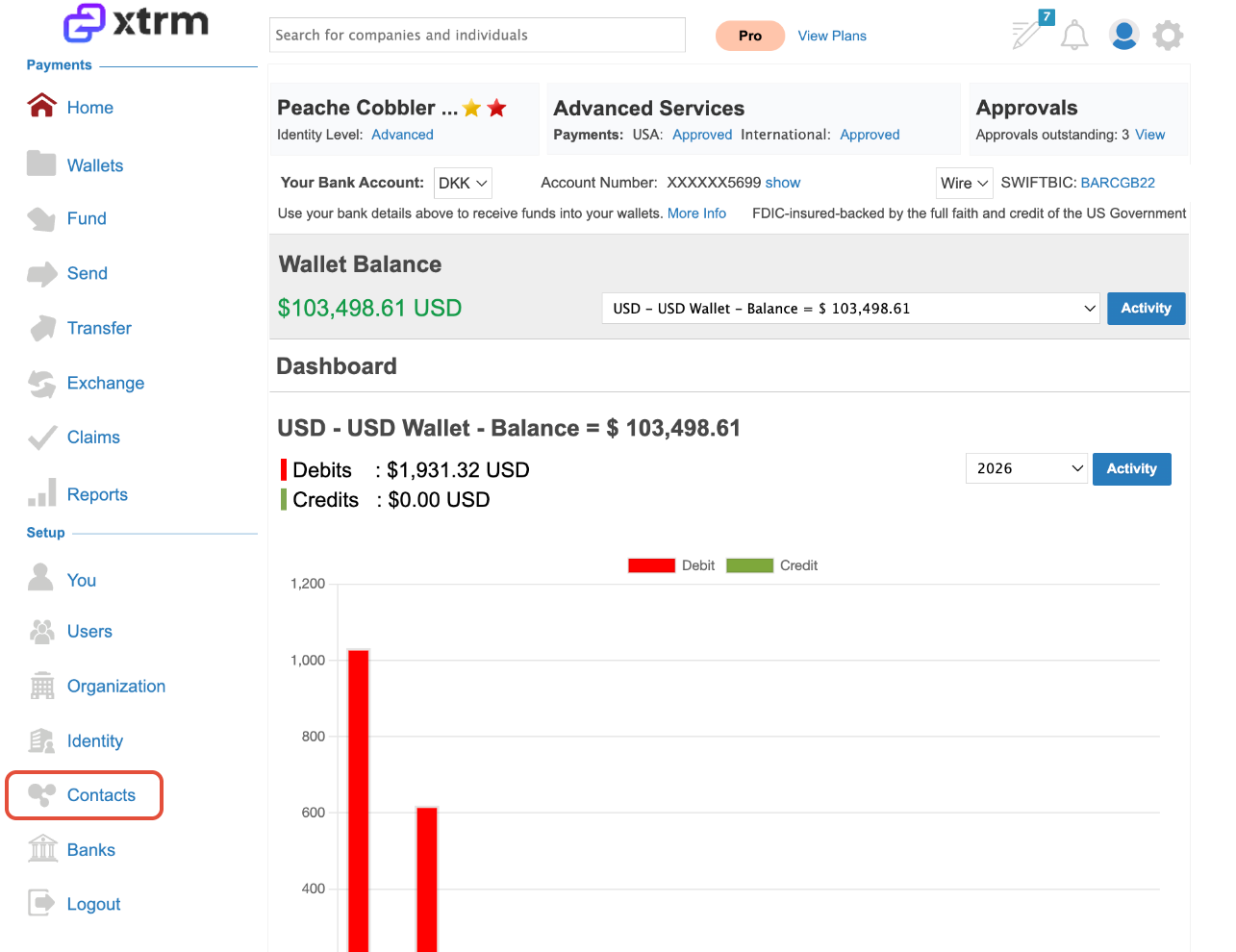
Search or Add Company
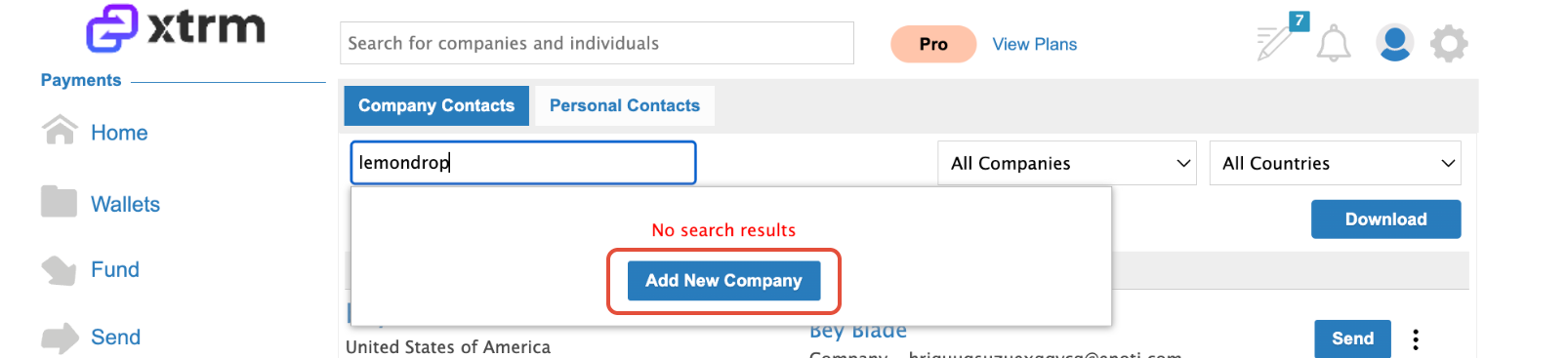
Search for the company name you wish to send a payment to
If the company does not exist, click Add New Company
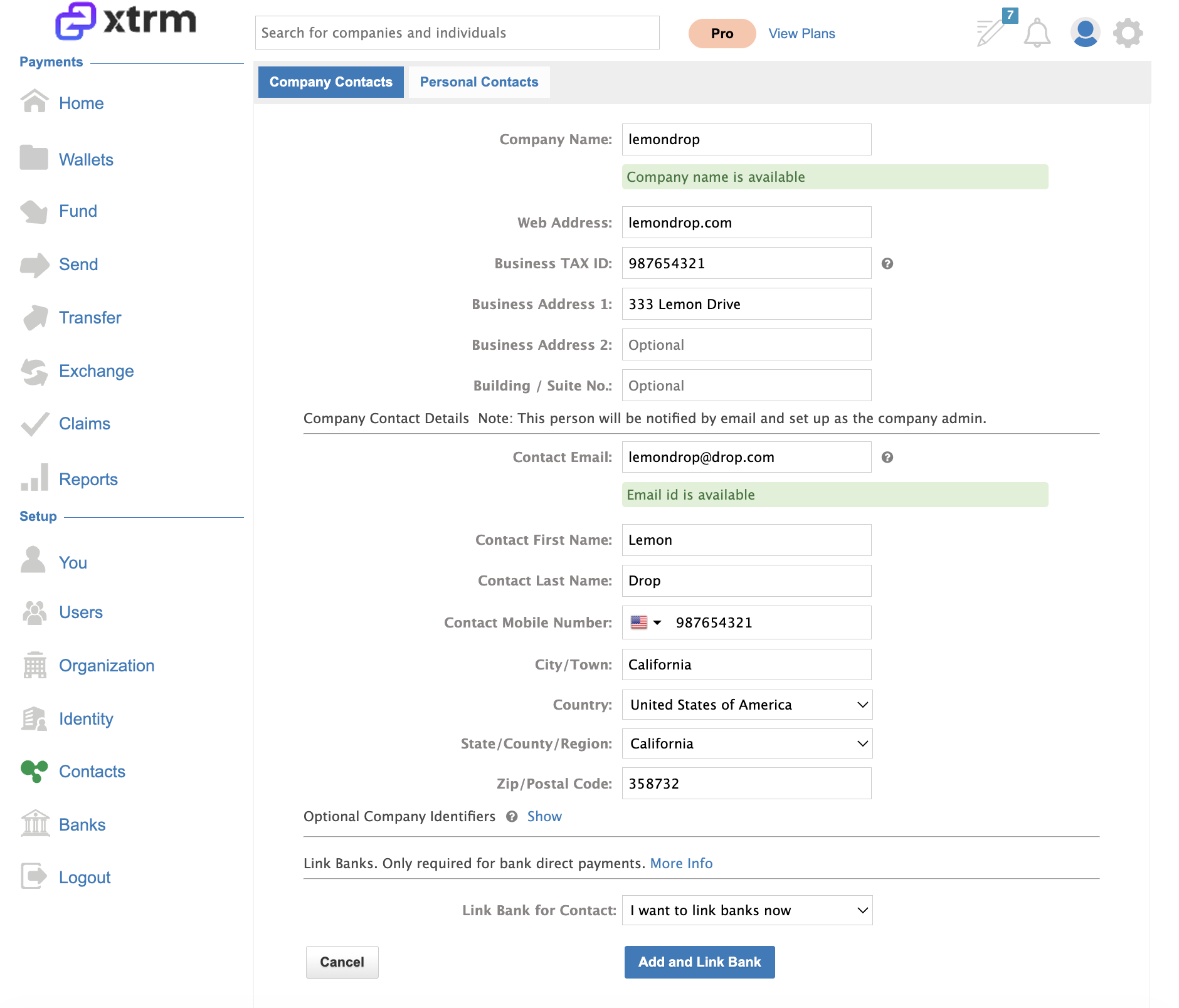
Enter Company Details & Link Bank
Complete the required company information
Select “I want to link banks now”
Click Add and Link Bank
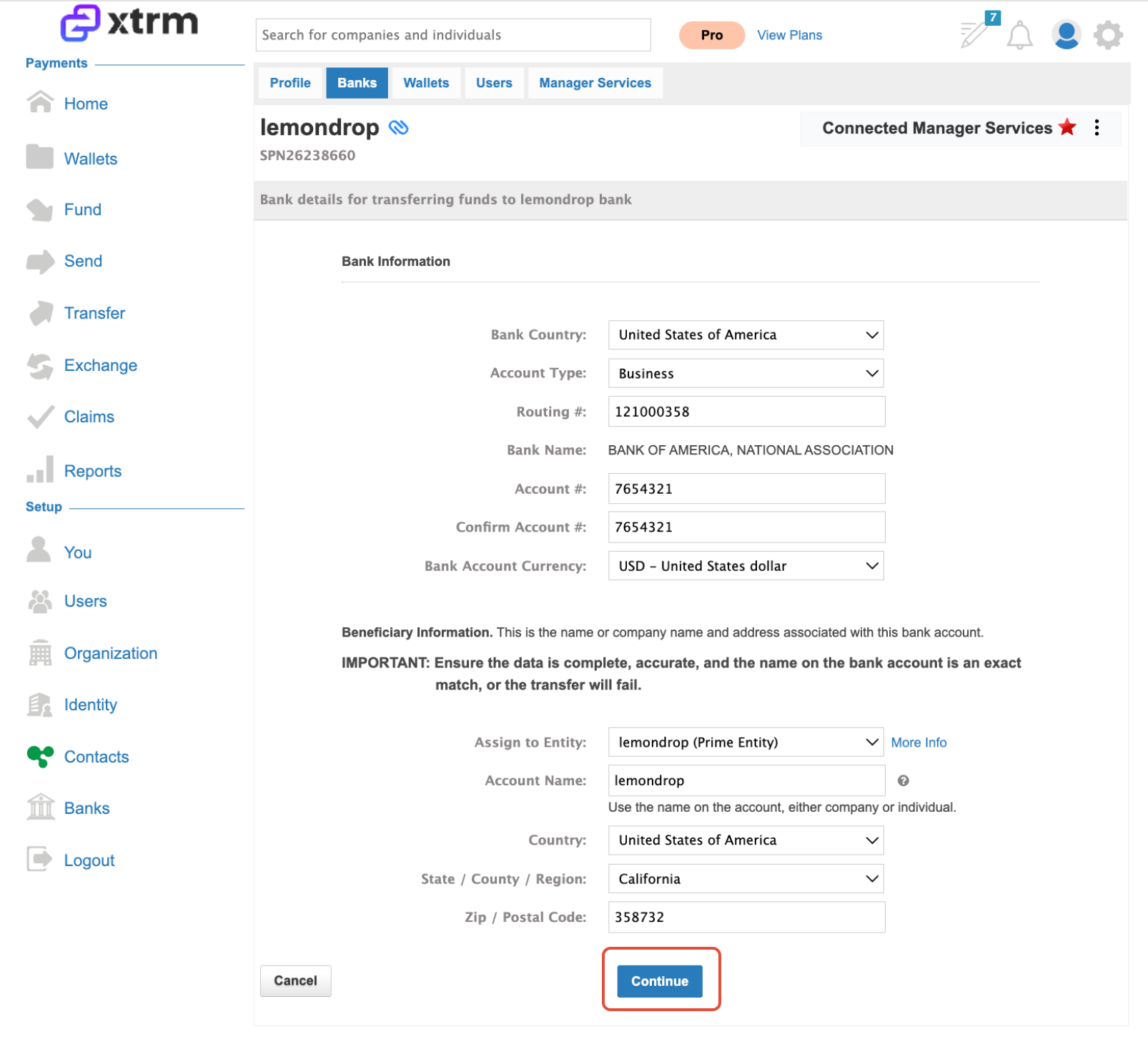
Add Bank Details
Enter the beneficiary partner’s bank account details
Ensure all banking information and currency selection are accurate
Click Continue
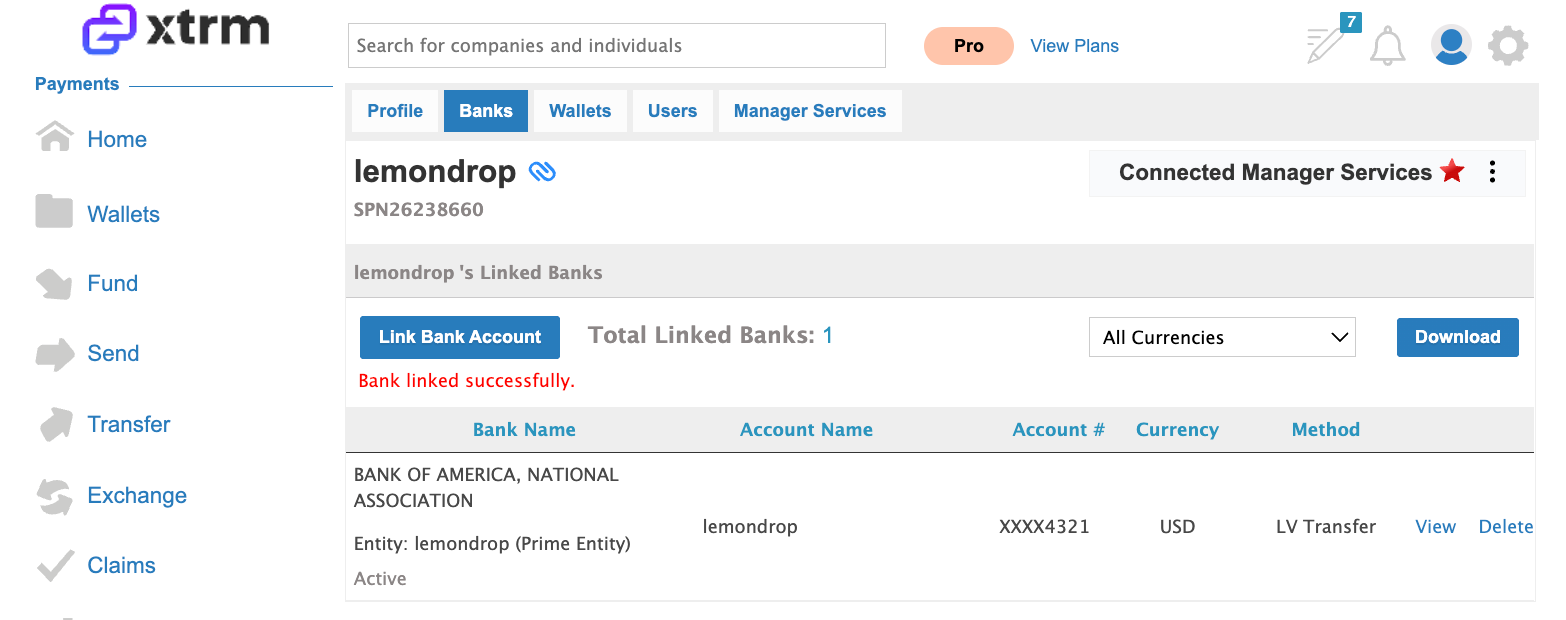
Confirm Bank Link
The bank account will now appear under the beneficiary partner’s profile
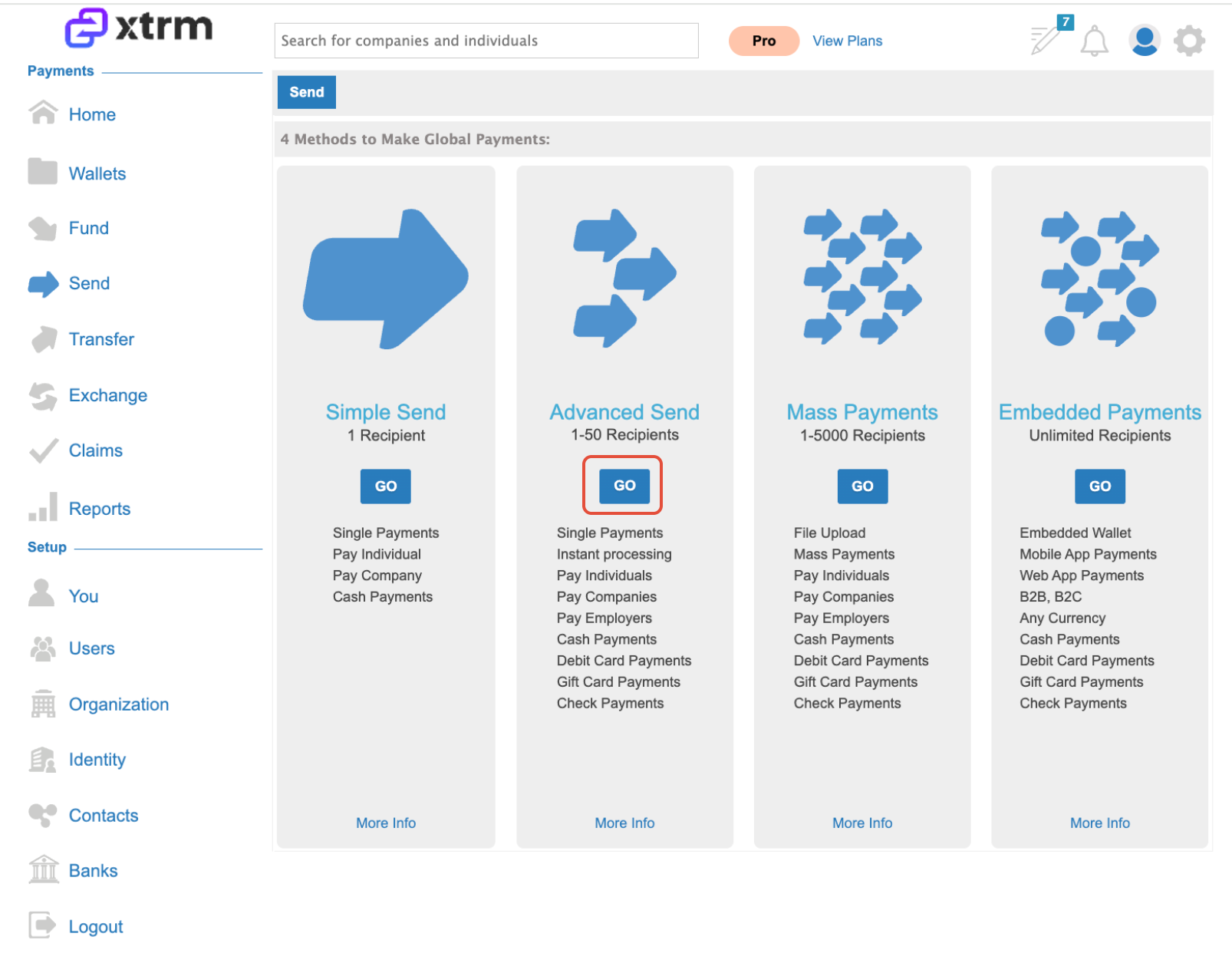
Initiate Payment (Advanced Send)
Go to Send
Select Advanced Send
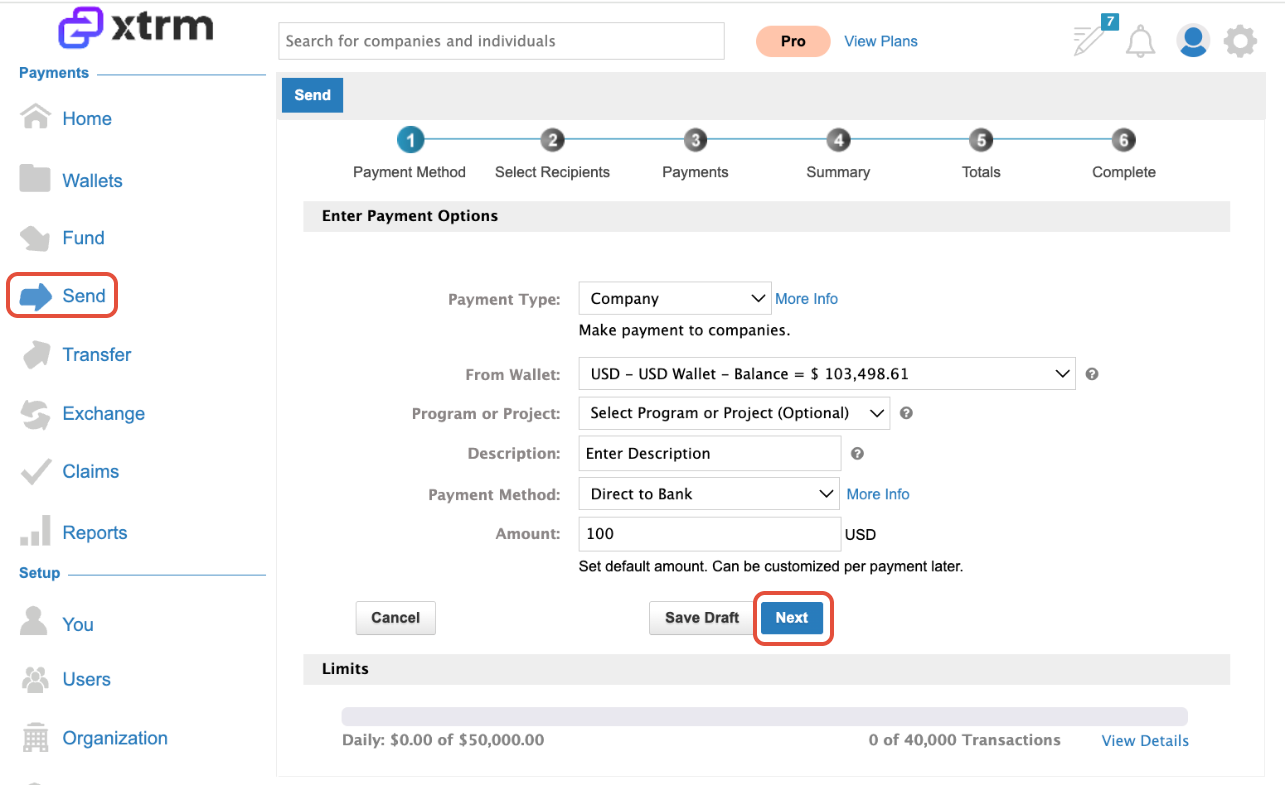
Select Payment Method
Complete payment setup
Ensure Direct to Bank is selected as the payment method
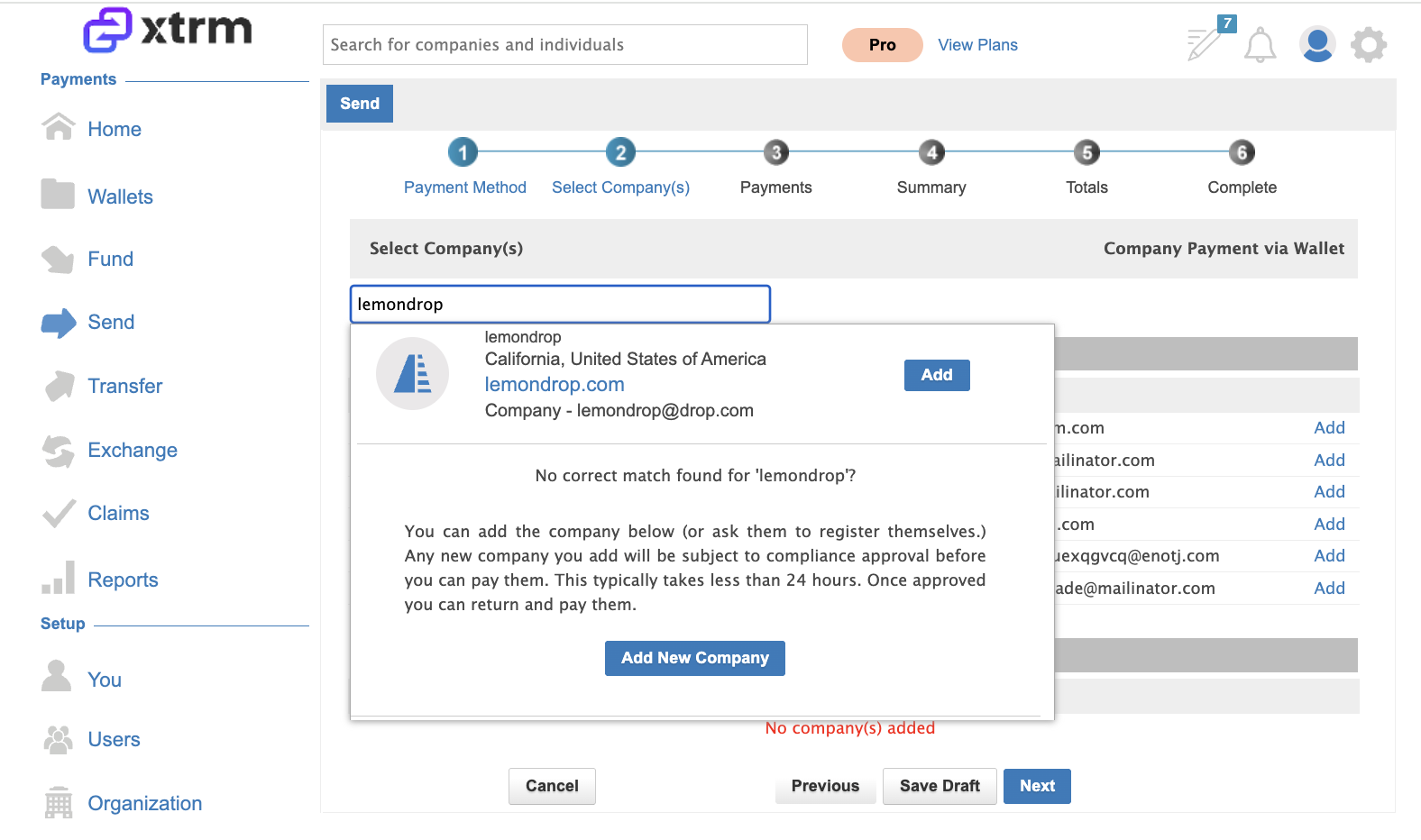
Add Company to Transfer
Search for and select the company contact
Click Add
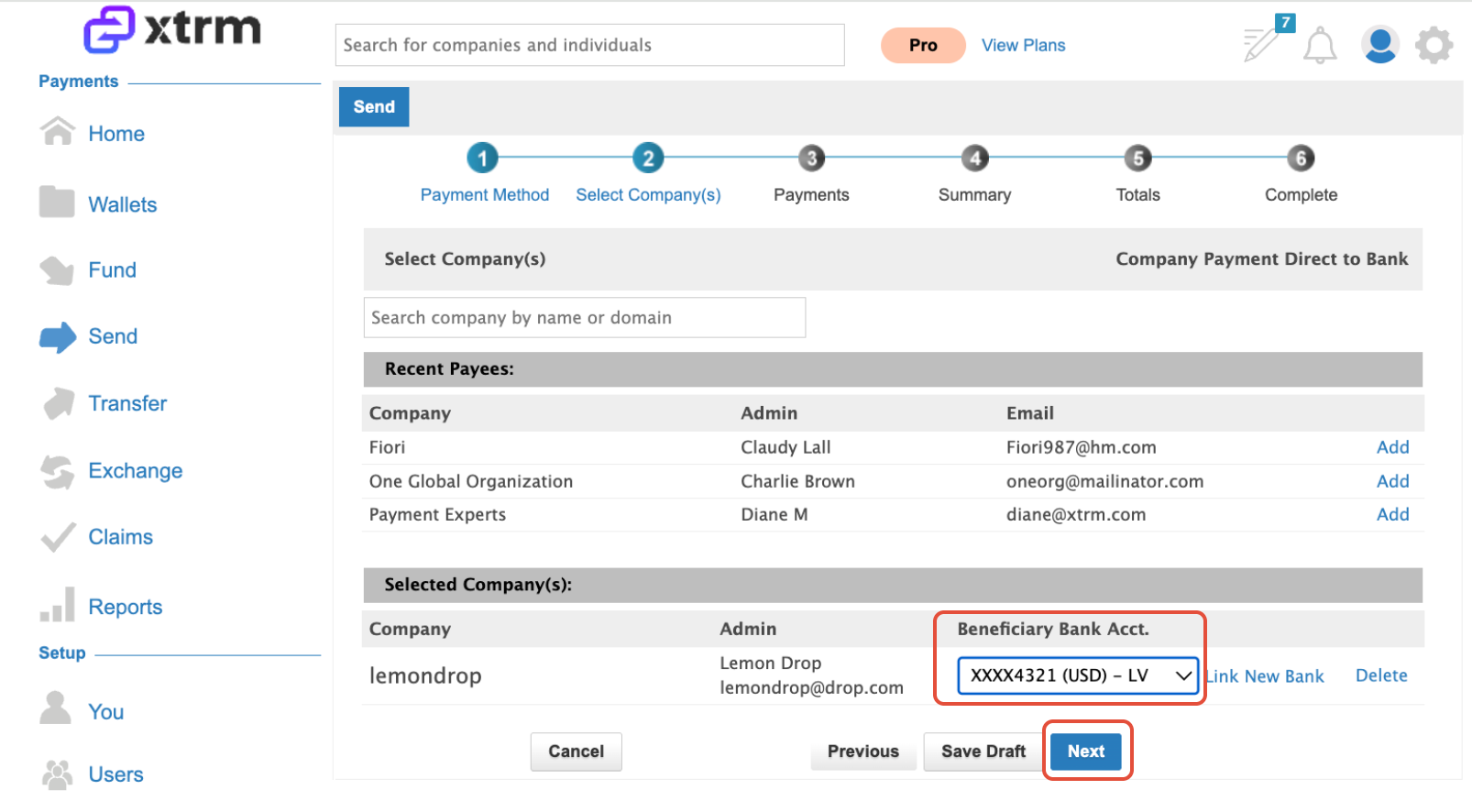
Select Bank Account
The company will appear in the selected list
Choose the linked bank account from the dropdown
Click Next
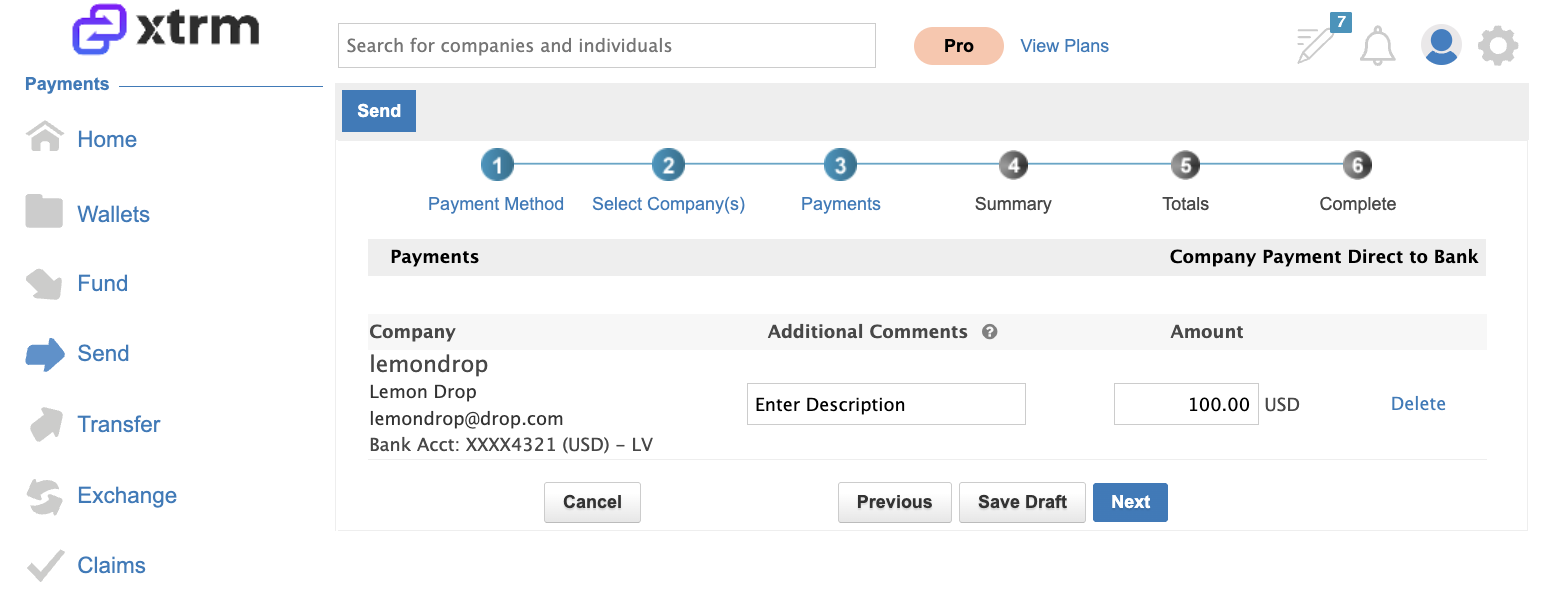
Review Transfer Details
Review payment information
Click Next
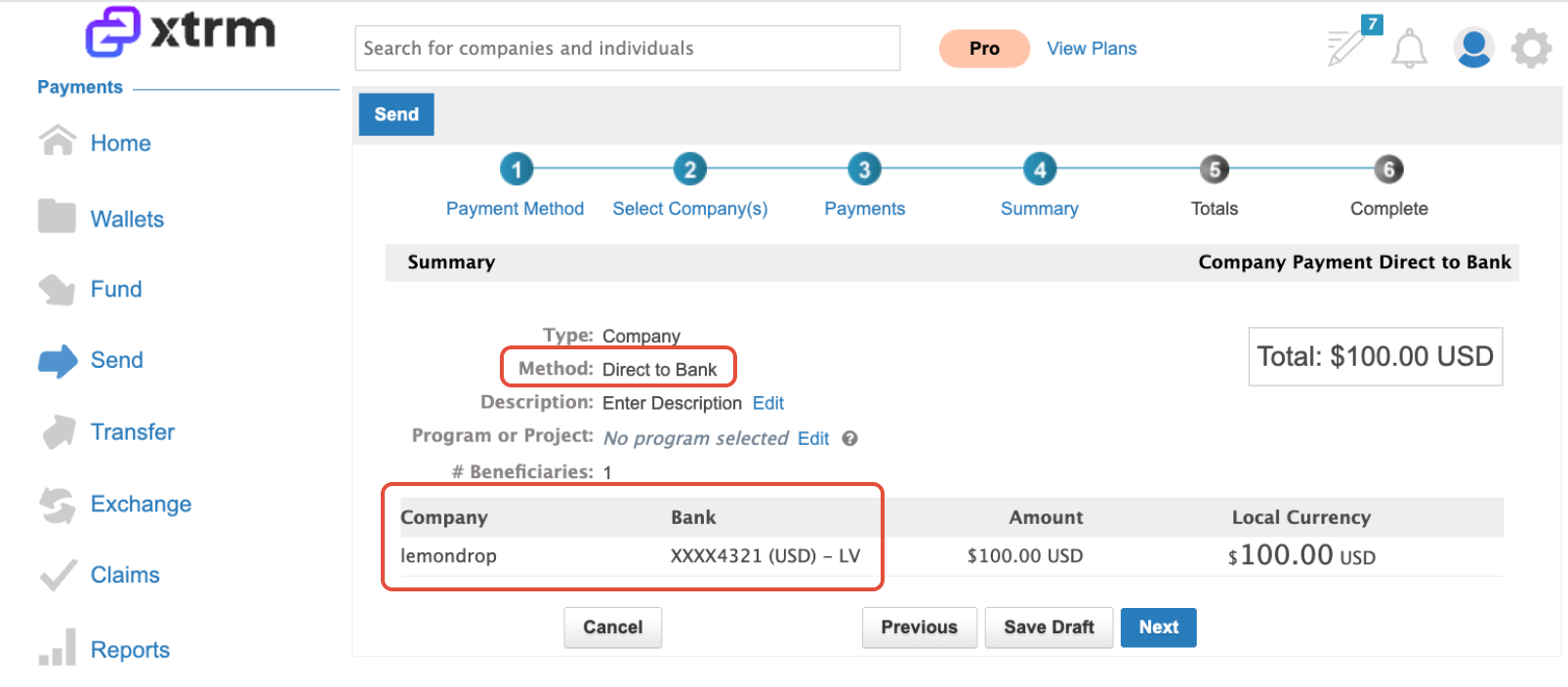
Confirm Review
Review again for accuracy
Click Next
Final Review: Click Next
Send Payment
Click Send Now
This will initiate the transfer directly from the Xtrm wallet to the beneficiary’s linked bank account
The beneficiary will receive their funds directly into their linked bank account without accessing Xtrm.